
Azure Stack TP3 Overview Preview Review Part II

server storage I/O trends

Azure Stack TP3 Overview Preview (Part II) Install Review

This is part two of a two-part series looking at Microsoft Azure Stack with a focus on my experiences installing Microsoft Azure Stack Technical Preview 3 (TP3) including into a nested VMware vSphere ESXi environment. Read part one here that provides a general overview of Azure Stack.

Azure Stack Review and Install

Being familiar with Microsoft Azure public cloud having used it for a few years now, I wanted to gain some closer insight, experience, expand my trade craft on Azure Stack by installing TP3. This is similar to what I have done in the past with OpenStack, Hadoop, Ceph, VMware, Hyper-V and many others, some of which I need to get around to writing about sometime. As a refresher from part one of this series, the following is an image via Microsoft showing the Azure Stack TP3 architecture, click here or on the image to learn more including the names and functions of the various virtual machines (VMs) that make up Azure Stack.
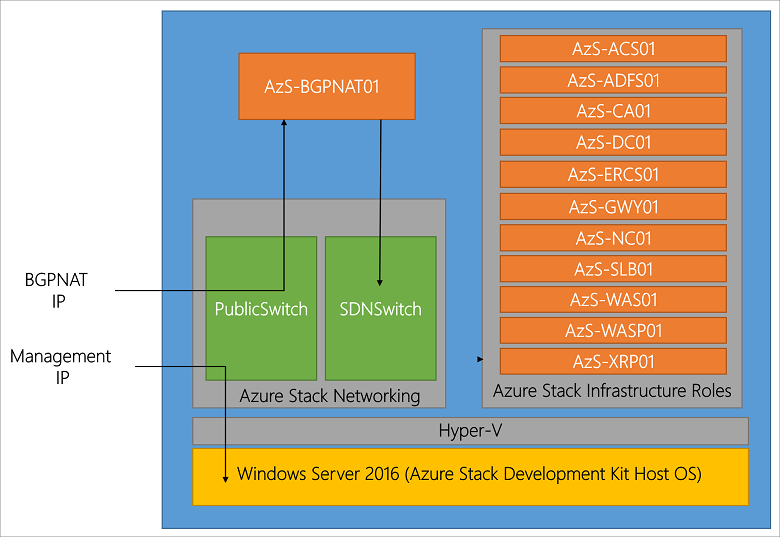
Microsoft Azure Stack architecture
Click here or on the above image to view list of VMs and other services (Image via Microsoft.com)

Whats Involved Installing Azure Stack TP3?

The basic steps are as follows:

  • Read this Azure Stack blog post (Azure Stack)
  • Download the bits (e.g. the Azure Stack software) from here, where you access the Azure Stack Downloader tool.
  • Planning your deployment making decisions on Active Directory and other items.
  • Prepare the target server (physical machine aka PM, or virtual machine VM) that will be the Azure Stack destination.
  • Copy Azure Stack software and installer to target server and run pre-install scripts.
  • Modify PowerShell script file if using a VM instead of a PM
  • Run the Azure Stack CloudBuilder setup, configure unattend.xml if needed or answer prompts.
  • Server reboots, select Azure Stack from two boot options.
  • Prepare your Azure Stack base system (time, network NICs in static or DHCP, if running on VMware install VMtools)
  • Determine if you will be running with Azure Active Directory (AAD) or standalone Active Directory Federated Services (ADFS).
  • Update any applicable installation scripts (see notes that follow)
  • Deploy the script, then extended Azure Stack TP3 PoC as needed

Note that this is a large download of about 16GB (23GB with optional WIndows Server 2016 demo ISO).

Use the AzureStackDownloader tool to download the bits (about 16GB or 23GB with optional Windows Server 2016 base image) which will either be in several separate files which you stitch back together with the MicrosoftAzureStackPOC tool, or as a large VHDX file and smaller 6.8GB ISO (Windows Server 2016). Prepare your target server system for installation once you have all the software pieces downloaded (or do the preparations while waiting for download).

Once you have the software downloaded, if it is a series of eight .bin files (7 about 2GB, 1 around 1.5GB), good idea to verify their checksums, then stitch them together on your target system, or on a staging storage device or file share. Note that for the actual deployment first phase, the large resulting cloudbuilder.vhdx file will need to reside in the C:\ root location of the server where you are installing Azure Stack.

server storageio nested azure stack tp3 vmware

Azure Stack deployment prerequisites (Microsoft) include:

  • At least 12 cores (or more), dual socket processor if possible
  • As much DRAM as possible (I used 100GB)
  • Put the operating system disk on flash SSD (SAS, SATA, NVMe) if possible, allocate at least 200GB (more is better)
  • Four x 140GB or larger (I went with 250GB) drives (HDD or SSD) for data deployment drives
  • A single NIC or adapter (I put mine into static instead of DHCP mode)
  • Verify your physical or virtual server BIOS has VT enabled

The above image helps to set the story of what is being done. On the left is for bare metal (BM) or physical machine (PM) install of Azure Stack TP3, on the right, a nested VMware (vSphere ESXi 6.5) with virtual machine (VM) 11 approach. Note that you could also do a Hyper-V nested among other approaches. Shown in the image above common to both a BM or VM is a staging area (could be space on your system drive) where Azure Stack download occurs. If you use a separate staging area, then simply copy the individual .bin files and stitch together into the larger .VHDX, or, copy the larger .VHDX, which is better is up to your preferences.

Note that if you use the nested approach, there are a couple of configuration (PowerShell) scripts that need to be updated. These changes are to trick the installer into thinking that it is on a PM when it checks to see if on physical or virtual environments.

Also note that if using nested, make sure you have your VMware vSphere ESXi host along with specific VM properly configured (e.g. that virtualization and other features are presented to the VM). With vSphere ESXi 6.5 virtual machine type 11 nesting is night and day easier vs. earlier generations.

Something else to explain here is that you will initially start the Azure Stack install preparation using a standard Windows Server (I used a 2016 version) where the .VHDX is copied into its C:\ root. From there you will execute some PowerShell scripts to setup some configuration files, one of which needs to be modified for nesting.

Once those prep steps are done, there is a Cloudbuilder deploy script that gets run that can be done with an unattend.xml file or manual input. This step will cause a dual-boot option to be added to your server where you can select Azure Stack or your base prep Windows Server instance, followed by reboot.

After the reboot occurs and you choose to boot into Azure Stack, this is the server instance that will actually run the deployment script, as well as build and launch all the VMs for the Azure Stack TP3 PoC. This is where I recommend having a rough sketch like above to annotate layers as you go to remember what layer working at. Don’t worry, it becomes much easier once all is said and done.

Speaking of preparing your server, refer to Microsoft specs, however in general give the server as much RAM and cores as possible. Also if possible place the system disk on a flash SSD (SAS, SATA, NVMe) and make sure that it has at least 200GB, however 250 or even 300GB is better (just in case you need more space).

Additional configuration tips include allocating four data disks for Azure, if possible make these SSDs as well as, however more important IMHO to have at least the system on fast flash SSD. Another tip is to enable only one network card or NIC and put it into static vs. DHCP address mode to make things easier later.

Tip: If running nested, vSphere 6.5 worked the smoothest as had various issues or inconsistencies with earlier VMware versions, even with VMs that ran nested just fine.

Tip: Why run nested? Simple, I wanted to be able to use using VMware tools, do snapshots to go back in time, plus share the server with some other activities until ready to give Azure Stack TP3 its own PM.

Tip: Do not connect the POC machine to the following subnets (192.168.200.0/24, 192.168.100.0/27, 192.168.101.0/26, 192.168.102.0/24, 192.168.103.0/25, 192.168.104.0/25) as Azure Stack TP3 uses those.

storageio azure stack tp3 vmware configuration

Since I decided to use a nested VM deploying using VMware, there were a few extra steps needed that I have included as tips and notes. Following is view via vSphere client of the ESXi host and VM configuration.

The following image combines a couple of different things including:

A: Showing the contents of C:\Azurestack_Supportfiles directory

B: Modifying the PrepareBootFromVHD.ps1 file if deploying on virtual machine (See tips and notes)

C: Showing contents of staging area including individual .bin files along with large CloudBuilder.vhdx

D: Running the PowerShell script commands to prepare the PrepareBootFromVHD.ps1 and related items

prepariing azure stack tp3 cloudbuilder for nested vmware deployment

From PowerShell (administrator):

# Variables
$Uri = 'https://raw.githubusercontent.com/Azure/Azure stack/master/Deployment/'
$LocalPath = 'c:\AzureStack_SupportFiles'

# Create folder
New-Item $LocalPath -type directory

# Download files
( 'BootMenuNoKVM.ps1', 'PrepareBootFromVHD.ps1', 'Unattend.xml', 'unattend_NoKVM.xml') | foreach { Invoke-WebRequest ($uri + $_) -OutFile ($LocalPath + '\' + $_) }

After you do the above, decide if you will be using an Unattend.xml or manual entry of items for building the Azure Stack deployment server (e.g. a Windows Server). Note that the above PowerShell script created the C:\azurestack_supportfiles folder and downloads the script files for building the cloud image using the previously downloaded Azure Stack CloudBuilder.vhdx (which should be in C:\).

Note and tip is that if you are doing a VMware or virtual machine based deployment of TP3 PoC, you will need to change C:\PrepareBootFromVHD.ps1 in the Azure Stack support files folder. Here is a good resource on what gets changed via Github that shows an edit on or about line 87 of PrepareBootFromVHD.ps1. If you run the PrepareBootFromVHD.ps1 script on a virtual machine you will get an error message, the fix is relatively easy (after I found this post).

Look in PrepareBootFromVHD.ps1 for something like the following around line 87:

if ((get-disk | where {$_.isboot -eq $true}).Model -match 'Virtual Disk')       {      Write-Host "The server is currently already booted from a virtual hard disk, to boot the server from the CloudBuilder.vhdx you will need to run this script on an Operating System that is installed on the physical disk of this server."      Exit      }

You can either remove the "exit" command, or, change the test for "Virtual Disk" to something like "X", for fun I did both (and it worked).

Note that you only have to make the above and another change in a later step if you are deploying Azure Stack TP3 as a virtual machine.

Once you are ready, go ahead and launch the PrepareBootFromVHD.ps1 script which will set the BCDBoot entry (more info here).

azure stack tp3 cloudbuilder nested vmware deployment

You will see a reboot and install, this is installing what will be called the physical instance. Note that this is really being installed on the VM system drive as a secondary boot option (e.g. azure stack).

azure stack tp3 dual boot option

After the reboot, login to the new Azure Stack base system and complete any configuration including adding VMware Tools if using VMware nested. Some other things to do include make sure you have your single network adapter set to static (makes things easier), and any other updates or customizations. Before you run the next steps, you need to decide if going to use Azure Active Directory (AAD) or local ADFS.

Note that if you are not running on a virtual machine, simply open a PowerShell (administrator) session, and run the deploy script. Refer to here for more guidance on the various options available including discussion on using AAD or ADFS.

Note if you run the deployment script on a virtual machine, you will get an error which is addressed in the next section, otherwise, sit back and watch the progress..

CloudBuilder Deployment Time

Once you have your Azure Stack deployment system and environment ready, including a snapshot if on virtual machine, launch the PowerShell deployment script. Note that you will need to have decided if deploying with Azure Active Directory (AAD) or Azure Directory Federated Services (ADFS) for standalone aka submarine mode. There are also other options you can select as part of the deployment discussed in the Azure Stack tips here (a must read) and here. I chose to do a submarine mode (e.g. not connected to Public Azure and AAD) deployment.

From PowerShell (administrator):

cd C:\CloudDeployment:\Setup
$adminpass = ConvertTo-SecureString "youradminpass" -AsPlainText -Force
.\InstallAzureStackPOC.ps1 -AdminPassword $adminpass -UseADFS

Deploying on VMware Virtual Machines Tips

Here is a good tip via Gareth Jones (@garethjones294) that I found useful for updating one of the deployment script files (BareMetal_Tests.ps1 located in C:\CloudDeployment\Roles\PhysicalMachines\Tests folder) so that it would skip the bare metal (PM) vs. VM tests. Another good resource, even though it is for TP2 and early versions of VMware is TP2 deployment experiences by Niklas Akerlund (@vNiklas).

Note that this is a bit of a chick and egg scenario unless you are proficient at digging into script files since the BareMetal_Tests.ps1 file does not get unpacked until you run the CloudBuilder deployment script. If you run the script and get an error, then make the changes below, and rerun the script as noted. Once you make the modification to the BareMetal_Tests.ps1 file, keep a copy in a safe place for future use.

Here are some more tips for deploying Azure Stack on VMware,

Per the tip mentioned about via Gareth Jones (tip: read Gareths post vs. simply cut and paste the following which is more of a guide):

Open BareMetal_Tests.ps1 file in PowerShell ISE and navigate to line 376 (or in that area)
Change $false to $true which will stop the script failing when checking to see if the Azure Stack is running inside a VM.
Next go to line 453.
Change the last part of the line to read “Should Not BeLessThan 0”
This will stop the script checking for the required amount of cores available.

After you make the above correction as with any error (and fix) during Azure Stack TP3 PoC deployment, simply run the following.

cd C:\CloudDeployment\Setup
.\InstallAzureStackPOC.ps1 -rerun

Refer to the extra links in the where to learn more section below that offer various tips, tricks and insight that I found useful, particular for deploying on VMware aka nested. Also in the links below are tips on general Azure Stack, TP2, TP3, adding services among other insight.

starting azure stack tp3 deployment

Tip: If you are deploying Azure Stack TP3 PoC on virtual machine, once you start the script above, copy the modified BareMetal_Tests.ps1 file

Once the CloudBuilder deployment starts, sit back and wait, if you are using SSDs, it will take a while, if using HDDs, it will take a long while (up to hours), however check in on it now and then to see progress of if any errors. Note that some of the common errors will occur very early in the deployment such as the BareMetal_Tests.ps1 mentioned above.

azure stack tp3 deployment finished

Checking in periodically to see how the deployment progress is progressing, as well as what is occurring. If you have the time, watch some of the scripts as you can see some interesting things such as the software defined data center (SDDC) aka software-defined data infrastructure (SDDC) aka Azure Stack virtual environment created. This includes virtual machine creation and population, creating the software defined storage using storage spaces direct (S2D), virtual network and active directory along with domain controllers among others activity.

azure stack tp3 deployment progress

After Azure Stack Deployment Completes

After you see the deployment completed, you can try accessing the management portal, however there may be some background processing still running. Here is a good tip post on connecting to Azure Stack from Microsoft using Remote Desktop (RDP) access. Use RDP from the Azure Stack deployment Windows Server and connect to a virtual machine named MAS-CON01, launch Server Manager and for Local Server disable Internet Explorer Enhanced Security (make sure you are on the right system, see the tip mentioned above). Disconnect from MAS-CON01 (refer to the Azure Stack architecture image above), then reconnect, and launch Internet Explorer with an URL of (note documentation side to use which did not work for me).

Note the username for the Azure Stack system is AzureStack\AzureStackAdmin with a password of what you set for administrative during setup. If you get an error, verify the URLs, check your network connectivity, wait a few minutes as well as verify what server you are trying to connect from and too. Keep in mind that even if deploying on a PM or BM (e.g. non virtual server or VM), the Azure Stack deployment TP3 PoC creates a "virtual" software-defined environment with servers, storage (Azure Stack uses Storage Spaces Direct [S2D] and software defined network.

accessing azure stack tp3 management portal dashboard

Once able to connect to Azure Stack, you can add new services including virtual machine image instances such as Windows (use the Server 2016 ISO that is part of Azure Stack downloads), Linux or others. You can also go to these Microsoft resources for some first learning scenarios, using the management portals, configuring PowerShell and troubleshooting.

Where to learn more

The following provide more information and insight about Azure, Azure Stack, Microsoft and Windows among related topics.

  • Azure Stack Technical Preview 3 (TP3) Overview Preview Review
  • Azure Stack TP3 Overview Preview Review Part II
  • Azure Stack Technical Preview (get the bits aka software download here)
  • Azure Stack deployment prerequisites (Microsoft)
  • Microsoft Azure Stack troubleshooting (Microsoft Docs)
  • Azure Stack TP3 refresh tips (Azure Stack)
  • Here is a good post with a tip about not applying certain Windows updates to AzureStack TP3 installs.
  • Configure Azure Stack TP3 to be available on your own network (Azure Stack)
  • Azure Stack TP3 Marketplace syndication (Azure Stack)
  • Azure Stack TP3 deployment experiences (Azure Stack)
  • Frequently asked questions for Azure Stack (Microsoft)
  • Azure Active Directory (AAD) and Active Directory Federation Services (ADFS)
  • Deploy Azure Stack (Microsoft)
  • Connect to Azure Stack (Microsoft)
  • Azure Stack TP2 deployment experiences by Niklas Akerlund (@vNiklas) useful for tips for TP3
  • Deployment Checker for Azure Stack Technical Preview (Microsoft Technet)
  • Azure stack and other tools (Github)
  • How to enable nested virtualization on Hyper-V Windows Server 2016
  • Dell EMC announce Microsoft Hybrid Cloud Azure Stack (Dell EMC)
  • Dell EMC Cloud for Microsoft Azure Stack (Dell EMC)
  • Dell EMC Cloud for Microsoft Azure Stack Data Sheet (Dell EMC PDF)
  • Dell EMC Cloud Chats (Dell EMC Blog)
  • Microsoft Azure stack forum
  • Dell EMC Microsoft Azure Stack solution
  • Gaining Server Storage I/O Insight into Microsoft Windows Server 2016
  • Overview Review of Microsoft ReFS (Reliable File System) and resource links
  • Via WServerNews.com Cloud (Microsoft Azure) storage considerations
  • Via CloudComputingAdmin.com Cloud Storage Decision Making: Using Microsoft Azure for cloud storage
  • www.thenvmeplace.com, www.thessdplace.com, www.objectstoragecenter.com and www.storageio.com/converge
  • What this all means

    A common question is if there is demand for private and hybrid cloud, in fact, some industry expert pundits have even said private, or hybrid are dead which is interesting, how can something be dead if it is just getting started. Likewise, it is early to tell if Azure Stack will gain traction with various organizations, some of whom may have tried or struggled with OpenStack among others.

    Given a large number of Microsoft Windows-based servers on VMware, OpenStack, Public cloud services as well as other platforms, along with continued growing popularity of Azure, having a solution such as Azure Stack provides an attractive option for many environments. That leads to the question of if Azure Stack is essentially a replacement for Windows Servers or Hyper-V and if only for Windows guest operating systems. At this point indeed, Windows would be an attractive and comfortable option, however, given a large number of Linux-based guests running on Hyper-V as well as Azure Public, those are also primary candidates as are containers and other services.
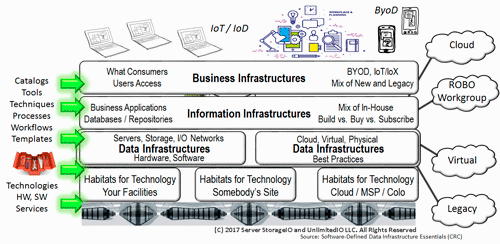
    software defined data infrastructures SDDI and SDDC

    Some will say that if OpenStack is struggling in many organizations and being free open source, how Microsoft can have success with Azure Stack. The answer could be that some organizations have struggled with OpenStack while others have not due to lack of commercial services and turnkey support. Having installed both OpenStack and Azure Stack (as well as VMware among others), Azure Stack is at least the TP3 PoC is easy to install, granted it is limited to one node, unlike the production versions. Likewise, there are easy to use appliance versions of OpenStack that are limited in scale, as well as more involved installs that unlock full functionality.

    OpenStack, Azure Stack, VMware and others have their places, alongside, or supporting containers along with other tools. In some cases, those technologies may exist in the same environment supporting different workloads, as well as accessing various public clouds, after all, Hybrid is the home run for many if not most legality IT environments.

    Ok, nuff said (for now…).

    Cheers
    Gs

    Greg Schulz – Microsoft MVP Cloud and Data Center Management, VMware vExpert (and vSAN). Author Cloud and Virtual Data Storage Networking (CRC Press), The Green and Virtual Data Center (CRC Press), Resilient Storage Networks (Elsevier) and twitter @storageio. Watch for the spring 2017 release of his new book "Software-Defined Data Infrastructure Essentials" (CRC Press).

    Courteous comments are welcome for consideration. First published on https://storageioblog.com any reproduction in whole, in part, with changes to content, without source attribution under title or without permission is forbidden.

    All Comments, (C) and (TM) belong to their owners/posters, Other content (C) Copyright 2006-2023 Server StorageIO(R) and UnlimitedIO. All Rights Reserved.

    Some popular 2016 storageioblog posts

    Some popular 2016 storageioblog posts

    server storage I/O trends

    Big Files and Lots of Little File Processing and Benchmarking with Vdbench – Need to test, validate, compare, contrast or simply apply workload to file systems, NAS or other file-based access? Want the flexibility and simplicity to software define your benchmark workload to meet various needs? For example, millions of small files or thousands of large 5GB, 10GB, 15GB (or larger) files with various read, write size and access patterns spanning a single directory, or many with various depths? Do you want the flexibility for different platforms including Windows, *NIX, bare metal, container, virtual or cloud without a bulk tool using simple scripts that produce lots of insightful results? Then you will want to check this post out.

    Breaking the VMware ESXi 5.5 ACPI boot loop on Lenovo TD350 – Ever have a VMware host server go into a boot loop and purple screen of death (PSD) then displaying a message about ACPI or similar? After spending time searching and applying many filters to sift through the noise of false positive matches, finally found the simple fix (e.g. a BIOS setting) to break the VMware ESXi vSphere boot loop, or at least on a Lenovo server.

    Cloud and Object Storage

    Cloud conversations: AWS EBS, Glacier and S3 overview (Part I) – This is one of the perennial favorites that while new features have been added with others extended, the post series still provides a good overview, primer or refresher of various Amazon Web Services (AWS) services including how they work. Interesting in learning more about Microsoft and Azure, then check out this, this, this and this.

    Cloud Conversations: AWS EFS Elastic File System (Cloud NAS) – This is a companion to the above AWS as well as other cloud post series that looks at AWS Elastic File System. Note that other cloud service providers have also added NAS file access support, some are intra (e.g. inside AWS cloud), others are inter-cloud (e.g. inside and outside cloud) such as Azure (can work with external Windows Servers using SMB3). Even OpenStack has added NAS file with Manila folders and Ceph with CephFS among others. So when some people tell you that NAS and file access are dead particular for cloud, remind them of the increasing number of services and software stacks that are adding new services to allow their solution to be compatible with existing environments or applications.

    Server Storage I/O performance

    Collecting Transaction Per Minute from SQL Server and HammerDB – If you have used the free tool HammerDB (e.g. Hammora) for driving database workloads, simulations or benchmarks you should recall that the resulting statistics are rather lacking. Sure there is a nice GUI chart that shows current executing transactions per second (TPS) along with some very simple counters in the log. However compared to some other tools such as sysbench, Quest Benchmark Factory and YCSB among others, the Hammer metrics are rather lacking. In this post I show how you can collect some more metrics from SQL Server if you have to use HammerDB. View more server storage I/O performance benchmark and monitoring tools resources here.

    Windows Server 2016

    Gaining Server Storage I/O Insight into Microsoft Windows Server 2016 – Microsoft released into general availability Windows Server 2016 and this post looks at some of the new features along with functionality including Storage Spaces Direct (S2D), Storage Replica (SR) as well as other enhancements. With these new and enhanced features Windows Servers increase their interoperability with Azure, as well as supporting aggregated hyper-converged infrastructure (HCI), disaggregated converged (CI) as well as traditional workloads along with Hyper-V (and containers). One of the other new enhancements in Windows Server 2016 which now uses ReFS (Reliable File System) as its default file system that you can read more about here. RIP Windows SIS (Single Instance Storage), or at least in Server 2016 With Windows Server 2016 Microsoft removed single instance storage replacing with new capabilities that you can read more about in the this post.

    Garbage data in garbage data out

    Garbage data in, garbage information out, big data or big garbage? There is a classic IT expression of garbage data in results in garbage data (or information out) in that your algorithms and data structures (which equals programs e.g. Niklaus Wirth) are only as good as the data they work on. What this means then is that if there is a large amount of big data then there can also be a big garbage in and garbage out problem unless addressed.

    Hard product vs. soft product – Hard product refers to something such as hardware, software or a service resource that is obtained and then joined with other resources in a particular way to create a soft product. Not to be confused with software, the soft product is the result or how resources get defined that give some ability or benefit. Think of a soft product as for how airlines can use the same airplane, serve the same coca cola, have same seats, yet their soft product is the service experience of how those are delivered, as well as how you find and buy or use them. Another way of thinking about it is hard products are the ingredients for a recipe, the recipe defines how those ingredients result in some food dish.

    how many IOPs can an HDD or SSD do

    Part II: How many IOPS can a HDD, HHDD or SSD do with VMware? – This is part of a multi-post series looking at how many IOPs (or bandwidth) various HDD and SSDs can do handling different workloads. Of course, your results will vary with configuration settings, tools among other considerations. However, some of the older rules of thumb (RUT) about RPM and other considerations for HDDs have changed and continue to do so. As an example of how HDDs continue to evolve check out this popular post from the 2016 list Which Enterprise HDDs to use for a Content Server Platform.

    Part II: What I did with Lenovo TS140 in my Server and Storage I/O Review – This is a popular post series of some things I have done with a Lenovo TS140 including defining with various software as well as hardware. This is a great price performer value system that several years ago after testing one Lenovo sent me, I returned that to Lenovo and bought several of them to join my other systems.

    Server and Storage I/O Benchmarking and Performance Resources – This is a collection of various server, storage I/O and networking hardware, software as well as services tools, techniques as well as tips for benchmarking, comparing, simulation, testing, gaining insight across cloud, virtual, container and legacy resources. Server and Storage I/O Benchmark Tools: Microsoft Diskspd (Part I) – This is one of the tools found on the server, storage I/O benchmarking and performance resources page. Diskspd is a tool developed by Microsoft as an alternative to using Iometer, vdbench, fio.exe, SQLIO among many others, plus, it is on github.

    server storage I/O nvme and ssd

    The NVM (Non Volatile Memory) and NVMe Place – Interesting and adoption in nand flash, nvram, 3D XPoint among other SSD and Non-volatile Memory (NVM) continues. Another popular post that you can find at thenvmeplace.com is this NVMe overview and primer – Part I. There is a growing interest, awareness and deployment adoption around NVM Express (NVMe) the new protocol for accessing NVMs and SSDs. Some of the common conversations and questions I encounter is confusion between NVM and NVMe, too which the answer is one (the former) are the media or devices, the other is the access method alternative to using AHCI/SATA or SCSI (e.g. SAS, iSCSI, FCP, SRP) among others.

    VMware VVOLs and storage I/O fundamentals (Part 1) – VMware Virtual Volumes (VVOL) continue to gain adoption and this post is part of an overview and primer. If you want to go deeper into VVOL as well as see some adoption insights check out Eric Sieberts post here over at vsphere-land.com

    Welcome to the Object Storage Center page – This is a micro site that has a primer and overview of cloud as well as object storage along with an expanding list of links to various resources, tips, technologies, tools, trends and industry activity.

    Where To Learn More

    www.storageio.com particular if you have not been there for awhile to check out the new streamlined look and navigation to various content including Server StorageIO update newsletters (free subscription) among other resources.

    Additional learning experiences along with common questions (and answers), as well as tips can be found in Software Defined Data Infrastructure Essentials book.

    Software Defined Data Infrastructure Essentials Book SDDC

    What this all means and wrapping up

    Some of the popular posts for 2016 are perennial favorites and based on experience will probably appear on the 2017 list. However there are also several new posts that appeared in 2016 that I suspect will also appear on the 2017 version of the above list, along with new content from 2017.

    Thank you to all of you who frequent StorageIOblog.com as well as StorageIO.com along with our various micro sites including server storage I/O performance and benchmarking resources, thenvmeplace.com, thessdplace.com, cloud and objectstoragecenter.com, data protection diaries among others.

    Also thank you for viewing various partner venues and syndicates with extra ones appearing throughout 2017. Watch for more content in the coming weeks, months and throughout 2017 on software defined data infrastructures (SDDI) along with server, storage I/O, networking, hardware, software, cloud, container, data protection and related topics, trends, technologies, tools and tips.

    Again, thank you

    Ok, nuff said, for now.

    Gs

    Greg Schulz – Microsoft MVP Cloud and Data Center Management, VMware vExpert 2010-2017 (vSAN and vCloud). Author of Software Defined Data Infrastructure Essentials (CRC Press), as well as Cloud and Virtual Data Storage Networking (CRC Press), The Green and Virtual Data Center (CRC Press), Resilient Storage Networks (Elsevier) and twitter @storageio. Courteous comments are welcome for consideration. First published on https://storageioblog.com any reproduction in whole, in part, with changes to content, without source attribution under title or without permission is forbidden.

    All Comments, (C) and (TM) belong to their owners/posters, Other content (C) Copyright 2006-2026 Server StorageIO and UnlimitedIO. All Rights Reserved. StorageIO is a registered Trade Mark (TM) of Server StorageIO.

    If NVMe is the answer, what are the questions?

    If NVMe is the answer, what are the questions?

    If NVMe is the answer, then what are the various questions that should be asked?

    Some common questions that NVMe is the answer to include what is the difference between NVM and NVMe?

    Is NVMe only for servers, does NVMe require fabrics and what benefit is NVMe beyond more IOPs.

    Lets take a look at some of these common NVMe conversations and other questions.

    Main Features and Benefits of NVMe

    Some of the main feature and benefits of NVMe among others include:

      • Lower latency due to improve drivers and increased queues (and queue sizes)
      • Lower CPU used to handle larger number of I/Os (more CPU available for useful work)
      • Higher I/O activity rates (IOPS) to boost productivity unlock value of fast flash and NVM
      • Bandwidth improvements leveraging various fast PCIe interface and available lanes
      • Dual-pathing of devices like what is available with dual-path SAS devices
      • Unlock the value of more cores per processor socket and software threads (productivity)
      • Various packaging options, deployment scenarios and configuration options
      • Appears as a standard storage device on most operating systems
      • Plug-play with in-box drivers on many popular operating systems and hypervisors

    NVM and Media memory matters

    Whats the differences between NVM and NVMe? Non-Volatile Memory (NVM) which as its name implies is persistent electronic memory medium where data is stored. Today you commonly know about NVMs as NAND flash Solid State Devices (SSD), along with NVRAM among others emerging storage class memories (SCM).

    Emerging SCM such as 3D XPoint among other mediums (or media if you prefer) have the premises of boosting both read and write performance beyond traditional NAND flash, closer to DRAM, while having durability also closer to DRAM. For now let’s set the media and mediums aside and get back to how they or will be accessed as well as used.

    server storage I/O NVMe fundamentals

    Server and Storage I/O Media access matters

    NVM Express (e.g. NVMe) is a standard industry protocol for accessing NVM media (SSD and flash devices, storage system, appliances). If NVMe is the answer, then depending on your point of view, NVMe can be (or is) a replacement (today or in the future) for AHCI/SATA, Serial Attached SCSI (SAS). What this means is that NVMe can coexist or replace other block SCSI protocol implementations (e.g. Fibre Channel FCP aka FCP, iSCSI, SRP) as well as NBD (among others).

    Similar to the SCSI command set that is implemented on different networks (e.g. iSCSI (IP), FCP (Fibre Channel), SRP (InfiniBand), SAS) NVMe as a protocol is now implemented using PCIe with form factors of add-in cards (AiC), M.2 (e.g. gum sticks aka next-gen form factor or NGFF) as well as U.2 aka 8639 drive form factors. There are also the emerging NVMe over Fabrics variants including FC-NVMe (e.g. NVMe protocol over Fibre Channel) which is an alternative to SCSI_FCP (e.g. SCSI on Fibre Channel). An example of a PCIe AiC that I have include the Intel 750 400GB NVMe (among others). You should be able to find the Intel among other NVMe devices from your prefered vendor as well as different venues including Amazon.com.

    NVM, flash and NVMe SSD
    Left PCIe AiC x4 NVMe SSD, lower center M.2 NGFF, right SAS and SATA SSD

    The following image shows an NVMe U.2 (e.g. 8639) drive form factor device that from a distance looks like a SAS device and connector. However looking closer some extra pins or connectors that present a PCIe Gen 3 x4 (4 PCIe lanes) connection from the server or enclosure backplane to the devices. These U.2 devices plug into 8639 slots (right) that look like a SAS slot that can also accommodate SATA. Remember, SATA can plug into SAS, however not the other way around.

    NVMe U.2 8639 driveNVMe 8639 slot
    Left NVMe U.2 drive showing PCIe x4 connectors, right, NVMe U.2 8639 connector

    What NVMe U.2 means is that the 8639 slots can be used for 12Gbps SAS, 6Gbps SATA or x4 PCIe-based NVMe. Those devices in turn attach to their respective controllers (or adapters) and device driver software protocol stack. Several servers have U.2 or 8639 drive slots either in 2.5” or 1.8” form factors, sometimes these are also called or known as “blue” drives (or slots). The color coding simply helps to keep track of what slots can be used for different things.

    Navigating your various NVMe options

    If NVMe is the answer, then some device and component options are as follows.

    NVMe device components and options include:

      • Enclosures and connector port slots
      • Adapters and controllers
      • U.2, PCIe AIC and M.2 devices
      • Shared storage system or appliances
      • PCIe and NVMe switches

    If NVMe is the answer, what to use when, where and why?

    Why use an U.2 or 8639 slot when you could use PCIe AiC? Simple, your server or storage system may be PCIe slot constrained, yet have more available U.2 slots. There are U.2 drives from various vendors including Intel and Micro, as well as servers from Dell, Intel and Lenovo among many others.

    Why and when would you use an NVMe M.2 device? As a local read/write cache, or perhaps a boot and system device on servers or appliances that have M.2 slots. Many servers and smaller workstations including Intel NUC support M.2. Likewise, there are M.2 devices from many different vendors including Micron, Samsung among others.

    Where and why would you use NVMe PCIe AiC? Whenever you can and if you have enough PCIe slots of the proper form factor, mechanical and electrical (e.g. x1, x4, x8, x16) to support a particular card.

    Can you mix and match different types of NVMe devices on the same server or appliance? As long as the physical server and its software (BIOS/UEFI, operating system, hypervisors, drivers) support it yes. Most server and appliance vendors support PCIe NVMe AiCs, however, pay attention to if they are x4, x8 both mechanical as well as electrical. Also, verify operating system and hypervisor device driver support. PCIe NVMe AiCs are available from Dell, Intel, Micron and many other vendors.

    Networking with your Server and NVMe Storage

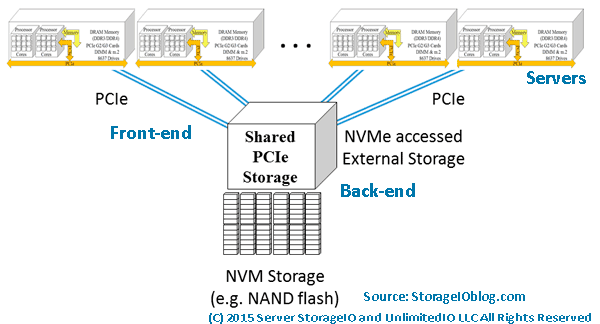
    Keep in mind that context is important when discussing NVMe as there are devices for attaching as the back-end to servers, storage systems or appliances, as well as for front-end attachment (e.g. for attaching storage systems to servers). NVMe devices can also be internal to a server or storage system and appliance, or, accessible over a network. Think of NVMe as an upper-level command set protocol like SCSI that gets implemented on different networks (e.g. iSCSI, FCP, SRP).

    How can NVMe use PCIe as a transport to use devices that are outside of a server? Different vendors have PCIe adapter cards that support longer distances (few meters) to attach to devices. For example, Dell EMC DSSD has a special dual port (two x4 ports) that are PCIe x8 cards for attachment to the DSSD shared SSD devices.

    Note that there are also PCIe switches similar to SAS and InfiniBand among other switches. However just because these are switches, does not mean they are your regular off the shelf network type switch that your networking folks will know what to do with (or want to manage).

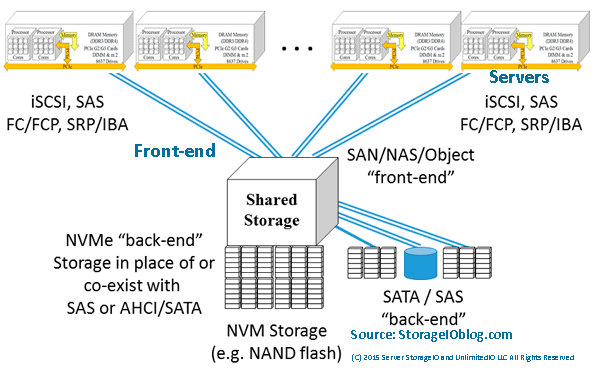
    The following example shows a shared storage system or appliance being accessed by servers using traditional block, NAS file or object protocols. In this example, the storage system or appliance has implemented NVMe devices (PCIe AiC, M.2, U.2) as part of their back-end storage. The back-end storage might be all NVMe, or a mix of NVMe, SAS or SATA SSD and perhaps some high-capacity HDD.

    NVMe and server storage access
    Servers accessing shared storage with NVMe back-end devices

    NVMe and server storage access via PCIe
    NVMe PCIe attached (via front-end) storage with various back-end devices

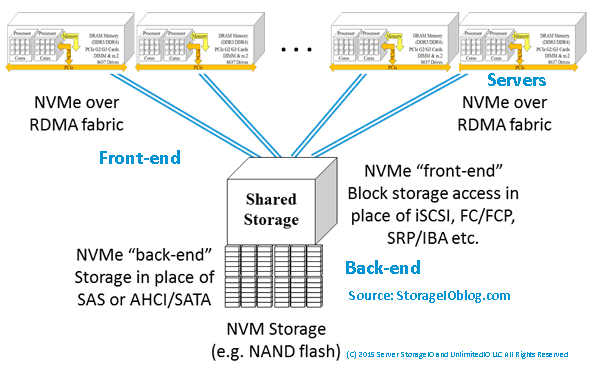
    In addition to shared PCIe-attached storage such as Dell EMC DSSD similar to what is shown above, there are also other NVMe options. For example, there are industry initiatives to support the NVMe protocol to use shared storage over fabric networks. There are different fabric networks, they range from RDMA over Converged Ethernet (RoCE) based as well as Fibre Channel NVME (e.g. FC-NVME) among others.

    An option that on the surface may not seem like a natural fit or leverage NVMe to its fullest is simply adding NVMe devices as back-end media to existing arrays and appliances. For example, adding NVMe devices as the back-end to iSCSI, SAS, FC, FCoE or other block-based, NAS file or object systems.

    NVMe and server storage access via shared PCIe
    NVMe over a fabric network (via front-end) with various back-end devices

    A common argument against using legacy storage access of shared NVMe is along the lines of why would you want to put a slow network or controller in front of a fast NVM device? You might not want to do that, or your vendor may tell you many reasons why you don’t want to do it particularly if they do not support it. On the other hand, just like other fast NVM SSD storage on shared systems, it may not be all about 100% full performance. Rather, for some environments, it might be about maximizing connectivity over many interfaces to faster NVM devices for several servers.

    NVMe and server storage I/O performance

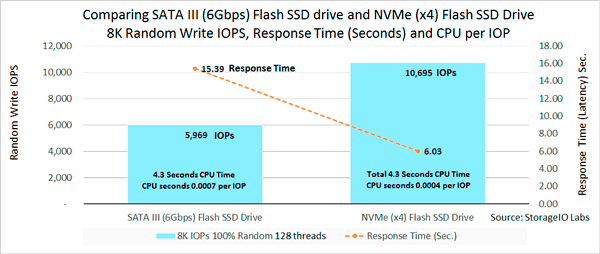
    Is NVMe all about boosting the number of IOPS? NVMe can increase the number of IOPS, as well as support more bandwidth. However, it also reduces response time latency as would be expected with an SSD or NVM type of solution. The following image shows an example of not surprisingly an NVMe PCIe AiC x4 SSD outperforming (more IOPs, lower response time) compared to a 6Gb SATA SSD (apples to oranges). Also keep in mind that best benchmark or workload tool is your own application as well as your performance mileage will vary.

    NVMe using less CPU per IOP
    SATA SSD vs. NVMe PCIe AiC SSD IOPS, Latency and CPU per IOP

    The above image shows the lower amount of CPU per IOP given the newer, more streamlined driver and I/O software protocol of NVMe. With NVMe there is less overhead due to the new design, more queues and ability to unlock value not only in SSD also in servers with more sockets, cores and threads.

    What this means is that NVMe and SSD can boost performance for activity (TPS, IOPs, gets, puts, reads, writes). NVMe can also lower response time latency while also enabling higher throughput bandwidth. In other words, you get more work out of your servers CPU (and memory). Granted SSDs have been used for decades to boost server performance and in many cases, delay an upgrade to a newer faster system by getting more work out of them (e.g. SSD marketing 202).

    NVMe maximizing your software license investments

    What may not be so obvious (e.g. SSD marketing 404) is that by getting more work activity done in a given amount of time, you can also stretch your software licenses further. What this means is that you can get more out of your IBM, Microsoft, Oracle, SAP, VMware and other software licenses by increasing their effective productivity. You might already be using virtualization to increase server hardware efficiency and utilization to cut costs. Why not go further and boost productivity to increase your software license (as well as servers) effectiveness by using NVMe and SSDs?

    Note that fast applications need fast software, servers, drivers, I/O protocols and devices.

    Also just because you have NVMe present or PCIe does not mean full performance, similar to how some vendors put SSDs behind their slow controllers and saw, well slow performance. On the other hand vendors who had or have fast controllers (software, firmware, hardware) that were HDD or are even SSD performance constrained can see a performance boost.

    Additional NVMe and related tips

    If you have a Windows server and have not overridden, check your power plan to make sure it is not improperly set to balanced instead of high performance. For example using PowerShell issue the following command:

    PowerCfg -SetActive “381b4222-f694-41f0-9685-ff5bb260df2e”

    Another Windows related tip if you have not done so is enable task manager disk stats by issuing from a command line “diskperf –y”. Then display task manager and performance and see drive performance.

    Need to benchmark, validate, compare or test an NVMe, SSD (or even HDD) device or system, there are various tools and workloads for different scenarios. Likewise those various tools can be configured for different activity to reflect your needs (and application workloads). For example, Microsoft Diskspd, fio.exe, iometer and vdbench sample scripts are shown here (along with results) as a starting point for comparison or validation testing.

    Does M.2. mean you have NVMe? That depends as some systems implement M.2 with SATA, while others support NVMe, read the fine print or ask for clarification.

    Do all NVMe using PCIe run at the same speed? Not necessarily as some might be PCIe x1 or x4 or x8. Likewise some NVMe PCIe cards might be x8 (mechanical and electrical) yet split out into a pair of x4 ports. Also keep in mind that similar to a dual port HDD, NVMe U.2 drives can have two paths to a server, storage system controller or adapter, however both might not be active at the same time. You might also have a fast NVMe device attached to a slow server or storage system or adapter.

    Who to watch and keep an eye on in the NVMe ecosystem? Besides those mentioned above, others to keep an eye on include Broadcom, E8, Enmotus Fuzedrive (micro-tiering software), Excelero, Magnotics, Mellanox, Microsemi (e.g. PMC Sierra), Microsoft (Windows Server 2016 S2D + ReFS + Storage Tiering), NVM Express trade group, Seagate, VMware (Virtual NVMe driver part of vSphere ESXi in addition to previous driver support) and WD/Sandisk among many others.

    Where To Learn More

    Additional related content can be found at:

    Additional learning experiences along with common questions (and answers), as well as tips can be found in Software Defined Data Infrastructure Essentials book.

    Software Defined Data Infrastructure Essentials Book SDDC

    What This All Means

    NVMe is in your future, that was the answer, however there are the when, where, how, with what among other questions to be addressed. One of the great things IMHO about NVMe is that you can have it your way, where and when you need it, as a replacement or companion to what you have. Granted that will vary based on your preferred vendors as well as what they support today or in the future.

    If NVMe is the answer, Ask your vendor when they will support NVMe as a back-end for their storage systems, as well as a front-end. Also decide when will your servers (hardware, operating systems hypervisors) support NVMe and in what variation. Learn more why NVMe is the answer and related topics at www.thenvmeplace.com

    Ok, nuff said, for now.

    Gs

    Greg Schulz – Microsoft MVP Cloud and Data Center Management, VMware vExpert 2010-2017 (vSAN and vCloud). Author of Software Defined Data Infrastructure Essentials (CRC Press), as well as Cloud and Virtual Data Storage Networking (CRC Press), The Green and Virtual Data Center (CRC Press), Resilient Storage Networks (Elsevier) and twitter @storageio. Courteous comments are welcome for consideration. First published on https://storageioblog.com any reproduction in whole, in part, with changes to content, without source attribution under title or without permission is forbidden.

    All Comments, (C) and (TM) belong to their owners/posters, Other content (C) Copyright 2006-2026 Server StorageIO and UnlimitedIO. All Rights Reserved. StorageIO is a registered Trade Mark (TM) of Server StorageIO.

    Overview Review of Microsoft ReFS (Reliable File System) and resource links

    server storage I/O trends

    This is an overview review of Microsoft ReFS (Resilient File System) along with some resource links. ReFS is part of some Windows operating system platforms including Server 2016.

    Some context here is that review can mean an in-depth deep dive product or technology review, while another meaning is to simply to refresh what you may already know about ReFS. For this post, the focus is on the latter, that is a bit of overview that also functions as a refresh review of what you may already know. However click here to see how ReFS and NTFS compare.

    Click here to read more about Windows Server 2016, Storage Spaces Direct (S2D), Storage Replica (SR) and other related topics (or click on the image below).

    Microsoft Windows Server 2016
    Windows Server 2016 Welcome Screen – Source Server StorageIOlab.com

    What Is Microsoft ReFS and Why It Matters

    Microsoft ReFS (Resilient File System) is part of Windows Servers 2012, 2012 R2, 2016 as well as Windows 8.1 and 10 platforms as an alternative to NTFS file system. ReFS is designed not only for resiliency, also for scaling volumes beyond 256 TBytes (NTFS) to 4.7 Zettabytes (ZB). Note files size for both NTFS and ReFS is 18 Exabytes (EB). Click here to view various ReFS and NTFS data services, feature functionality along with limits. Part of being resilient means that ReFS is able to provide more data integrity protection to guard against logical data corruption.

    Note while ReFS is the future for Windows-based platforms, NTFS is not going away anytime soon, after all, FAT (File Allocation Table) volumes are still supported after how many decades of being around? ReFS has been around for several years having existed in earlier WIndows operating systems as an option, however with Server 2016, its status is promoted to a more prominent role with more features, data services and functionality.

    ReFS data services, features and functionality include:

    • Resiliency – Automatic detection and online repair of data corruption issues
    • Online repair – Isolate faults to localized area of data corruption for repair enabling volumes to stay online
    • Storage Spaces integration – Leverage mirror or parity spaces for automatic detect and repair via alternate data copies. Note that with Windows Server 2016 Microsoft also has introduced Storage Spaces Direct (S2D).
    • Data salvage – Should a volume become corrupt with no alternate copy (you should still have a backup), ReFS removes corrupt data from name space on a live volume. This capability enables surviving data to stay accessible while isolating the fault to the corrupted or damaged data.
    • Integrity streams – Checksums for metadata and optionally file data that enable ReFS to detect corruptions in a reliable way.
    • Proactive error correction – Besides validating data before reads and writes, ReFS also has a background scrubber data integrity check of volumes. This capability enables ReFS to proactively detect latent or silent data corruption so that corrective repair of damaged data can occur.
    • Real-time tiering – When combined with S2D maximizes performance and space capacity across performance and capacity tiers using NVMe, flash SSD and HDDs devices. Writes occur to the performance tier, with large chunks de-staged to capacity tier. Read acceleration enabled via cache. Can support all flash (e.g. performance NVMe and capacity TLC or other flash SSD) as well as hybrid mix of HDD and SSD configurations.
    • Block cloning for dynamic workloads including server virtualization such as accelerating checkpoint merge operations.
    • Sparse VDL (Valid Data Length) improves virtual machine (VM) operations reducing time needed to create fixed size VHDs from 10s of minutes to seconds.
    • Variable storage allocation cluster size of 4KB (for most environments) and 64KB (for environments with larger sequential file processing needs).

    ReFS Deployment Options

    Microsoft ReFS deployment options include:

    • Basic disk (HDD, and SSD) – Leverage applications or other resiliency and protection solutions.
    • SAS drive enclosures with storage spaces provides more data protection including availability as well as integrity and accessibility. Leverages classic storage spaces mirroring and parity protection for increased resiliency and availability.
    • Storage Spaces Direct (S2D) – Increased scalability, real-time tiering and cache server storage I/O performance (effectiveness) and capacity (efficiency) optimization. For increased resiliency adds block clone and sparse Valid Data Length (VDL) to boost VHDX file performance operations (create, merge, expand). For resiliency, built-in checksums, online repair as well as leverage alternate data copies combined with S2D to detect as well as correct both metadata as well as primary data corruption issues. Optimized for large-scale and virtualized application workloads.

    Where To Learn More

    For those of you not as familiar with Microsoft Windows Server and related topics, or that simply need a refresh, here are several handy links as well as resources.

    • Benchmarking Microsoft Hyper-V server, VMware ESXi and Xen Hypervisors (Via cisjournal PDF)
    • BrightTalk Webinar – Software-Defined Data Centers (SDDC) are in your Future (if not already here)
    • BrightTalk Weibniar – Software-Defined Data Infrastructures Enabling Software-Defined Data Centers
    • Choosing drives and resiliency types in Storage Spaces Direct to meet performance and capacity requirements (Via TechNet)
    • Data Protection for Modern Microsoft Environments (Redmond Magazine Webinar)
    • Deep Dive: Volumes in Storage Spaces Direct (Via TechNet Blogs)
    • Discover Storage Spaces Direct, the ultimate software-defined storage for Hyper-V (YouTube Video)
    • DUPLICATE_EXTENTS_DATA structure (Via MSDN)
    • Block cloning on ReFS (Via TechNet)
    • DISKSPD now on GitHub, and the mysterious VMFLEET released (Via TechNet)
    • Erasure Coding in Windows azure storage (Via Microsoft)
    • Fault domain awareness in Windows Server 2016 (Via TechNet)
    • Fault tolerance and storage efficiency in Storage Spaces Direct (Via TechNet)
    • FSCTL_DUPLICATE_EXTENTS_TO_FILE control code (Via MSDN)
    • Gaining Server Storage I/O Insight into Microsoft Windows Server 2016 (StorageIOblog)
    • General information about SSD at www.thessdplace.com and NVMe at www.thenvmeplace.com
    • Get the Windows Server 2016 evaluation bits here
    • Happy 20th Birthday Windows Server, ready for Server 2016?
    • How to run nested Hyper-V and Windows Server 2016 (Via Altaro and via MSDN)
    • How to run Nested Windows Server and Hyper-V on VMware vSphere ESXi (Via Nokitel)
    • Hyper-converged solution using Storage Spaces Direct in Windows Server 2016 (Via TechNet)
    • Hyper-V large-scale VM performance for in-memory transaction processing (Via Technet)
    • Introducing Windows Server 2016 (Free ebook from Microsoft Press)
    • Large scale VM performance with Hyper-V and in-memory transaction processing (Via Technet)
    • Microsoft Resilient File System (ReFS) overview (Via TechNet)
    • Microsoft S2D Software Storage Bus (Via TechNet)
    • Microsoft Storage Replica (SR) (Via TechNet)
    • Microsoft Windows S2D Software Defined Storage (Via TechNet)
    • NVMe, SSD and HDD storage configurations in Storage Spaces Direct TP5 (Via TechNet)
    • Microsoft Azure Stack overview and related material via Microsoft
    • ReFS integrity streams (Via TechNet)
    • ReFS and NTFS feature, data services and functionality comparisons (Via TechNet)
    • ReFS and NTFS limits (speeds and feeds via TechNet)
    • Resilient File System aka ReFS (Via TechNet)
    • Server 2016 Impact on VDI User Experience (Via LoginVSI)
    • Server and Storage I/O Benchmark Tools: Microsoft Diskspd (Part I
    • Setting up S2D with a 4 node configuration (Via StarWind blog)
    • Setting up testing Windows Server 2016 and S2D using virtual machines (Via MSDN blogs)
    • SQL Server workload (benchmark) Order Processing Benchmark using In-Memory OLTP (Via Github)
    • Storage IOPS update with Storage Spaces Direct (Via TechNet)
    • Storage throughput with Storage Spaces Direct (S2D TP5 (Via TechNet)
    • Storage Spaces Direct hardware requirements (Via TechNet)
    • Storage Spaces Direct in Windows Server 2016 (Via TechNet with Video)
    • Storage Spaces Direct – Lab Environment Setup (Via Argon Systems)
    • Understanding Software Defined Storage with S2D in Windows Server 2016 (Via TechNet)
    • Understanding the cache in Storage Spaces Direct (Via TechNet)
    • Various Windows Server and S2D lab scripts (Via Github)
    • Volume resiliency and efficiency in Storage Spaces Direct (Via TechNet Blogs)
    • What’s New in Windows Server 2016 (Via TechNet)
    • Windows Server 2016 Getting Started (Via TechNet)
    • Windows Server 2016 and Active Directory (Redmond Magazine Webinar)
    • Server StorageIO resources including added links, tools, reports, events and more

    What This All Means

    Now is as good of time as any to refresh (or enhance) your knowledge of ReFS and its current capabilities particular if you are involved with Microsoft environments. On the other hand, if you are not involved with Microsoft, take a few moments to update your insight and awareness of ReFS, storage spaces, S2D and other related capabilities including Windows Servers converged (desegregated) and hyper-converged (aggregated) options to avoid working off of or with stale data.

    Ok, nuff said, for now…

    Cheers
    Gs

    Greg Schulz – Microsoft MVP Cloud and Data Center Management, vSAN and VMware vExpert. Author of Software Defined Data Infrastructure Essentials (CRC Press), as well as Cloud and Virtual Data Storage Networking (CRC Press), The Green and Virtual Data Center (CRC Press), Resilient Storage Networks (Elsevier) and twitter @storageio.

    All Comments, (C) and (TM) belong to their owners/posters, Other content (C) Copyright 2006-2023 Server StorageIO(R) and UnlimitedIO All Rights Reserved

    September and October 2016 Server StorageIO Update Newsletter

    Volume 16, Issue IX

    Hello and welcome to this September and October 2016 Server StorageIO update newsletter.

    In This Issue

  • Commentary in the news
  • Tips and Articles
  • StorageIOblog posts
  • Events and Webinars
  • Industry Activity Trends
  • Resources and Links
  • Connect and Converse With Us
  • About Us
  • Enjoy this edition of the Server StorageIO update newsletter.

    Cheers GS

    Industry Activity Trends

    Recent Industry Activates and Trends

    EMC is now Dell EMC – What this means is that EMC is no longer a publicly traded company instead now being privately held under the Dell Technologies umbrella. In case you did not know or had forgotten, one of the principal owners of Dell Technologies is Michael Dell aka the founder of Dell Computers which itself went private a few years ago. Read more in this Server StoageIOblog update post.

    While Michael Dell and Dell Technologies continues to expand by acquiring companies (granted also shedding some assets to support that growth), HP Enterprise (HPE) is taking a different approach. Similar to Dell, HPE has been offloading some of its divisions and assets since its split into two separate companies about a year ago.

    More recently HPE has announced it is selling off some of its software assets to which follows other deals where HPE created a new partnership with CSC to offload or park some of its services assets. What’s not clear is HPE CEO Meg Whitman leveraging the trend that some Private Equity (PE) firms are interested in acquiring under performing companies or assets to prepare them as part of a pivot to profit scenario, or something else?

    • HPE selling off business units including software group here, here, here and here
    • HPE looking to boost its HPC and super compute business with $275B acquisition of SGI
    • Announced new shared storage for SMB and mid-size environments including for sub $10K price points. These include HPE StoreVirtual 3200 and HPE MSA 2042.
    • HPE and Dropbox partnership
    • Various other HPE news and updates

    Hyper-Converged Infrastructure (HCI) startup vendor Nutanix finally IPO (NTNX) after a not so consolidated IPO cycle. Prior to the IPO NTNX acquired other startup Pernix (VMware cache software solution) and calmio to beef up their product portfolio. Congratulations to NTNX and best wishes, hopefully the public markets will provide risk vs. reward, on the other hand, now being public, the spotlight will be on them.

    Nutanix Stock via Yahoo 10/31/16
    NTNX Stock Trading via Yahoo Finance 10/31/16 (Click to see current status)


    Microsoft has extended its software defined storage (SDS) along with software defined data center (SDDC) as well as software defined networking (SDN) capabilities by formerly announcing Windows Server 2016. A month or so ago Microsoft announced the 20th birthday or anniversary of Windows Server as well as having previously released Tech Previews (TP).
    See what’s new in Server 2016 here. For those not aware, With Windows Server 2016, you can configure it to be CI, HCI, legacy or various hybrid ways to meet your needs, along with your choice of hardware from your preferred vendor or solution provider. Read more about Microsoft Windows Server 2016 and related topics in this Server StorageIOblog post.

    Needless to say there is a lot of other activity in the works including VMware enhancements with vSphere 6.5 as well as VMware vSphere (and related tools) being announced as hosted on bare metal (BM) dedicated private servers (DPS) via AWS among other updates.


    StorageIOblog Posts

    Recent and popular Server StorageIOblog posts include:

    View other recent as well as past StorageIOblog posts here


    StorageIO Commentary in the news

    Recent Server StorageIO industry trends perspectives commentary in the news.

    Via InfoStor Top Ten Data Storage Performance Tips: Improving Data Storage
    Via ChannelProNetwork Your Time Will Come, All-Flash Storage
    Via FutureReadyOEM When to implement ultra-dense CI or HCI storage
    Via EnterpriseStorageForum Top 10 Enterprise SSD Market Trends
    Via EnterpriseStorageForum Storage Hyperconvergence: When Does It Make Sense?
    SearchCloudStorage: EMC VxRack Neutrino Nodes launched for OpenStack cloud storage
    EnterpriseStorageForum: Looking Beyond the Hype at Hyperconvergence in Storage
    CDW Digital: Transitioning Data Centers To Hybrid Environment
    SearchDataCenter: EMC, VCE, CI and Hyperconverged vs. Hyper-small
    InfoStor: Docker and Containerization Storage Buying Guide
    NetworkComputing: Dell-EMC: The Storage Ramifications
    EnterpriseTech: VMware Targets Synergies in Dell-EMC Deal 
    HPCwire: Dell to Buy EMC Focus on Large Enterprises and High-End Computing
    EnterpriseStorageForum: Storage Futures: Do We Really Need to Store Everything?

    View more Server, Storage and I/O hardware as well as software trends comments here


    StorageIO Tips and Articles

    Recent and past Server StorageIO articles appearing in different venues include:

    Via Iron Mountain  Is Your Data Infrastructure Prepared for Storm Season?
    Via Iron Mountain  Preventing Unexpected Disasters: IT and Data Infrastructure
    Via FutureReadyOEM  When to implement ultra-dense storage
    Via Micron Blog (Guest Post)  Whats next for NVMe and your Data Center
    Redmond Magazine  Data Protection Trends – Evolving Data Protection and Resiliency
    Virtual Blocks (VMware Blogs)  EVO:RAIL Part III – When And Where To Use It?
    Virtual Blocks (VMware Blogs)  EVO:RAIL Part II – Why And When To Use It?
    Virtual Blocks (VMware Blogs)  EVO:RAIL Part I – What Is It And Why Does It Matter?

    Check out these resources techniques, trends as well as tools. View more tips and articles here


    Events and Activities

    Recent and upcoming event activities.

    December 7, 2016 11AM PT – BrightTalk Webinar: Hyper-Converged Infrastructure

    November 29-30, 2016 – Nijkerk Netherlands Workshop Seminar (Presenting)
    Organized by Brouwer Storage Consultancy

    Converged and Other Server Storage Decision Making

    November 28, 2016 – Nijkerk Netherlands Workshop Seminar (Presenting)
    Organized by Brouwer Storage Consultancy
    – Industry Trends Update

    November 23, 2016 10AM PT – BrightTalk Webinar: BCDR and Cloud Backup
    Software Defined Data Infrastructures (SDDI) and Data Protection

    November 23, 2016 9AM PT – BrightTalk Webinar: Cloud Storage
    Hybrid and Software Defined Data Infrastructures (SDDI)

    November 22, 2016 10AM PT – BrightTalk Webinar: Cloud Infrastructure
    Hybrid and Software Defined Data Infrastructures (SDDI)

    November 15, 2016 11AM PT – Redmond Magazine and SolarWinds
    Presenting – The O.A.R. of Virtualization Scaling

    November 3, 2016 11AM PT – Redmond Magazine and Dell Software
    Presenting – Backup, Data Protection and Security Management

    October 27, 2016 10AM PT – Virtual Instruments Webinar
    The Value of Infrastructure Insight

    October 20, 2016 9AM PT – BrightTalk Webinar: Next-Gen Data Centers
    Software Defined Data Infrastructures (SDDI) – Servers, Storage and Virtualization

    September 20, 2016 8AM PT – BrightTalk Webinar
    Software Defined Data Infrastructures (SDDI)
    Enabling Software Defined Data Centers

    September 13, 2016 11AM PT – Redmond Magazine and Dell Software
    Windows Server 2016 and Active Directory
    What’s New and How to Plan for Migration

    See more webinars and other activities on the Server StorageIO Events page here.


    Server StorageIO Industry Resources and Links

    Useful links and pages:
    Microsoft TechNet – Various Microsoft related from Azure to Docker to Windows
    storageio.com/links – Various industry links (over 1,000 with more to be added soon)
    objectstoragecenter.com – Cloud and object storage topics, tips and news items
    OpenStack.org – Various OpenStack related items
    storageio.com/protect – Various data protection items and topics
    thenvmeplace.com – Focus on NVMe trends and technologies
    thessdplace.com – NVM and Solid State Disk topics, tips and techniques
    storageio.com/performance – Various server, storage and I/O performance and benchmarking
    VMware Technical Network – Various VMware related items

    Ok, nuff said, for now…

    Cheers
    Gs

    Greg Schulz – Microsoft MVP Cloud and Data Center Management, vSAN and VMware vExpert. Author Cloud and Virtual Data Storage Networking (CRC Press), The Green and Virtual Data Center (CRC Press) and Resilient Storage Networks (Elsevier) and twitter @storageio

    All Comments, (C) and (TM) belong to their owners/posters, Other content (C) Copyright 2006-2023 Server StorageIO(R) and UnlimitedIO All Rights Reserved

    Gaining Server Storage I/O Insight into Microsoft Windows Server 2016

    Server Storage I/O Insight into Microsoft Windows Server 2016

    server storage I/O trends
    Updated 12/8/16

    In case you had not heard, Microsoft announced the general availability (GA, also known as Release To Manufacturing (RTM) ) of the newest version of its Windows server operating system aka Windows Server 2016 along with System Center 2016. Note that as well as being released to traditional manufacturing distribution mediums as well as MSDN, the Windows Server 2016 bits are also available on Azure.

    Microsoft Windows Server 2016
    Windows Server 2016 Welcome Screen – Source Server StorageIOlab.com

    For some this might be new news, or a refresh of what Microsoft announced a few weeks ago (e.g. the formal announcement). Likewise, some of you may not be aware that Microsoft is celebrating WIndows Server 20th Birthday (read more here).

    Yet for others who have participated in the public beta aka public technical previews (TP) over the past year or two or simply after the information coming out of Microsoft and other venues, there should not be a lot of surprises.

    Whats New With Windows Server 2016

    Microsoft Windows Server 2016 Desktop
    Windows Server 2016 Desktop and tools – Source Server StorageIOlab.com

    Besides a new user interface including visual GUI and Powershell among others, there are many new feature functionalities summarized below:

    • Enhanced time-server with 1ms accuracy
    • Nano and Windows Containers (Linux via Hyper-V)
    • Hyper-V enhanced Linux services including shielded VMs
    • Simplified management (on-premisess and cloud)
    • Storage Spaces Direct (S2D) and Storage Replica (SR) – view more here and here


    Storage Replica (SR) Scenarios including synchronous and asynchronous – Via Microsoft.com

    • Resilient File System aka ReFS (now default file system) storage tiering (cache)
    • Hot-swap virtual networking device support
    • Reliable Change Tracking (RCT) for faster Hyper-V backups
    • RCT improves resiliency vs. VSS change tracking
    • PowerShell and other management enhancements
    • Including subordinated / delegated management roles
    • Compliment Azure AD with on premise AD
    • Resilient/HA RDS using Azure SQL DB for connection broker
    • Encrypted VMs (at rest and during live migration)
    • AD Federation Services (FS) authenticate users in LDAP dir.
    • vTPM for securing and encrypting Hyper-V VMs
    • AD Certificate Services (CS) increase support for TPM
    • Enhanced TPM support for smart card access management
    • AD Domain Services (DS) security resiliency for hybrid and mobile devices

    Here is a Microsoft TechNet post that goes into more detail of what is new in WIndows Server 2016.

    Free ebook: Introducing Windows Server 2016 Technical Preview (Via Microsoft Press)

    Check out the above free ebook, after looking through it, I recommend adding it to your bookshelf. There are lots of good intro and overview material for Windows Server 2016 to get you up to speed quickly, or as a refresh.

    Storage Spaces Direct (S2D) CI and HCI

    Storage Spaces Direct (S2D) builds on Storage Spaces that appeared in earlier Windows and Windows Server editions. Some of the major changes and enhancements include ability to leverage local direct attached storage (DAS) such as internal (or external) dedicated NVMe, SAS and SATA HDDs as well as flash SSDs that used for creating software defined storage for various scenarios.

    Scenarios include converged infrastructure (CI) disaggregated as well as aggregated hyper-converged infrastructure (HCI) for Hyper-V among other workloads. Windows Server 2016 S2D nodes communicate (from a storage perspective) via a software storage bus. Data Protection and availability is enabled between S2D nodes via Storage Replica (SR) that can do software based synchronous and asynchronous replication.


    Aggregated – Hyper-Converged Infrastructure (HCI) – Source Microsoft.com


    Desegregated – Converged Infrastructure (CI) – Source Microsoft.com

    The following is a Microsoft produced YouTube video providing a nice overview and insight into Windows Server 2016 and Microsoft Software Defined Storage aka S2D.


    YouTube Video Storage Spaces Direct (S2D) via Microsoft.com

    Server storage I/O performance

    What About Performance?

    A common question that comes up with servers, storage, I/O and software defined data infrastructure is what about performance?

    Following are some various links to different workloads showing performance for Hyper-V, S2D and Windows Server. Note as with any benchmark, workload or simulation take them for what they are, something to compare that may or might not be applicable to your own workload and environments.

    • Large scale VM performance with Hyper-V and in-memory transaction processing (Via Technet)
    • Benchmarking Microsoft Hyper-V server, VMware ESXi and Xen Hypervisors (Via cisjournal PDF)
    • Server 2016 Impact on VDI User Experience (Via LoginVSI)
    • Storage IOPS update with Storage Spaces Direct (Via TechNet)
    • SQL Server workload (benchmark) Order Processing Benchmark using In-Memory OLTP (Via Github)
    • Setting up testing Windows Server 2016 and S2D using virtual machines (Via MSDN blogs)
    • Storage throughput with Storage Spaces Direct (S2D TP5 (Via TechNet)
    • Server and Storage I/O Benchmark Tools: Microsoft Diskspd (Part I)

    Where To Learn More

    For those of you not as familiar with Microsoft Windows Server and related topics, or that simply need a refresh, here are several handy links as well as resources.

    • Introducing Windows Server 2016 (Free ebook from Microsoft Press)
    • What’s New in Windows Server 2016 (Via TechNet)
    • Microsoft S2D Software Storage Bus (Via TechNet)
    • Understanding Software Defined Storage with S2D in Windows Server 2016 (Via TechNet)
    • Microsoft Storage Replica (SR) (Via TechNet)
    • Server and Storage I/O Benchmark Tools: Microsoft Diskspd (Part I)
    • Microsoft Windows S2D Software Defined Storage (Via TechNet)
    • Windows Server 2016 and Active Directory (Redmond Magazine Webinar)
    • Data Protection for Modern Microsoft Environments (Redmond Magazine Webinar)
    • Resilient File System aka ReFS (Via TechNet)
    • DISKSPD now on GitHub, and the mysterious VMFLEET released (Via TechNet)
    • Hyper-converged solution using Storage Spaces Direct in Windows Server 2016 (Via TechNet)
    • NVMe, SSD and HDD storage configurations in Storage Spaces Direct TP5 (Via TechNet)
    • General information about SSD at www.thessdplace.com and NVMe at www.thenvmeplace.com
    • How to run nested Hyper-V and Windows Server 2016 (Via Altaro and via MSDN)
    • How to run Nested Windows Server and Hyper-V on VMware vSphere ESXi (Via Nokitel)
    • Get the Windows Server 2016 evaluation bits here
    • Microsoft Azure Stack overview and related material via Microsoft
    • Introducing Windows Server 2016 (Via MicrosoftPress)
    • Various WIndows Server and S2D lab scripts (Via Github)
    • Storage Spaces Direct – Lab Environment Setup (Via Argon Systems)
    • Setting up S2D with a 4 node configuration (Via StarWind blog)
    • SQL Server workload (benchmark) Order Processing Benchmark using In-Memory OLTP (Via Github)
    • Setting up testing Windows Server 2016 and S2D here using virtual machines (Via MSDN blogs)
    • Hyper-V large-scale VM performance for in-memory transaction processing (Via Technet)
    • BrightTalk Webinar – Software-Defined Data Centers (SDDC) are in your Future (if not already here)
    • Microsoft TechNet: Understand the cache in Storage Spaces Direct
    • BrightTalk Weibniar – Software-Defined Data Infrastructures Enabling Software-Defined Data Centers
    • Happy 20th Birthday Windows Server, ready for Server 2016?
    • Server StorageIO resources including added links, tools, reports, events and more.

    What This All Means

    While Microsoft Windows Server recently celebrated its 20th birthday (or anniversary), a lot has changed as well as evolved. This includes Windows Servers 2016 supporting new deployment and consumption models (e.g. lightweight Nano, full data center with desktop interface, on-premises, bare metal, virtualized (Hyper-V, VMware, etc) as well as cloud). Besides how consumed and configured, which can also be for CI and HCI modes, Windows Server 2016 along with Hyper-V extend the virtualization and container capabilities into non-Microsoft environments specifically around Linux and Docker. Not only are the support for those environments and platforms enhanced, so to are the management capabilities and interfaces from Powershell to Bash Linux shell being part of WIndows 10 and Server 2016.

    What this all means is that if you have not looked at Windows Server in some time, its time you do, even if you are not a WIndows or Microsoft fan, you will want to know what it is that has been updated (perhaps even update your fud if that is the case) to stay current. Get your hands on the bits and try Windows Server 2016 on a bare metal server, or as a VM guest, or via cloud including Azure, or simply leverage the above resources to learn more and stay informed.

    Ok, nuff said, for now…

    Cheers
    Gs

    Greg Schulz – Microsoft MVP Cloud and Data Center Management, vSAN and VMware vExpert. Author Cloud and Virtual Data Storage Networking (CRC Press), The Green and Virtual Data Center (CRC Press) and Resilient Storage Networks (Elsevier) and twitter @storageio

    All Comments, (C) and (TM) belong to their owners/posters, Other content (C) Copyright 2006-2023 Server StorageIO(R) and UnlimitedIO All Rights Reserved

    Which Enterprise HDD for Content Server Platform

    Which Enterprise HDD to use for a Content Server Platform

    data infrastructure HDD server storage I/O trends

    Updated 1/23/2018

    Which enterprise HDD to use with a content server platform?

    Insight for effective server storage I/O decision making
    Server StorageIO Lab Review

    Which enterprise HDD to use for content servers

    This post is the first in a multi-part series based on a white paper hands-on lab report I did compliments of Equus Computer Systems and Seagate that you can read in PDF form here. The focus is looking at the Equus Computer Systems (www.equuscs.com) converged Content Solution platforms with Seagate Enterprise Hard Disk Drive (HDD’s). I was given the opportunity to do some hands-on testing running different application workloads with a 2U content solution platform along with various Seagate Enterprise 2.5” HDD’s handle different application workloads. This includes Seagate’s Enterprise Performance HDD’s with the enhanced caching feature.

    Issues And Challenges

    Even though Non-Volatile Memory (NVM) including NAND flash solid state devices (SSDs) have become popular storage for use internal as well as external to servers, there remains the need for HDD’s Like many of you who need to make informed server, storage, I/O hardware, software and configuration selection decisions, time is often in short supply.

    A common industry trend is to use SSD and HDD based storage mediums together in hybrid configurations. Another industry trend is that HDD’s continue to be enhanced with larger space capacity in the same or smaller footprint, as well as with performance improvements. Thus, a common challenge is what type of HDD to use for various content and application workloads balancing performance, availability, capacity and economics.

    Content Applications and Servers

    Fast Content Needs Fast Solutions

    An industry and customer trend are that information and data are getting larger, living longer, as well as there is more of it. This ties to the fundamental theme that applications and their underlying hardware platforms exist to process, move, protect, preserve and serve information.

    Content solutions span from video (4K, HD, SD and legacy streaming video, pre-/post-production, and editing), audio, imaging (photo, seismic, energy, healthcare, etc.) to security surveillance (including Intelligent Video Surveillance [ISV] as well as Intelligence Surveillance and Reconnaissance [ISR]). In addition to big fast data, other content solution applications include content distribution network (CDN) and caching, network function virtualization (NFV) and software-defined network (SDN), to cloud and other rich unstructured big fast media data, analytics along with little data (e.g. SQL and NoSQL database, key-value stores, repositories and meta-data) among others.

    Content Solutions And HDD Opportunities

    A common theme with content solutions is that they get defined with some amount of hardware (compute, memory and storage, I/O networking connectivity) as well as some type of content software. Fast content applications need fast software, multi-core processors (compute), large memory (DRAM, NAND flash, SSD and HDD’s) along with fast server storage I/O network connectivity. Content-based applications benefit from having frequently accessed data as close as possible to the application (e.g. locality of reference).

    Content solution and application servers need flexibility regarding compute options (number of sockets, cores, threads), main memory (DRAM DIMMs), PCIe expansion slots, storage slots and other connectivity. An industry trend is leveraging platforms with multi-socket processors, dozens of cores and threads (e.g. logical processors) to support parallel or high-concurrent content applications. These servers have large amounts of local storage space capacity (NAND flash SSD and HDD) and associated I/O performance (PCIe, NVMe, 40 GbE, 10 GbE, 12 Gbps SAS etc.) in addition to using external shared storage (local and cloud).

    Where To Learn More

    Additional learning experiences along with common questions (and answers), as well as tips can be found in Software Defined Data Infrastructure Essentials book.

    Software Defined Data Infrastructure Essentials Book SDDC

    What This All Means

    Fast content applications need fast content and flexible content solution platforms such as those from Equus Computer Systems and HDD’s from Seagate. Key to a successful content application deployment is having the flexibility to hardware define and software defined the platform to meet your needs. Just as there are many different types of content applications along with diverse environments, content solution platforms need to be flexible, scalable and robust, not to mention cost effective.

    Continue reading part two of this multi-part series here where we look at how and what to test as well as project planning.

    Ok, nuff said, for now.

    Gs

    Greg Schulz – Microsoft MVP Cloud and Data Center Management, VMware vExpert 2010-2017 (vSAN and vCloud). Author of Software Defined Data Infrastructure Essentials (CRC Press), as well as Cloud and Virtual Data Storage Networking (CRC Press), The Green and Virtual Data Center (CRC Press), Resilient Storage Networks (Elsevier) and twitter @storageio. Courteous comments are welcome for consideration. First published on https://storageioblog.com any reproduction in whole, in part, with changes to content, without source attribution under title or without permission is forbidden.

    All Comments, (C) and (TM) belong to their owners/posters, Other content (C) Copyright 2006-2026 Server StorageIO and UnlimitedIO. All Rights Reserved. StorageIO is a registered Trade Mark (TM) of Server StorageIO.

    Part 4 – Which HDD for Content Applications – Database Workloads

    Part 4 – Which HDD for Content Applications – Database Workloads

    data base server storage I/O trends

    Updated 1/23/2018
    Which enterprise HDD to use with a content server platform for database workloads

    Insight for effective server storage I/O decision making
    Server StorageIO Lab Review

    Which enterprise HDD to use for content servers

    This is the fourth in a multi-part series (read part three here) based on a white paper hands-on lab report I did compliments of Servers Direct and Seagate that you can read in PDF form here. The focus is looking at the Servers Direct (www.serversdirect.com) converged Content Solution platforms with Seagate Enterprise Hard Disk Drive (HDD’s). In this post the focus expands to database application workloads that were run to test various HDD’s.

    Database Reads/Writes

    Transaction Processing Council (TPC) TPC-C like workloads were run against the SUT from the STI. These workloads simulated transactional, content management, meta-data and key-value processing. Microsoft SQL Server 2012 was configured and used with databases (each 470GB e.g. scale 6000) created and workload generated by virtual users via Dell Benchmark Factory (running on STI Windows 2012 R2).

    A single SQL Server database instance (8) was used on the SUT, however unique databases were created for each HDD set being tested. Both the main database file (.mdf) and the log file (.ldf) were placed on the same drive set being tested, keep in mind the constraints mentioned above. As time was a constraint, database workloads were run concurrent (9) with each other except for the Enterprise 10K RAID 1 and RAID 10. Workload was run with two 10K HDD’s in a RAID 1 configuration, then another workload run with a four drive RAID 10. In a production environment, ideally the .mdf and .ldf would be placed on separate HDD’s and SSDs.

    To improve cache buffering the SQL Server database instance memory could be increased from 16GB to a larger number that would yield higher TPS numbers. Keep in mind the objective was not to see how fast I could make the databases run, rather how the different drives handled the workload.

    (Note 8) The SQL Server Tempdb was placed on a separate NVMe flash SSD, also the database instance memory size was set to 16GB which was shared by all databases and virtual users accessing it.

    (Note 9) Each user step was run for 90 minutes with a 30 minute warm-up preamble to measure steady-state operation.

    Users

    TPCC Like TPS

    Single Drive Cost per TPS

    Drive Cost per TPS

    Single Drive Cost / Per GB Raw Cap.

    Cost / Per GB Usable (Protected) Cap.

    Drive Cost (Multiple Drives)

    Protect
    Space Over head

    Cost per usable GB per TPS

    Resp. Time (Sec.)

    ENT 15K R1

    1

    23.9

    $24.94

    $49.89

    $0.99

    $0.99

    $1,190

    100%

    $49.89

    0.01

    ENT 10K R1

    1

    23.4

    $37.38

    $74.77

    $0.49

    $0.49

    $1,750

    100%

    $74.77

    0.01

    ENT CAP R1

    1

    16.4

    $24.26

    $48.52

    $0.20

    $0.20

    $ 798

    100%

    $48.52

    0.03

    ENT 10K R10

    1

    23.2

    $37.70

    $150.78

    $0.49

    $0.97

    $3,500

    100%

    $150.78

    0.07

    ENT CAP SWR5

    1

    17.0

    $23.45

    $117.24

    $0.20

    $0.25

    $1,995

    20%

    $117.24

    0.02

    ENT 15K R1

    20

    362.3

    $1.64

    $3.28

    $0.99

    $0.99

    $1,190

    100%

    $3.28

    0.02

    ENT 10K R1

    20

    339.3

    $2.58

    $5.16

    $0.49

    $0.49

    $1,750

    100%

    $5.16

    0.01

    ENT CAP R1

    20

    213.4

    $1.87

    $3.74

    $0.20

    $0.20

    $ 798

    100%

    $3.74

    0.06

    ENT 10K R10

    20

    389.0

    $2.25

    $9.00

    $0.49

    $0.97

    $3,500

    100%

    $9.00

    0.02

    ENT CAP SWR5

    20

    216.8

    $1.84

    $9.20

    $0.20

    $0.25

    $1,995

    20%

    $9.20

    0.06

    ENT 15K R1

    50

    417.3

    $1.43

    $2.85

    $0.99

    $0.99

    $1,190

    100%

    $2.85

    0.08

    ENT 10K R1

    50

    385.8

    $2.27

    $4.54

    $0.49

    $0.49

    $1,750

    100%

    $4.54

    0.09

    ENT CAP R1

    50

    103.5

    $3.85

    $7.71

    $0.20

    $0.20

    $ 798

    100%

    $7.71

    0.45

    ENT 10K R10

    50

    778.3

    $1.12

    $4.50

    $0.49

    $0.97

    $3,500

    100%

    $4.50

    0.03

    ENT CAP SWR5

    50

    109.3

    $3.65

    $18.26

    $0.20

    $0.25

    $1,995

    20%

    $18.26

    0.42

    ENT 15K R1

    100

    190.7

    $3.12

    $6.24

    $0.99

    $0.99

    $1,190

    100%

    $6.24

    0.49

    ENT 10K R1

    100

    175.9

    $4.98

    $9.95

    $0.49

    $0.49

    $1,750

    100%

    $9.95

    0.53

    ENT CAP R1

    100

    59.1

    $6.76

    $13.51

    $0.20

    $0.20

    $ 798

    100%

    $13.51

    1.66

    ENT 10K R10

    100

    560.6

    $1.56

    $6.24

    $0.49

    $0.97

    $3,500

    100%

    $6.24

    0.14

    ENT CAP SWR5

    100

    62.2

    $6.42

    $32.10

    $0.20

    $0.25

    $1,995

    20%

    $32.10

    1.57

    Table-2 TPC-C workload results various number of users across different drive configurations

    Figure-2 shows TPC-C TPS (red dashed line) workload scaling over various number of users (1, 20, 50, and 100) with peak TPS per drive shown. Also shown is the used space capacity (in green), with total raw storage capacity in blue cross hatch. Looking at the multiple metrics in context shows that the 600GB Enterprise 15K HDD with performance enhanced cache is a premium option as an alternative, or, to complement flash SSD solutions.

    database TPCC transactional workloads
    Figure-2 472GB Database TPS scaling along with cost per TPS and storage space used

    In figure-2, the 1.8TB Enterprise 10K HDD with performance enhanced cache while not as fast as the 15K, provides a good balance of performance, space capacity and cost effectiveness. A good use for the 10K drives is where some amount of performance is needed as well as a large amount of storage space for less frequently accessed content.

    A low cost, low performance option would be the 2TB Enterprise Capacity HDD’s that have a good cost per capacity, however lack the performance of the 15K and 10K drives with enhanced performance cache. A four drive RAID 10 along with a five drive software volume (Microsoft WIndows) are also shown. For apples to apples comparison look at costs vs. capacity including number of drives needed for a given level of performance.

    Figure-3 is a variation of figure-2 showing TPC-C TPS (blue bar) and response time (red-dashed line) scaling across 1, 20, 50 and 100 users. Once again the Enterprise 15K with enhanced performance cache feature enabled has good performance in an apples to apples RAID 1 comparison.

    Note that the best performance was with the four drive RAID 10 using 10K HDD’s Given popularity, a four drive RAID 10 configuration with the 10K drives was used. Not surprising the four 10K drives performed better than the RAID 1 15Ks. Also note using five drives in a software spanned volume provides a large amount of storage capacity and good performance however with a larger drive footprint.

    database TPCC transactional workloads scaling
    Figure-3 472GB Database TPS scaling along with response time (latency)

    From a cost per space capacity perspective, the Enterprise Capacity drives have a good cost per GB. A hybrid solution for environment that do not need ultra-high performance would be to pair a small amount of flash SSD (10) (drives or PCIe cards), as well as the 10K and 15K performance enhanced drives with the Enterprise Capacity HDD (11) along with cache or tiering software.

    (Note 10) Refer to Seagate 1200 12 Gbps Enterprise SAS SSD StorageIO lab review

    (Note 11) Refer to Enterprise SSHD and Flash SSD Part of an Enterprise Tiered Storage Strategy

    Where To Learn More

    Additional learning experiences along with common questions (and answers), as well as tips can be found in Software Defined Data Infrastructure Essentials book.

    Software Defined Data Infrastructure Essentials Book SDDC

    What This All Means

    If your environment is using applications that rely on databases, then test resources such as servers, storage, devices using tools that represent your environment. This means moving up the software and technology stack from basic storage I/O benchmark or workload generator tools such as Iometer among others instead using either your own application, or tools that can replay or generate various workloads that represent your environment.

    Continue reading part five in this multi-part series here where the focus shifts to large and small file I/O processing workloads.

    Ok, nuff said, for now.

    Gs

    Greg Schulz – Microsoft MVP Cloud and Data Center Management, VMware vExpert 2010-2017 (vSAN and vCloud). Author of Software Defined Data Infrastructure Essentials (CRC Press), as well as Cloud and Virtual Data Storage Networking (CRC Press), The Green and Virtual Data Center (CRC Press), Resilient Storage Networks (Elsevier) and twitter @storageio. Courteous comments are welcome for consideration. First published on https://storageioblog.com any reproduction in whole, in part, with changes to content, without source attribution under title or without permission is forbidden.

    All Comments, (C) and (TM) belong to their owners/posters, Other content (C) Copyright 2006-2026 Server StorageIO and UnlimitedIO. All Rights Reserved. StorageIO is a registered Trade Mark (TM) of Server StorageIO.
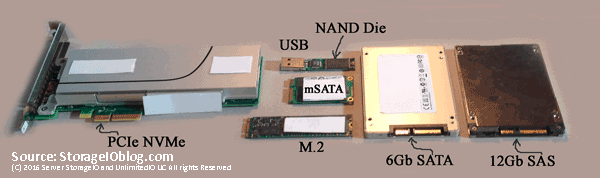
    Which Enterprise HDD for Content Applications Different File Size Impact

    Which HDD for Content Applications Different File Size Impact

    Different File Size Impact server storage I/O trends

    Updated 1/23/2018

    Which enterprise HDD to use with a content server platform different file size impact.

    Insight for effective server storage I/O decision making
    Server StorageIO Lab Review

    Which enterprise HDD to use for content servers

    This is the fifth in a multi-part series (read part four here) based on a white paper hands-on lab report I did compliments of Servers Direct and Seagate that you can read in PDF form here. The focus is looking at the Servers Direct (www.serversdirect.com) converged Content Solution platforms with Seagate Enterprise Hard Disk Drive (HDD’s). In this post the focus looks at large and small file I/O processing.

    File Performance Activity

    Tip, Content solutions use files in various ways. Use the following to gain perspective how various HDD’s handle workloads similar to your specific needs.

    Two separate file processing workloads were run (12), one with a relative small number of large files, and another with a large number of small files. For the large file processing (table-3), 5 GByte sized files were created and then accessed via 128 Kbyte (128KB) sized I/O over a 10 hour period with 90% read using 64 threads (workers). Large file workload simulates what might be seen with higher definition video, image or other content streaming.

    (Note 12) File processing workloads were run using Vdbench 5.04 and file anchors with sample script configuration below. Instead of vdbench you could also use other tools such as sysbench or fio among others.

    VdbenchFSBigTest.txt
    # Sample script for big files testing
    fsd=fsd1,anchor=H:,depth=1,width=5,files=20,size=5G
    fwd=fwd1,fsd=fsd1,rdpct=90,xfersize=128k,fileselect=random,fileio=random,threads=64
    rd=rd1,fwd=fwd1,fwdrate=max,format=yes,elapsed=10h,interval=30

    vdbench -f VdbenchFSBigTest.txt -m 16 -o Results_FSbig_H_060615

    VdbenchFSSmallTest.txt
    # Sample script for big files testing
    fsd=fsd1,anchor=H:,depth=1,width=64,files=25600,size=16k
    fwd=fwd1,fsd=fsd1,rdpct=90,xfersize=1k,fileselect=random,fileio=random,threads=64
    rd=rd1,fwd=fwd1,fwdrate=max,format=yes,elapsed=10h,interval=30

    vdbench -f VdbenchFSSmallTest.txt -m 16 -o Results_FSsmall_H_060615

    The 10% writes are intended to reflect some update activity for new content or other changes to content. Note that 128KB per second translates to roughly 1 Gbps streaming content such as higher definition video. However 4K video (not optimized) would require a higher speed as well as resulting in larger file sizes. Table-3 shows the performance during the large file access period showing average read /write rates and response time, bandwidth (MBps), average open and close rates with response time.

    Avg. File Read Rate

    Avg. Read Resp. Time
    Sec.

    Avg. File Write Rate

    Avg. Write Resp. Time
    Sec.

    Avg.
    CPU %
    Total

    Avg. CPU % System

    Avg. MBps
    Read

    Avg. MBps
    Write

    ENT 15K R1

    580.7

    107.9

    64.5

    19.7

    52.2

    35.5

    72.6

    8.1

    ENT 10K R1

    455.4

    135.5

    50.6

    44.6

    34.0

    22.7

    56.9

    6.3

    ENT CAP R1

    285.5

    221.9

    31.8

    19.0

    43.9

    28.3

    37.7

    4.0

    ENT 10K R10

    690.9

    87.21

    76.8

    48.6

    35.0

    21.8

    86.4

    9.6

    Table-3 Performance summary for large file access operations (90% read)

    Table-3 shows that for two-drive RAID 1, the Enterprise 15K are the fastest performance, however using a RAID 10 with four 10K HDD’s with enhanced cache features provide a good price, performance and space capacity option. Software RAID was used in this workload test.

    Figure-4 shows the relative performance of various HDD options handling large files, keep in mind that for the response line lower is better, while for the activity rate higher is better.

    large file processing
    Figure-4 Large file processing 90% read, 10% write rate and response time

    In figure-4 you can see the performance in terms of response time (reads larger dashed line, writes smaller dotted line) along with number of file read operations per second (reads solid blue column bar, writes green column bar). Reminder that lower response time, and higher activity rates are better. Performance declines moving from left to right, from 15K to 10K Enterprise Performance with enhanced cache feature to Enterprise Capacity (7.2K), all of which were hardware RAID 1. Also shown is a hardware RAID 10 (four x 10K HDD’s).

    Results in figure-4 above and table-4 below show how various drives can be configured to balance their performance, capacity and costs to meet different needs. Table-4 below shows an analysis looking at average file reads per second (RPS) performance vs. HDD costs, usable capacity and protection level.

    Table-4 is an example of looking at multiple metrics to make informed decisions as to which HDD would be best suited to your specific needs. For example RAID 10 using four 10K drives provides good performance and protection along with large usable space, however that also comes at a budget cost (e.g. price).

    Avg.
    File Reads Per Sec. (RPS)

    Single Drive Cost per RPS

    Multi-Drive Cost per RPS

    Single Drive Cost / Per GB Capacity

    Cost / Per GB Usable (Protected) Cap.

    Drive Cost (Multiple Drives)

    Protection Overhead (Space Capacity for RAID)

    Cost per usable GB per RPS

    Avg. File Read Resp. (Sec.)

    ENT 15K R1

    580.7

    $1.02

    $2.05

    $ 0.99

    $0.99

    $1,190

    100%

    $2.1

    107.9

    ENT 10K R1

    455.5

    1.92

    3.84

    0.49

    0.49

    1,750

    100%

    3.8

    135.5

    ENT CAP R1

    285.5

    1.40

    2.80

    0.20

    0.20

    798

    100%

    2.8

    271.9

    ENT 10K R10

    690.9

    1.27

    5.07

    0.49

    0.97

    3,500

    100%

    5.1

    87.2

    Table-4 Performance, capacity and cost analysis for big file processing

    Small File Size Processing

    To simulate a general file sharing environment, or content streaming with many smaller objects, 1,638,464 16KB sized files were created on each device being tested (table-5). These files were spread across 64 directories (25,600 files each) and accessed via 64 threads (workers) doing 90% reads with a 1KB I/O size over a ten hour time frame. Like the large file test, and database activity, all workloads were run at the same time (e.g. test devices were concurrently busy).

    Avg. File Read Rate

    Avg. Read Resp. Time
    Sec.

    Avg. File Write Rate

    Avg. Write Resp. Time
    Sec.

    Avg.
    CPU %
    Total

    Avg. CPU % System

    Avg. MBps
    Read

    Avg. MBps
    Write

    ENT 15K R1

    3,415.7

    1.5

    379.4

    132.2

    24.9

    19.5

    3.3

    0.4

    ENT 10K R1

    2,203.4

    2.9

    244.7

    172.8

    24.7

    19.3

    2.2

    0.2

    ENT CAP R1

    1,063.1

    12.7

    118.1

    303.3

    24.6

    19.2

    1.1

    0.1

    ENT 10K R10

    4,590.5

    0.7

    509.9

    101.7

    27.7

    22.1

    4.5

    0.5

    Table-5 Performance summary for small sized (16KB) file access operations (90% read)

    Figure-5 shows the relative performance of various HDD options handling large files, keep in mind that for the response line lower is better, while for the activity rate higher is better.

    small file processing
    Figure-5 Small file processing 90% read, 10% write rate and response time

    In figure-5 you can see the performance in terms of response time (reads larger dashed line, writes smaller dotted line) along with number of file read operations per second (reads solid blue column bar, writes green column bar). Reminder that lower response time, and higher activity rates are better. Performance declines moving from left to right, from 15K to 10K Enterprise Performance with enhanced cache feature to Enterprise Capacity (7.2K RPM), all of which were hardware RAID 1. Also shown is a hardware RAID 10 (four x 10K RPM HDD’s) that has higher performance and capacity along with costs (table-5).

    Results in figure-5 above and table-5 below show how various drives can be configured to balance their performance, capacity and costs to meet different needs. Table-6 below shows an analysis looking at average file reads per second (RPS) performance vs. HDD costs, usable capacity and protection level.

    Table-6 is an example of looking at multiple metrics to make informed decisions as to which HDD would be best suited to your specific needs. For example RAID 10 using four 10K drives provides good performance and protection along with large usable space, however that also comes at a budget cost (e.g. price).

    Avg.
    File Reads Per Sec. (RPS)

    Single Drive Cost per RPS

    Multi-Drive Cost per RPS

    Single Drive Cost / Per GB Capacity

    Cost / Per GB Usable (Protected) Cap.

    Drive Cost (Multiple Drives)

    Protection Overhead (Space Capacity for RAID)

    Cost per usable GB per RPS

    Avg. File Read Resp. (Sec.)

    ENT 15K R1

    3,415.7

    $0.17

    $0.35

    $0.99

    $0.99

    $1,190

    100%

    $0.35

    1.51

    ENT 10K R1

    2,203.4

    0.40

    0.79

    0.49

    0.49

    1,750

    100%

    0.79

    2.90

    ENT CAP R1

    1,063.1

    0.38

    0.75

    0.20

    0.20

    798

    100%

    0.75

    12.70

    ENT 10K R10

    4,590.5

    0.19

    0.76

    0.49

    0.97

    3,500

    100%

    0.76

    0.70

    Table-6 Performance, capacity and cost analysis for small file processing

    Looking at the small file processing analysis in table-5 shows that the 15K HDD’s on an apples to apples basis (e.g. same RAID level and number of drives) provide the best performance. However when also factoring in space capacity, performance, different RAID level or other protection schemes along with cost, there are other considerations. On the other hand the Enterprise Capacity 2TB HDD’s have a low cost per capacity, however do not have the performance of other options, assuming your applications need more performance.

    Thus the right HDD for one application may not be the best one for a different scenario as well as multiple metrics as shown in table-5 need to be included in an informed storage decision making process.

    Where To Learn More

    Additional learning experiences along with common questions (and answers), as well as tips can be found in Software Defined Data Infrastructure Essentials book.

    Software Defined Data Infrastructure Essentials Book SDDC

    What This All Means

    File processing are common content applications tasks, some being small, others large or mixed as well as reads and writes. Even if your content environment is using object storage, chances are unless it is a new applications or a gateway exists, you may be using NAS or file based access. Thus the importance of if your applications are doing file based processing, either run your own applications or use tools that can simulate as close as possible to what your environment is doing.

    Continue reading part six in this multi-part series here where the focus is around general I/O including 8KB and 128KB sized IOPs along with associated metrics.

    Ok, nuff said, for now.

    Gs

    Greg Schulz – Microsoft MVP Cloud and Data Center Management, VMware vExpert 2010-2017 (vSAN and vCloud). Author of Software Defined Data Infrastructure Essentials (CRC Press), as well as Cloud and Virtual Data Storage Networking (CRC Press), The Green and Virtual Data Center (CRC Press), Resilient Storage Networks (Elsevier) and twitter @storageio. Courteous comments are welcome for consideration. First published on https://storageioblog.com any reproduction in whole, in part, with changes to content, without source attribution under title or without permission is forbidden.

    All Comments, (C) and (TM) belong to their owners/posters, Other content (C) Copyright 2006-2026 Server StorageIO and UnlimitedIO. All Rights Reserved. StorageIO is a registered Trade Mark (TM) of Server StorageIO.

    Part V – NVMe overview primer (Where to learn more, what this all means)

    This is the fifth in a five-part mini-series providing a NVMe primer overview.

    View Part I, Part II, Part III, Part IV, Part V as well as companion posts and more NVMe primer material at www.thenvmeplace.com.

    There are many different facets of NVMe including protocol that can be deployed on PCIe (AiC, U.2/8639 drives, M.2) for local direct attached, dedicated or shared for front-end or back-end of storage systems. NVMe direct attach is also found in servers and laptops using M.2 NGFF mini cards (e.g. “gum sticks”). In addition to direct attached, dedicated and shared, NVMe is also deployed on fabrics including over Fibre Channel (FC-NVMe) as well as NVMe over Fabrics (NVMeoF) leveraging RDMA based networks (e.g. iWARP, RoCE among others).

    The storage I/O capabilities of flash can now be fed across PCIe faster to enable modern multi-core processors to complete more useful work in less time, resulting in greater application productivity. NVMe has been designed from the ground up with more and deeper queues, supporting a larger number of commands in those queues. This in turn enables the SSD to better optimize command execution for much higher concurrent IOPS. NVMe will coexist along with SAS, SATA and other server storage I/O technologies for some time to come. But NVMe will be at the top-tier of storage as it takes full advantage of the inherent speed and low latency of flash while complementing the potential of multi-core processors that can support the latest applications.

    With NVMe, the capabilities of underlying NVM and storage memories are further realized Devices used include a PCIe x4 NVMe AiC SSD, 12 GbpsSAS SSD and 6 GbpsSATA SSD. These and other improvements with NVMe enable concurrency while reducing latency to remove server storage I/O traffic congestion. The result is that application demanding more concurrent I/O activity along with lower latency will gravitate towards NVMe for access fast storage.

    Like the robust PCIe physical server storage I/O interface it leverages, NVMe provides both flexibility and compatibility. It removes complexity, overhead and latency while allowing far more concurrent I/O work to be accomplished. Those on the cutting edge will embrace NVMe rapidly. Others may prefer a phased approach.

    Some environments will initially focus on NVMe for local server storage I/O performance and capacity available today. Other environments will phase in emerging external NVMe flash-based shared storage systems over time.

    Planning is an essential ingredient for any enterprise. Because NVMe spans servers, storage, I/O hardware and software, those intending to adopt NVMe need to take into account all ramifications. Decisions made today will have a big impact on future data and information infrastructures.

    Key questions should be, how much speed do your applications need now, and how do growth plans affect those requirements? How and where can you maximize your financial return on investment (ROI) when deploying NVMe and how will that success be measured?

    Several vendors are working on, or have already introduced NVMe related technologies or initiatives. Keep an eye on among others including AWS, Broadcom (Avago, Brocade), Cisco (Servers), Dell EMC, Excelero, HPE, Intel (Servers, Drives and Cards), Lenovo, Micron, Microsoft (Azure, Drivers, Operating Systems, Storage Spaces), Mellanox, NetApp, OCZ, Oracle, PMC, Samsung, Seagate, Supermicro, VMware, Western Digital (acquisition of SANdisk and HGST) among others.

    Where To Learn More

    View additional NVMe, SSD, NVM, SCM, Data Infrastructure and related topics via the following links.

    Additional learning experiences along with common questions (and answers), as well as tips can be found in Software Defined Data Infrastructure Essentials book.

    Software Defined Data Infrastructure Essentials Book SDDC

    What this all means

    NVMe is in your future if not already, so If NVMe is the answer, what are the questions?

    Ok, nuff said, for now.

    Gs

    Greg Schulz – Microsoft MVP Cloud and Data Center Management, VMware vExpert 2010-2017 (vSAN and vCloud). Author of Software Defined Data Infrastructure Essentials (CRC Press), as well as Cloud and Virtual Data Storage Networking (CRC Press), The Green and Virtual Data Center (CRC Press), Resilient Storage Networks (Elsevier) and twitter @storageio. Courteous comments are welcome for consideration. First published on https://storageioblog.com any reproduction in whole, in part, with changes to content, without source attribution under title or without permission is forbidden.

    All Comments, (C) and (TM) belong to their owners/posters, Other content (C) Copyright 2006-2026 Server StorageIO and UnlimitedIO. All Rights Reserved. StorageIO is a registered Trade Mark (TM) of Server StorageIO.
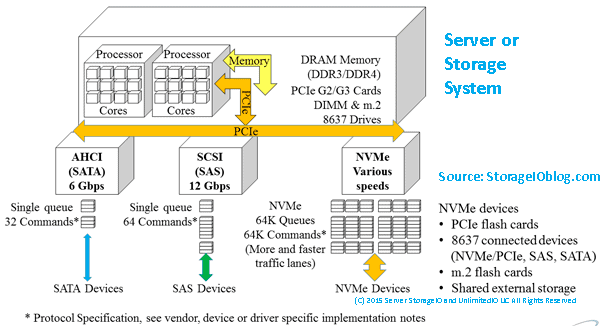
    Various Hardware (SAS, SATA, NVM, M2) and Software (VHD) Defined Odd’s and Ends

    Various Hardware (SAS, SATA, NVM, M2) and Software (VHD) Defined Odd’s and Ends

    server storage I/O trends

    Ever need to add another GbE port to a small server, workstation or perhaps Intel NUC, however no PCIe slots are available? How about attaching a M2 form factor flash SSD card to a server or device that does not have an M2 port, or, for mirroring two M2 cards together with a RAID adapter? Looking for tool to convert a Windows system to a Virtual Hard Disk (VHD) while it is running? The following are a collection of odd’s and end’s devices and tools for hardware and software defining your environment.

    Adding GbE Ports Without PCIe Ports

    Adding Ethernet ports or NICs is relatively easy with larger servers, assuming you have available PCIe slots.

    However what about when you are limited or out of PCIe ports? One option is to use USB (preferably USB 3) to GbE connectors. Another option is if you have an available mSATA card slot, such as on a server or workstation that had a WiFi card you no longer need to use, is get a mSATA to GbE kit (shown below). Granted you might have to get creative with the PCIe bracket depending on what you are going to put one of these into.

    mSATA to GbE and USB to GbE
    Left mSATA to GbE port, Right USB 3 (Blue) to GbE connector

    Tip: Some hypervisors may not like the USB to GbE, or have drivers for the mSATA to GbE connector, likewise some operating systems do not have in the box drivers. Start by loading GbE drivers such as those needed for RealTek NICs and you may end up with plug and play.

    SAS to SATA Interposer and M2 to SATA docking card

    In the following figure on the left is a SAS to SATA interposer which enables a SAS HDD or SSD to connect to a SATA connector (power and data). Keep in mind that SATA devices can attach to SAS ports, however the usual rule of thumb is that SAS devices can not attach to a SATA port or controller. To prevent that from occurring, the SAS and SATA connectors have different notched connectors that prevent a SAS device from plugging into a SATA connector.

    Where the SAS to SATA interposers come into play is that some servers or systems have SAS controllers, however their drive bays have SATA power and data connectors. Note that the key here is that there is a SAS controller, however instead of a SAS connector to the drive bay, a SATA connector is used. To get around this, interposers such as the one above allows the SAS device to attach to the SATA connector which in turn attached to the SAS controller.

    SAS SATA interposer and M2 to SATA docking card
    Left SAS to SATA interposer, Right M2 to SATA docking card

    In the above figure on the right, is an M2 NVM nand flash SSD card attached to a M2 to SATA docking card. This enables M2 cards that have SATA protocol controllers (as opposed to M2 NVMe) to be attached to a SATA port on an adapter or RAID card. Some of these docking cards can also be mounted in server or storage system 2.5" (or larger) drive bays. You can find both of the above at Amazon.com as well as many other venues.

    P2V and Creating VHD and VHDX

    I like and use various Physical to Virtual (P2V) as well as Virtual to Virtual (V2V) and even Virtual to Physical (V2P) along with Virtual to Cloud (V2C) tools including those from VMware (vCenter Converter), Microsoft (e.g. Microsoft Virtual Machine Converter) among others. Likewise Clonezilla, Acronis and many other tools are in the toolbox. One of those other tools that is handy for relatively quickly making a VHD or VHDX out of a running Windows server is disk2vhd.

    disk2vhd

    Now you should ask, why not just use the Microsoft Migration tool or VMware converter?

    Simple, if you use those or other tools and run into issues with GPT vs MBR or BIOS vs UEFI settings among others, disk2vhd is a handy work around. Simply install it, tell it where to create the VHD or VHDX (preferably on another device), start the creation, when done, move the VHDX or VHD to where needed and go from there.

    Where do you get disk2vhd and how much does it cost?

    Get it here from Microsoft Technet Windows Sysinternals page and its free.

    Where to learn more

    Continue reading about the above and other related topics with these links.

  • Server storage I/O Intel NUC nick knack notes – Second impressions
  • Some Windows Server Storage I/O related commands
  • Server Storage I/O Cables Connectors Chargers & other Geek Gifts
  • The NVM (Non Volatile Memory) and NVMe Place (Non Volatile Memory Express)
  • Nand flash SSD and NVM server storage I/O memory conversations
  • Cloud Storage for Camera Data?
  • Via @EmergencyMgtMag Cloud Storage for Camera Data?

  • Software Defined Storage Virtual Hard Disk (VHD) Algorithms + Data Structures
  • Part II 2014 Server Storage I/O Geek Gift ideas
  • What this all means

    While the above odd’s and end’s tips, tricks, tools and technology may not be applicable for your production environment, perhaps they will be useful for your test or home lab environment needs. On the other hand, the above may not be practically useful for anything, yet simply entertaining, the rest is up to you as if there is any return on investment, or, perhaps return on innovation from use these or other odd’s, end’s tips and tricks that might be outside of the traditional box so to speak.

    Ok, nuff said (for now)

    Cheers
    Gs

    Greg Schulz – Author Cloud and Virtual Data Storage Networking (CRC Press), The Green and Virtual Data Center (CRC Press) and Resilient Storage Networks (Elsevier)
    twitter @storageio

    All Comments, (C) and (TM) belong to their owners/posters, Other content (C) Copyright 2006-2023 Server StorageIO(R) and UnlimitedIO All Rights Reserved

    Big Files Lots of Little File Processing Benchmarking with Vdbench

    Big Files Lots of Little File Processing Benchmarking with Vdbench


    server storage data infrastructure i/o File Processing Benchmarking with Vdbench

    Updated 2/10/2018

    Need to test a server, storage I/O networking, hardware, software, services, cloud, virtual, physical or other environment that is either doing some form of file processing, or, that you simply want to have some extra workload running in the background for what ever reason? An option is File Processing Benchmarking with Vdbench.

    I/O performance

    Getting Started


    Here’s a quick and relatively easy way to do it with Vdbench (Free from Oracle). Granted there are other tools, both for free and for fee that can similar things, however we will leave those for another day and post. Here’s the con to this approach, there is no Uui Gui like what you have available with some other tools Here’s the pro to this approach, its free, flexible and limited by your creative, amount of storage space, server memory and I/O capacity.

    If you need a background on Vdbench and benchmarking, check out the series of related posts here (e.g. www.storageio.com/performance).

    Get and Install the Vdbench Bits and Bytes


    If you do not already have Vdbench installed, get a copy from the Oracle or Source Forge site (now points to Oracle here).

    Vdbench is free, you simply sign-up and accept the free license, select the version down load (it is a single, common distribution for all OS) the bits as well as documentation.

    Installation particular on Windows is really easy, basically follow the instructions in the documentation by copying the contents of the download folder to a specified directory, set up any environment variables, and make sure that you have Java installed.

    Here is a hint and tip for Windows Servers, if you get an error message about counters, open a command prompt with Administrator rights, and type the command:

    $ lodctr /r


    The above command will reset your I/O counters. Note however that command will also overwrite counters if enabled so only use it if you have to.

    Likewise *nix install is also easy, copy the files, make sure to copy the applicable *nix shell script (they are in the download folder), and verify Java is installed and working.

    You can do a vdbench -t (windows) or ./vdbench -t (*nix) to verify that it is working.

    Vdbench File Processing

    There are many options with Vdbench as it has a very robust command and scripting language including ability to set up for loops among other things. We are only going to touch the surface here using its file processing capabilities. Likewise, Vdbench can run from a single server accessing multiple storage systems or file systems, as well as running from multiple servers to a single file system. For simplicity, we will stick with the basics in the following examples to exercise a local file system. The limits on the number of files and file size are limited by server memory and storage space.

    You can specify number and depth of directories to put files into for processing. One of the parameters is the anchor point for the file processing, in the following examples =S:\SIOTEMP\FS1 is used as the anchor point. Other parameters include the I/O size, percent reads, number of threads, run time and sample interval as well as output folder name for the result files. Note that unlike some tools, Vdbench does not create a single file of results, rather a folder with several files including summary, totals, parameters, histograms, CSV among others.


    Simple Vdbench File Processing Commands

    For flexibility and ease of use I put the following three Vdbench commands into a simple text file that is then called with parameters on the command line.
    fsd=fsd1,anchor=!fanchor,depth=!dirdep,width=!dirwid,files=!numfiles,size=!filesize

    fwd=fwd1,fsd=fsd1,rdpct=!filrdpct,xfersize=!fxfersize,fileselect=random,fileio=random,threads=!thrds

    rd=rd1,fwd=fwd1,fwdrate=max,format=yes,elapsed=!etime,interval=!itime

    Simple Vdbench script

    # SIO_vdbench_filesystest.txt
    #
    # Example Vdbench script for file processing
    #
    # fanchor = file system place where directories and files will be created
    # dirwid = how wide should the directories be (e.g. how many directories wide)
    # numfiles = how many files per directory
    # filesize = size in in k, m, g e.g. 16k = 16KBytes
    # fxfersize = file I/O transfer size in kbytes
    # thrds = how many threads or workers
    # etime = how long to run in minutes (m) or hours (h)
    # itime = interval sample time e.g. 30 seconds
    # dirdep = how deep the directory tree
    # filrdpct = percent of reads e.g. 90 = 90 percent reads
    # -p processnumber = optional specify a process number, only needed if running multiple vdbenchs at same time, number should be unique
    # -o output file that describes what being done and some config info
    #
    # Sample command line shown for Windows, for *nix add ./
    #
    # The real Vdbench script with command line parameters indicated by !=
    #

    fsd=fsd1,anchor=!fanchor,depth=!dirdep,width=!dirwid,files=!numfiles,size=!filesize

    fwd=fwd1,fsd=fsd1,rdpct=!filrdpct,xfersize=!fxfersize,fileselect=random,fileio=random,threads=!thrds

    rd=rd1,fwd=fwd1,fwdrate=max,format=yes,elapsed=!etime,interval=!itime

    Big Files Processing Script


    With the above script file defined, for Big Files I specify a command line such as the following.
    $ vdbench -f SIO_vdbench_filesystest.txt fanchor=S:\SIOTemp\FS1 dirwid=1 numfiles=60 filesize=5G fxfersize=128k thrds=64 etime=10h itime=30 numdir=1 dirdep=1 filrdpct=90 -p 5576 -o SIOWS2012R220_NOFUZE_5Gx60_BigFiles_64TH_STX1200_020116

    Big Files Processing Example Results


    The following is one of the result files from the folder of results created via the above command for Big File processing showing totals.


    Run totals

    21:09:36.001 Starting RD=format_for_rd1

    Feb 01, 2016 .Interval. .ReqstdOps.. ...cpu%... read ....read.... ...write.... ..mb/sec... mb/sec .xfer.. ...mkdir... ...rmdir... ..create... ...open.... ...close... ..delete...
    rate resp total sys pct rate resp rate resp read write total size rate resp rate resp rate resp rate resp rate resp rate resp
    21:23:34.101 avg_2-28 2848.2 2.70 8.8 8.32 0.0 0.0 0.00 2848.2 2.70 0.00 356.0 356.02 131071 0.0 0.00 0.0 0.00 0.1 109176 0.1 0.55 0.1 2006 0.0 0.00

    21:23:35.009 Starting RD=rd1; elapsed=36000; fwdrate=max. For loops: None

    07:23:35.000 avg_2-1200 4939.5 1.62 18.5 17.3 90.0 4445.8 1.79 493.7 0.07 555.7 61.72 617.44 131071 0.0 0.00 0.0 0.00 0.0 0.00 0.1 0.03 0.1 2.95 0.0 0.00


    Lots of Little Files Processing Script


    For lots of little files, the following is used.


    $ vdbench -f SIO_vdbench_filesystest.txt fanchor=S:\SIOTEMP\FS1 dirwid=64 numfiles=25600 filesize=16k fxfersize=1k thrds=64 etime=10h itime=30 dirdep=1 filrdpct=90 -p 5576 -o SIOWS2012R220_NOFUZE_SmallFiles_64TH_STX1200_020116

    Lots of Little Files Processing Example Results


    The following is one of the result files from the folder of results created via the above command for Big File processing showing totals.
    Run totals

    09:17:38.001 Starting RD=format_for_rd1

    Feb 02, 2016 .Interval. .ReqstdOps.. ...cpu%... read ....read.... ...write.... ..mb/sec... mb/sec .xfer.. ...mkdir... ...rmdir... ..create... ...open.... ...close... ..delete...
    rate resp total sys pct rate resp rate resp read write total size rate resp rate resp rate resp rate resp rate resp rate resp
    09:19:48.016 avg_2-5 10138 0.14 75.7 64.6 0.0 0.0 0.00 10138 0.14 0.00 158.4 158.42 16384 0.0 0.00 0.0 0.00 10138 0.65 10138 0.43 10138 0.05 0.0 0.00

    09:19:49.000 Starting RD=rd1; elapsed=36000; fwdrate=max. For loops: None

    19:19:49.001 avg_2-1200 113049 0.41 67.0 55.0 90.0 101747 0.19 11302 2.42 99.36 11.04 110.40 1023 0.0 0.00 0.0 0.00 0.0 0.00 7065 0.85 7065 1.60 0.0 0.00


    Where To Learn More

    View additional NAS, NVMe, SSD, NVM, SCM, Data Infrastructure and HDD related topics via the following links.

    Additional learning experiences along with common questions (and answers), as well as tips can be found in Software Defined Data Infrastructure Essentials book.

    Software Defined Data Infrastructure Essentials Book SDDC

    What This All Means

    The above examples can easily be modified to do different things particular if you read the Vdbench documentation on how to setup multi-host, multi-storage system, multiple job streams to do different types of processing. This means you can benchmark a storage systems, server or converged and hyper-converged platform, or simply put a workload on it as part of other testing. There are even options for handling data footprint reduction such as compression and dedupe.

    Ok, nuff said, for now.

    Gs

    Greg Schulz - Microsoft MVP Cloud and Data Center Management, VMware vExpert 2010-2017 (vSAN and vCloud). Author of Software Defined Data Infrastructure Essentials (CRC Press), as well as Cloud and Virtual Data Storage Networking (CRC Press), The Green and Virtual Data Center (CRC Press), Resilient Storage Networks (Elsevier) and twitter @storageio. Courteous comments are welcome for consideration. First published on https://storageioblog.com any reproduction in whole, in part, with changes to content, without source attribution under title or without permission is forbidden.

    All Comments, (C) and (TM) belong to their owners/posters, Other content (C) Copyright 2006-2026 Server StorageIO and UnlimitedIO. All Rights Reserved. StorageIO is a registered Trade Mark (TM) of Server StorageIO.
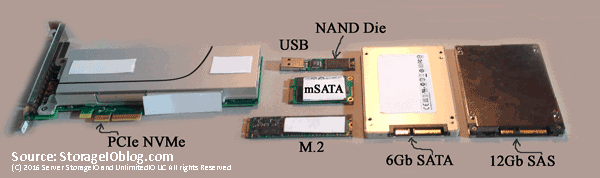
    RIP Windows SIS (Single Instance Storage), or at least in Server 2016

    RIP Windows SIS, or at least in Server 2016

    server storage I/O trends

    I received as a Microsoft MVP a partner communication today from Microsoft of a heads up as well as pass on to others that Single Instance Storage (SIS) has been removed from Windows Server 2016 (Read the Microsoft Announcement here, or below). Windows SIS is part of Microsoft’s portfolio of tools and technology for implementing Data Footprint Reduction (DFR).

    Granted Windows Server 2016 has not been released yet, however you can download and try out the latest release such as Technical Preview 4 (TP4), get the bits from Microsoft here. Learn more about some of the server and storage I/O enhancements in TP4 including storage spaces direct here.

    Partner Communication from Microsoft

    Partner Communication
    Please relay or forward this notification to ISVs and hardware partners that have used Single Instance Storage (SIS) or implemented the SIS backup API.

    Single Instance Storage (SIS) has been removed from Windows Server 2016
    Summary:   Single Instance Storage (SIS), a file system filter driver used for NTFS file deduplication, has been removed from Windows Server. In Dec 2015, the SIS feature has been completely removed from Windows Server and Windows Storage Server editions.  SIS was officially deprecated in Windows Server 2012 R2 in this announcement and will be removed from future Windows Server Technical Preview releases.

    Call to action:
    Storage vendors that have any application dependencies on legacy SIS functions or SIS backup and restore APIs should verify that their applications behave as expected on Windows Server 2016 and Windows Storage Server 2016. Windows Server 2012 included Microsoft’s next generation of deduplication technology that uses variable-sized chunking and hashing and offers far superior deduplication rates. Users and backup vendors have already moved to support the latest Microsoft deduplication technology and should continue to do so.

    Background:
    SIS was developed and used in Windows Server since 2000, when it was part of Remote Installation Services. SIS became a general purpose file system filter driver in Windows Storage Server 2003 and the SIS groveler (the deduplication engine) was included in Windows Storage Server. In Windows Storage Server 2008, the SIS legacy read/write filter driver was upgraded to a mini-filter and it shipped in Windows Server 2008, Windows Server 2012 and Windows Server 2012 R2 editions. Creating SIS-controlled volumes could only occur on Windows Storage Server, however, all editions of Windows Server could read and write to volumes that were under SIS control and could restore and backup volumes that had SIS applied.
    Volumes using SIS that are restored or plugged into Windows Server 2016 will only be able to read data that was not deduplicated. Prior to migrating or restoring a volume, users must remove SIS from the volume by copying it to another location or removing SIS using SISadmin commands.

    The SIS components and features:

    • SIS Groveler. The SIS Groveler searched for files that were identical on the NTFS file system volume. It then reported those files to the SIS filter driver.
    • SIS Storage Filter. The SIS Storage Filter was a file system filter that managed duplicate copies of files on logical volumes. This filter copied one instance of the duplicate file into the Common Store. The duplicate copies were replaced with a link to the Common Store to improve disk space utilization.
    • SIS Link. SIS links were pointers within the file system, maintaining both application and user experience (including attributes such as file size and directory path) while I/O was transparently redirected to the actual duplicate file located within the SIS Common Store.
    • SIS Common Store. The SIS Common Store served as the repository for each file identified as having duplicates. Each SIS-maintained volume contained one SIS Common Store, which contained all of the merged duplicate files that exist on that volume.
    • SIS Administrative Interface. The SIS Administrative Interface gave network administrators easy access to all SIS controls to simplify management.
    • SIS Backup API. The SIS Backup API (Sisbkup.dll) helped OEMs create SIS-aware backup and restoration solutions.

    References:
    https://msdn.microsoft.com/en-us/library/windows/desktop/aa362538(v=vs.85).aspx
    https://msdn.microsoft.com/en-us/library/windows/desktop/aa362512(v=vs.85).aspx
    https://msdn.microsoft.com/en-us/library/dexter.functioncatall.sis(v=vs.90).aspx
    https://blogs.technet.com/b/filecab/archive/2012/05/21/introduction-to-data-deduplication-in-windows-server-2012.aspx
    https://blogs.technet.com/b/filecab/archive/2006/02/03/single-instance-store-sis-in-windows-storage-server-r2.aspx

    What this all means

    Like it or not, SIS is being removed from Windows 2016 replaced by the new Microsoft deduplication or data footprint reduction (DFR) technology.

    You have been advised…

    RIP Windows SIS

    Ok, nuff said (for now)

    Cheers
    Gs

    Greg Schulz – Author Cloud and Virtual Data Storage Networking (CRC Press), The Green and Virtual Data Center (CRC Press) and Resilient Storage Networks (Elsevier)
    twitter @storageio

    All Comments, (C) and (TM) belong to their owners/posters, Other content (C) Copyright 2006-2023 Server StorageIO(R) and UnlimitedIO All Rights Reserved

    VMware vCloud Air Server StorageIOlab Test Drive with videos

    Server Storage I/O trends

    VMware vCloud Air Server StorageIOlab Test Drive with videos

    Recently I was invited by VMware vCloud Air to do a free hands-on test drive of their actual production environment. Some of you may already being using VMware vSphere, vRealize and other software defined data center (SDDC) aka Virtual Server Infrastructure (VSI) or Virtual Desktop Infrastructure (VDI) tools among others. Likewise some of you may already be using one of the many cloud compute or Infrastructure as a Service (IaaS) such as Amazon Web Services (AWS) Elastic Cloud Compute (EC2), Centurylink, Google Cloud, IBM Softlayer, Microsoft Azure, Rackspace or Virtustream (being bought by EMC) among many others.

    VMware vCloud Air provides a platform similar to those just mentioned among others for your applications and their underlying resource needs (compute, memory, storage, networking) to be fulfilled. In addition, it should not be a surprise that VMware vCloud Air shares many common themes, philosophies and user experiences with the traditional on-premises based VMware solutions you may be familiar with.

    VMware vCloud Air overview

    You can give VMware vCloud Air a trial for free while the offer lasts by clicking here (service details here). Basically if you click on the link and register a new account for using VMware vCloud Air they will give you up to $500 USD in service credits to use in the real production environment while the offer lasts which iirc is through end of June 2015.

    Server StorageIO test drive VMware vCloud Air video I
    Click on above image to view video part I

    Server StorageIO test drive VMware vCloud Air part II
    Click on above image to view video part II

    What this means is that you can go and setup some servers with as many CPUs or cores, memory, Hard Disk Drive (HDD) or flash Solid State Devices (SSD) storage, external IP networks using various operating systems (Centos, Ubuntu, Windows 2008, 20012, 20012 R2) for free, or until you use up the service credits.

    Speaking of which, let me give you a bit of a tip or hint, even though you can get free time, if you provision a fast server with lots of fast SSD storage and leave it sit idle over night or over a weekend, you will chew up your free credits rather fast. So the tip which should be common sense is if you are going to do some proof of concepts and then leave things alone for a while, power the virtual cloud servers off to stretch your credits further. On the other hand, if you have something that you want to run on a fast server with fast storage over a weekend or longer, give that a try, just pay attention to your resource usage and possible charges should you exhaust your service credits.

    My Server StorageIO test drive mission objective

    For my test drive, I created a new account by using the above link to get the service credits. Note that you can use your regular VMware account with vCloud Air, however you wont get the free service credits. So while it is a few minutes of extra work, the benefit was worth it vs. simply using my existing VMware account and racking up more cloud services charges on my credit card. As part of this Server StorageIOlab test drive, I created two companion videos part I here and part II here that you can view to follow along and get a better idea of how vCloud works.

    VMware vCloud Air overview
    Phase one, create the virtual data center, database server, client servers and first setup

    My goal was to set up a simple Virtual Data Center (VDC) that would consist of five Windows 2012 R2 servers, one would be a MySQL database server with the other four being client application servers. You can download MySQL from here at Oracle as well as via other sources. For applications to simplify things I used Hammerdb as well as Benchmark Factory that is part of the Quest Toad tool set for database admins. You can download a free trial copy of Benchmark Factory here, and HammerDB here. Another tool that I used for monitoring the servers is Spotlight on Windows (SoW) which is also free here. Speaking of tools, here is a link to various server and storage I/O performance as well as monitoring tools.

    Links to tools that I used for this test-drive included:

    Setting up a virtual data center vdc
    Phase one steps and activity summary

    Summary of phase one of vdc
    Recap of what was done in phase one, watch the associated video here.

    After the initial setup (e.g. part I video here), the next step was to add some more virtual machines and take a closer look at the environment. Note that most of the work in setting up this environment was Windows, MySQL, Hammerdb, Benchmark Factory, Spotlight on Windows along with other common tools so their installation is not a focus in these videos or this post, perhaps a future post will dig into those in more depth.

    Summary of phase two of the vdc
    What was done during phase II (view the video here)

    VMware vCloud Air vdc trest drive

    There is much more to VMware vCloud Air and on their main site there are many useful links including overviews, how-too tutorials, product and service offering details and much more here. Besides paying attention to your resource usage and avoid being surprised by service charges, two other tips I can pass along that are also mentioned in the videos (here and here) is to pay attention what region you setup your virtual data centers in, second is have your network thought out ahead of time to streamline setting up the NAT and firewall as well as gateway configurations.

    Where to learn more

    Learn more about data protection and related topics, themes, trends, tools and technologies via the following links:

    Server Storage I/O trends

    What this all means and wrap-up

    Overall I like the VMware vCloud Air service which if you are VMware centric focused will be a familiar cloud option including integration with vCloud Director and other tools you may already have in your environment. Even if you are not familiar with VMware vSphere and associated vRealize tools, the vCloud service is intuitive enough that you can be productive fairly quickly. On one hand vCloud Air does not have the extensive menu of service offerings to choose from such as with AWS, Google, Azure or others, however that also means a simpler menu of options to choose from and simplify things.

    I had wanted to spend some time actually using vCloud and the offer to use some free service credits in the production environment made it worth making the time to actually setup some workloads and do some testing. Even if you are not a VMware focused environment, I would recommend giving VMware vCloud Air a test drive to see what it can do for you, as opposed to what you can do for it…

    Ok, nuff said for now

    Cheers
    Gs

    Greg Schulz – Author Cloud and Virtual Data Storage Networking (CRC Press), The Green and Virtual Data Center (CRC Press) and Resilient Storage Networks (Elsevier)
    twitter @storageio

    All Comments, (C) and (TM) belong to their owners/posters, Other content (C) Copyright 2006-2026 Server StorageIO and UnlimitedIO LLC All Rights Reserved