Installing new Insider’s build Windows Server vnext NVMeoF, host initiator

Installing new Insider’s build Windows Server vnext NVMeoF, host initiator

A few weeks ago, Microsoft released a new Insider’s build of Windows Server vnext with NVMeoF host initiator. This post looks at installing and setting up the new initiator for testing. Granted, this is for testing and evaluating the NVMe over Fabric (NVMeoF) that supports TCP and RDMA for networked block storage with a Windows Server vnext host, and a Linux test target. Given that this is for a simple test and trying things out, you will want to adjust some of the security and access control settings on both the initiator and target sides.

Whats Needed

For the host NVMeoF initiator, you will need a current version of the insider build release of Windows Server vnext available here. You will also need some type of NVMeoF target, such as a storage system or platform that supports NVMeoF via TCP or RDMA, or a test initiator, for example, on a Linux system. For my test target, I set up an Ubuntu 25 Linux server with a small 50GB device to export as an NVMeoF device.

On the Ubuntu Linux server (e.g NVMeoF target)

sudo apt install nvme-cli -y
sudo modprobe nvmet
sudo modprobe nvmet-tcp
lsmod | grep nvmet

You should then see something like the following:

nvmet_tcp 45056 1
nvmet 249856 7 nvmet_tcp
nvme_core 241664 4 nvmet,nvme_tcp,nvme,nvme_fabrics
nvme_keyring 20480 5 nvmet,nvme_tcp,nvmet_tcp,nvme_core,nvme_fabrics
nvme_auth 28672 2 nvmet,nvme_core

Continue with the NVMeoF target setup:

sudo mount -t configfs none /sys/kernel/config
cd /sys/kernel/config/nvmet

# define your nqn which can be what ever you like, or have

sudo mkdir subsystems/nqn-2026-03.com:nvme.storageio01

# since this is for testing, this is being loose with access control

echo 1 | sudo tee subsystems/nqn-2026-03.com:nvme.storageio01/attr_allow_any_host
sudo mkdir subsystems/nqn-2026-03.com:nvme.storageio01/namespaces/1

# specify device to use as target, the device could be a partition, volume, file, etc

echo /dev/sdb | sudo tee subsystems/nqn-2026-03.com:nvme.storageio01/namespaces/1/device_path
echo 1 | sudo tee subsystems/nqn-2026-03.com:nvme.storageio01/namespaces/1/enable

# You can select what port you want to use. For testing, used 4420

sudo mkdir ports/4420
echo tcp | sudo tee ports/4420/addr_trtype
echo 192.168.1.205 | sudo tee ports/4420/addr_traddr
echo 4420 | sudo tee ports/4420/addr_trsvcid
echo ipv4 | sudo tee ports/4420/addr_adrfam

# For non-testing, you can adjust access to suit your needs

sudo ufw allow 4420/tcp

# now make the target accessible

sudo ln -s /sys/kernel/config/nvmet/subsystems/nqn-2026-03.com:nvme.storageio01 /sys/kernel/config/nvmet/ports/4420/subsystems/nqn-2026-03.com:nvme.storageio01

# now lets see if there is a listener

sudo ss -ltnp | grep 4420

# Should see something like this:

LISTEN 0 128 192.168.1.205:4420 0.0.0.0:*

# now lets discover whats out there based on what we have setup

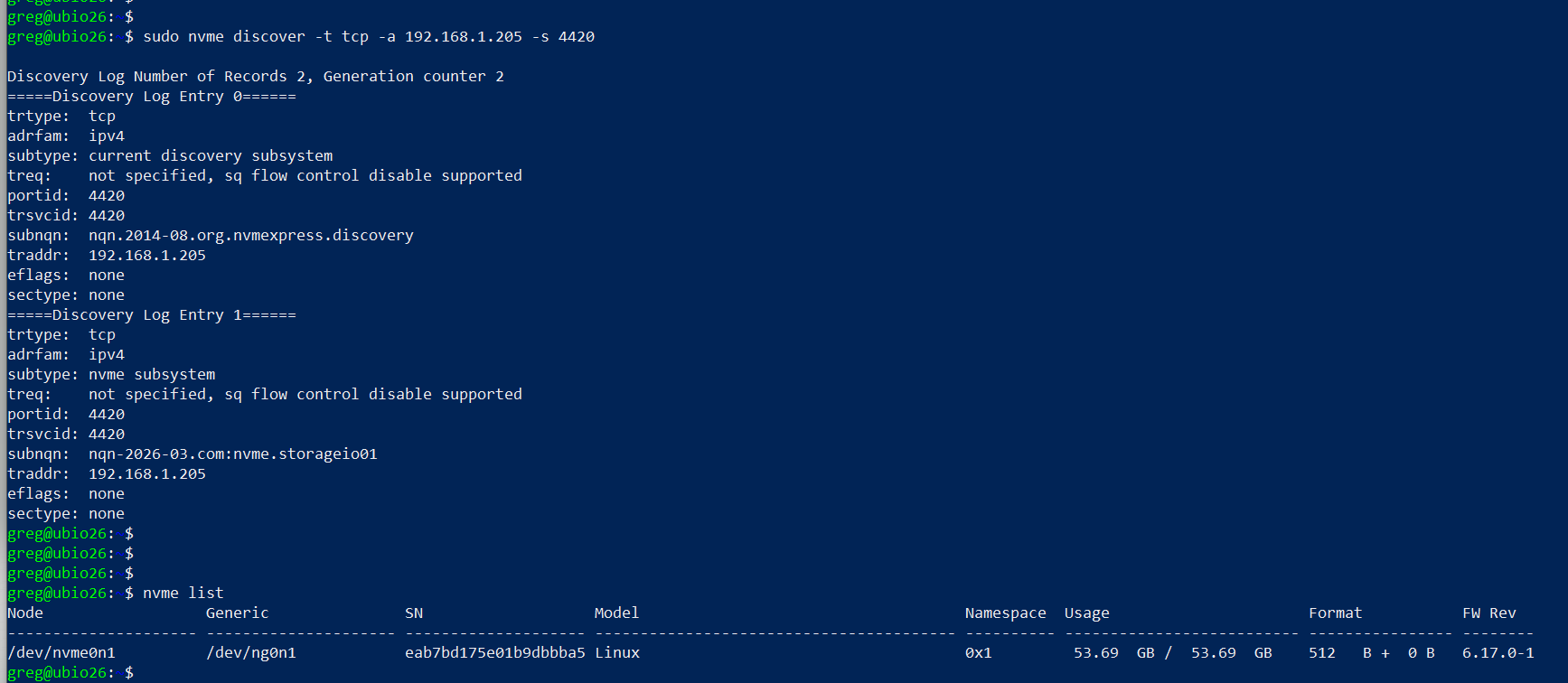
sudo nvme discover -t tcp -a 192.168.1.205 -s 4420

# should see something like this:

Discovery Log Number of Records 2, Generation counter 2
=====Discovery Log Entry 0======
trtype: tcp
adrfam: ipv4
subtype: current discovery subsystem
treq: not specified, sq flow control disable supported
portid: 4420
trsvcid: 4420
subnqn: nqn.2014-08.org.nvmexpress.discovery
traddr: 192.168.1.205
eflags: none
sectype: none
=====Discovery Log Entry 1======
trtype: tcp
adrfam: ipv4
subtype: nvme subsystem
treq: not specified, sq flow control disable supported
portid: 4420
trsvcid: 4420
subnqn: nqn-2026-03.com:nvme.storageio01
traddr: 192.168.1.205
eflags: none
sectype: none

# if you want to connect from the Linux server

sudo nvme connect -t tcp -a 192.168.1.205 -s 4420 -n nqn-2026-03.com:nvme.storageio01

# and then list the targets

nvme list

# you should see something like this:

Node Generic SN Model Namespace Usage Format FW Rev
——————— ——————— ——————– —————————————- ———- ————————– —————- ——–
/dev/nvme0n1 /dev/ng0n1 eab7bd175e01b9dbbba5 Linux 0x1 53.69 GB / 53.69 GB 512 B + 0 B 6.17.0-1

setting up linux nvmeof target

On Windows Server vnext (NVMeoF Initiator)

Now, on your Windows Server vnext, open a command window with elevated access (e.g., Run as Administrator) and use the following, making note of the parameters from the target (e.g., IP address, port 4420, nqn).

Here is a screen shot of the host initiator before the NVMeoF target appears.

windows server vnext nvmeof host initiator setup

Now display available NVMeoF initiators using this command:

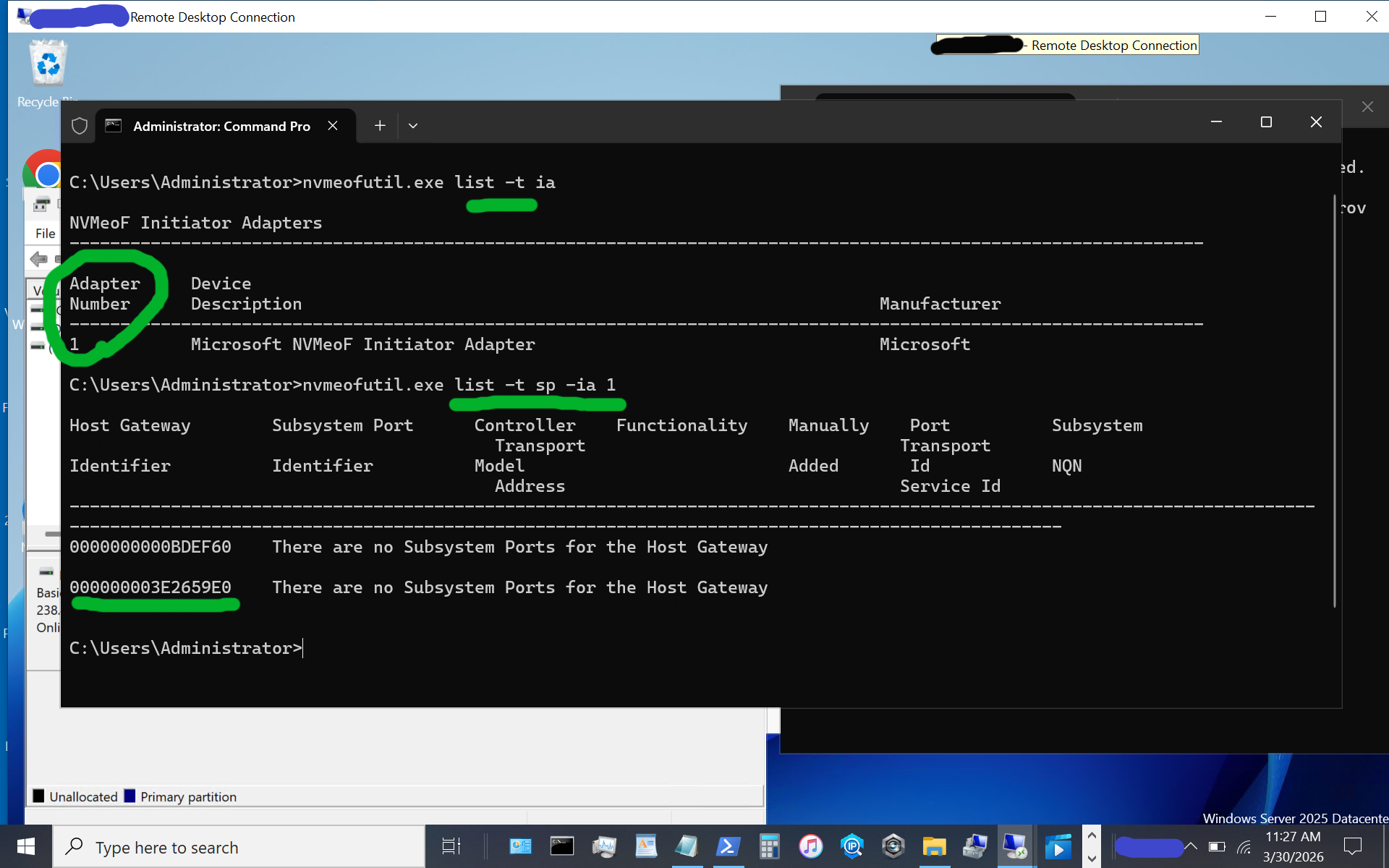
nvmeofutil.exe list -t ia

windows server vnext nvmeof host initiator setup

Note the host adapter number (e.g., 1) which will be used in the next step to get host gateway information.

nvmeofutil.exe list -t sp -ia 1
windows server vnext nvmeof host initiator setup display host gateway

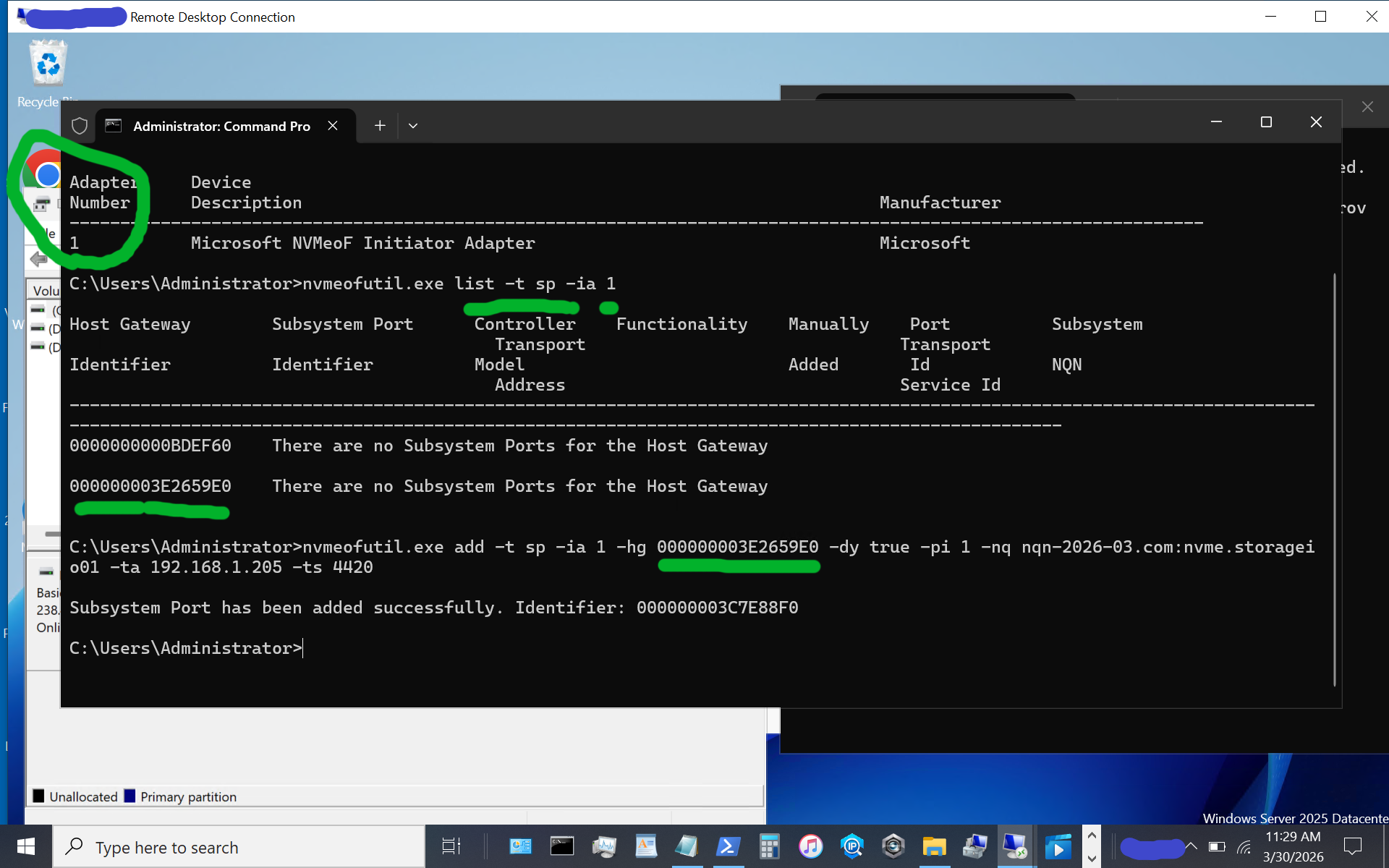
Note the host gateway, target IP address, target port, and target nqn. Also note that there is an IPV6 and IPV4, in this example there is no IPV6 being used, so we are using the 2nd item (e.g. IPV4).

nvmeofutil.exe add -t sp -ia 1 -hg -dy true -pi 1 -nq nqn-2026-03.com:nvme.storageio01 -ta 192.168.1.205 -ts 4420

windows server vnext nvmeof host initiator setup showing host gateway and other information

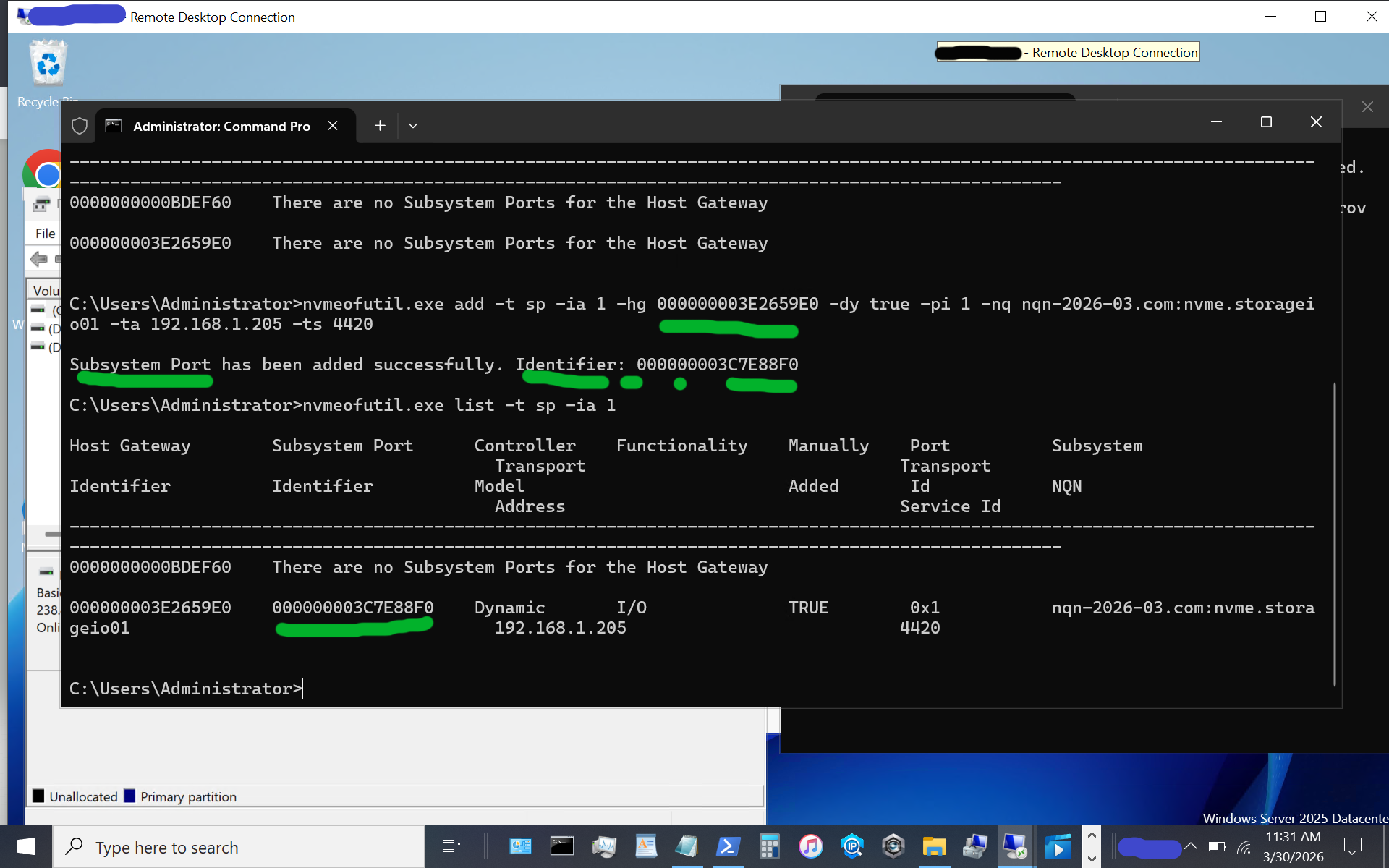
Now, let’s identify the target subsystem ID.

nvmeofutil.exe list -t sp -ia 1

windows server vnext nvmeof host initiator setup showing subsystem information of available targets

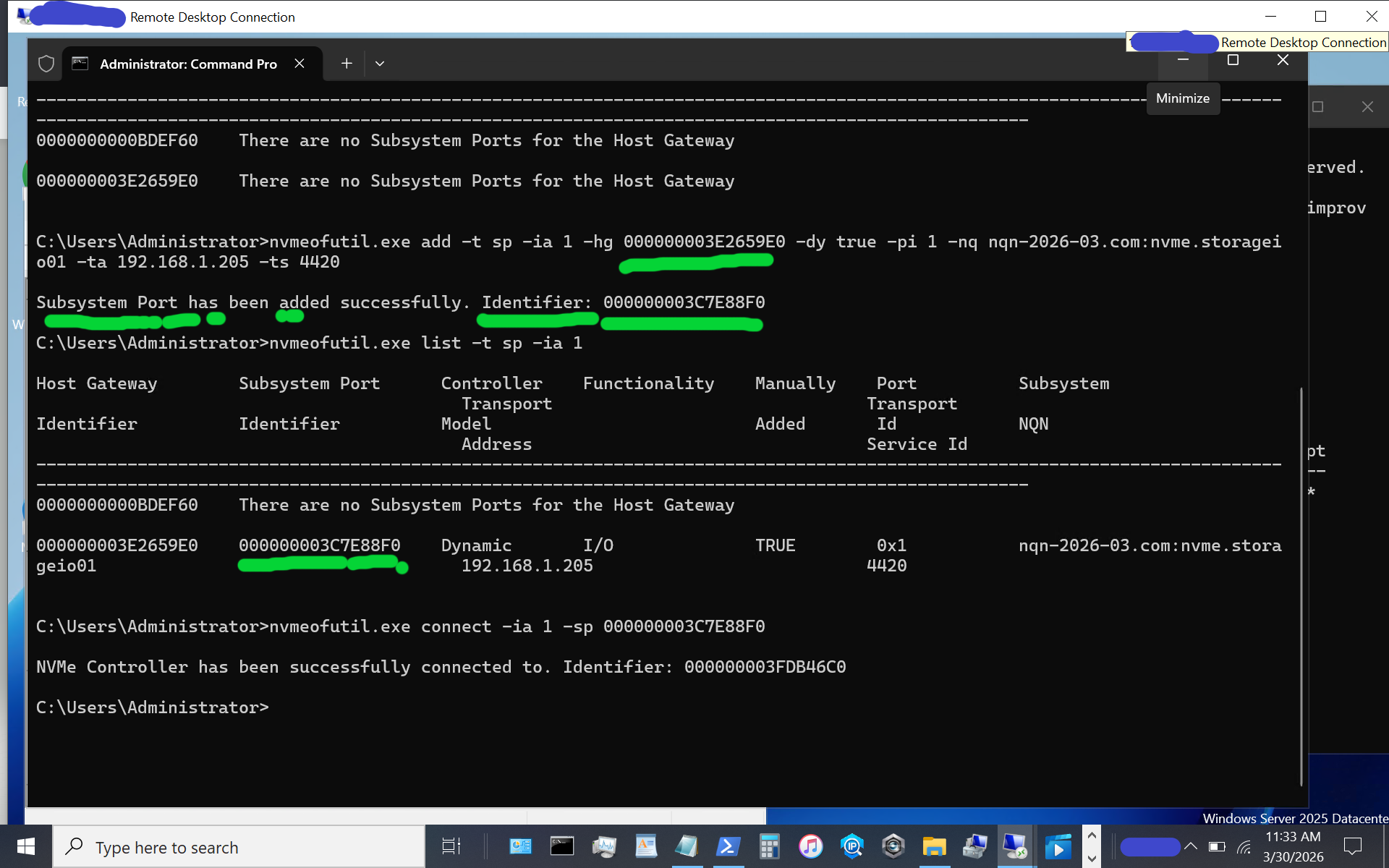
Now, let’s use the subsystem port from above to connect to the target. Note that in some of the instructions I have seen, there is a reference to sp without an sp shown; thus, the previous steps help identify the sp to use.

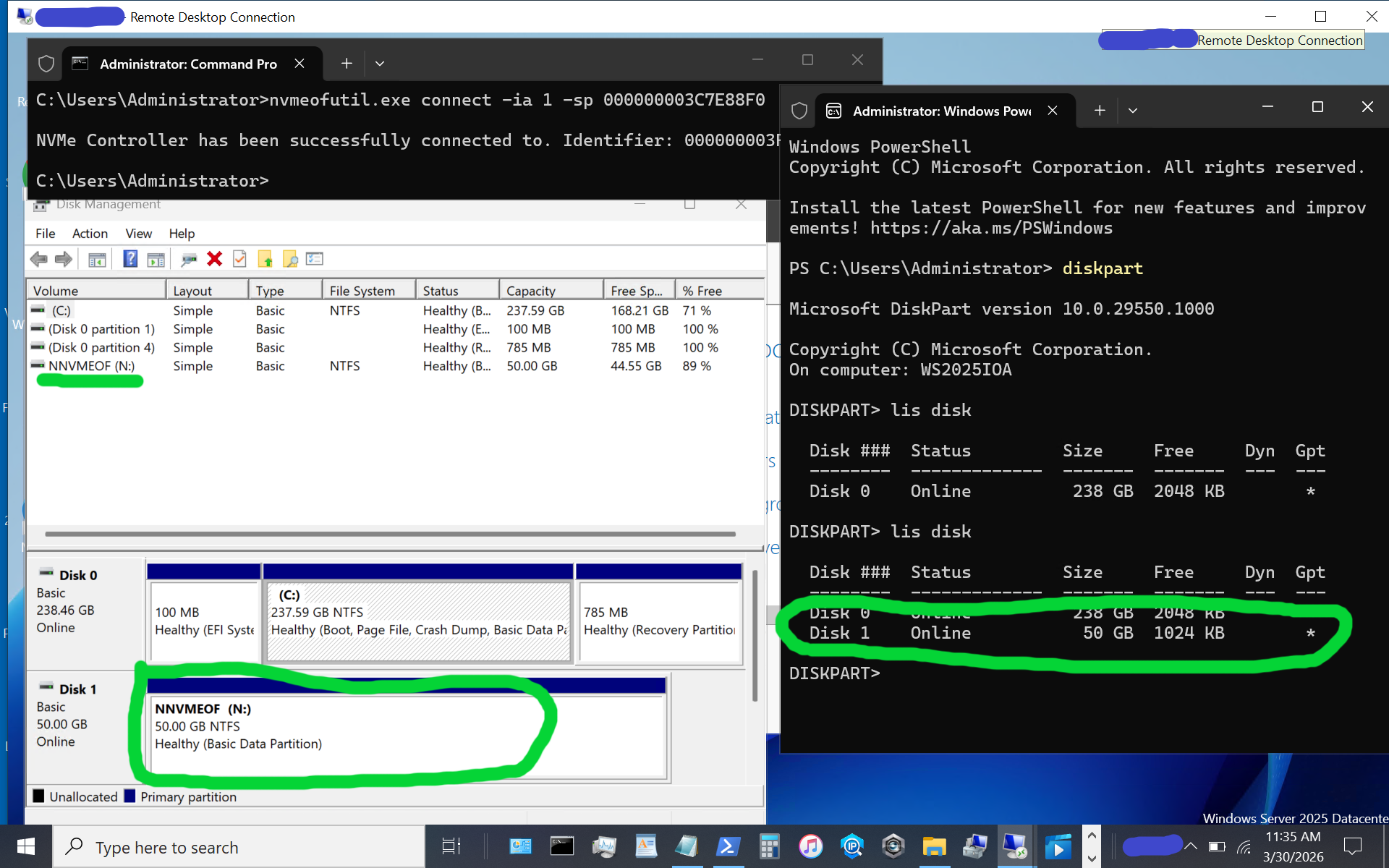
nvmeofutil.exe connect -ia 1 -sp 000000003C7E88F0

windows server vnext nvmeof host initiator setup

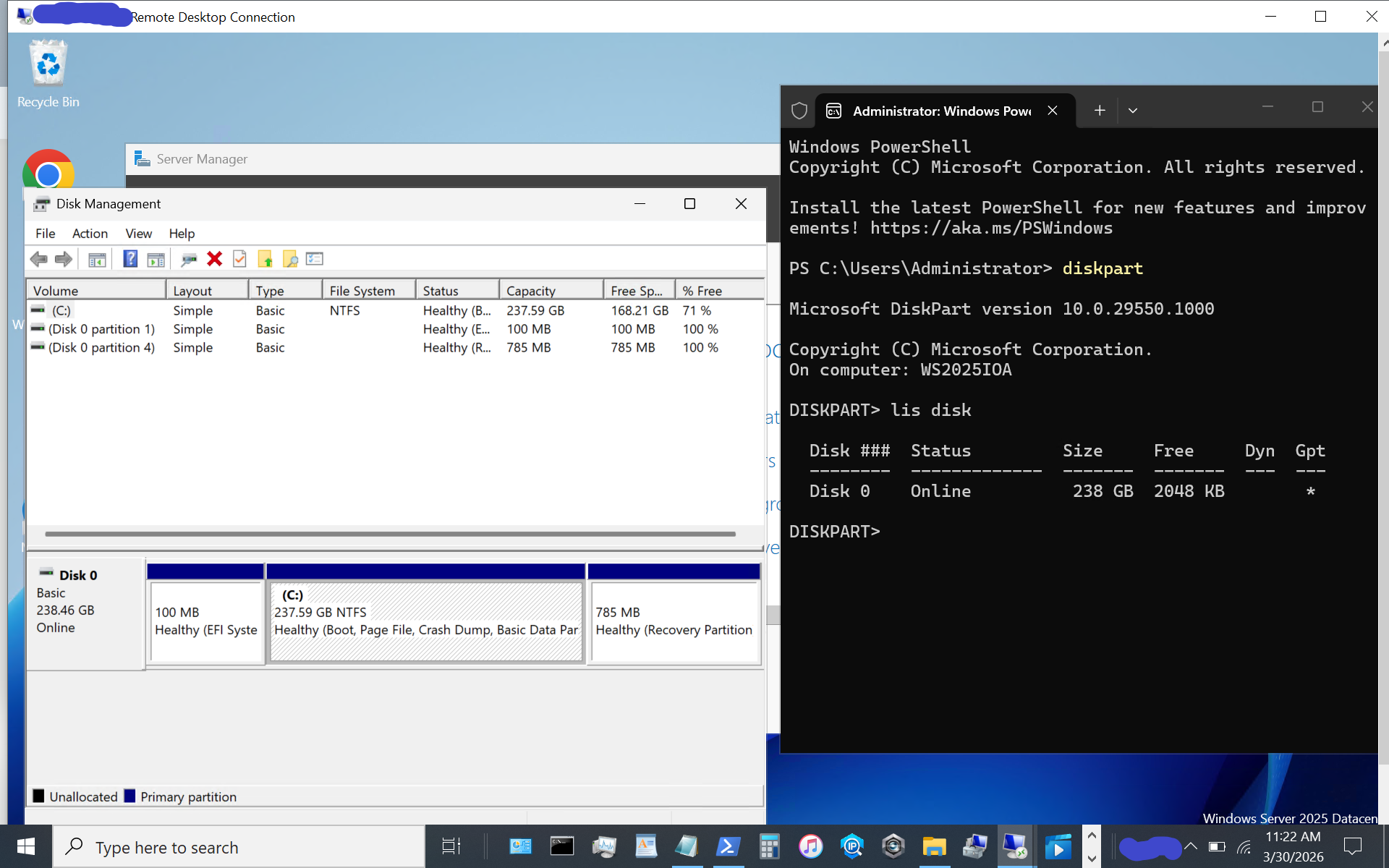
Congratulations, at this point, you should see a new disk or volume appear on your Windows Server vnext host system.

windows server vnext nvmeof host initiator setup

The above image shows what appears when using diskpart, as well as the disk format utility, or use your preferred command, PowerShell script, or tool. If the disk or volume has not yet been used, it must be initialized and formatted. Otoh, as in this example, the disk volume had previously been initialized and formatted as a simple NTFS volume.

Again, reiterating, the above is for simple testing and evaluation, with loose security and persistence that you will want to tighten up as needed. The whole process is pretty easy as long as you don’t make any typos, for example, with nqn or other items.

Additional Resources Where to learn more

Microsoft Windows Server Insider Build NVMeoF Initiator (Blog post)
NVMe Linux Driver and related info
Announcing Native NVMe in Windows Server 2025 (Microsoft Post)
Introducing the Windows NVMe-oF Initiator Preview in Windows Server Insiders Builds (Microsoft Post)
Windows Server Insider Builds (Microsoft Downloads)
ToE NVMeoF TCP Performance Boost Performance Reduce Costs (blog post)
TheNVMeplace.com (Various NVMe resources)
Azure Cloud Storage here (Microsoft Post)
Microsoft Azure Data Box (Blog Post)
Azure Elastic SAN from Cloud to On-Prem here (Blog Post)
Cloud and Software Defined Data Infrastructure topics here

Additional learning experiences along with common questions (and answers) pertaining to SCSI, Fibre Channel, NVMe, Cloud, Hardware, Software, Services, techniques, server, storage, I/O networking, data protection among other topics are found in my Software Defined Data Infrastructure Essentials book.

Software Defined Data Infrastructure Essentials (CRC Press) by Greg Schulz

What this all means

With the insiders preview of Windows Server vnext you have the opportunity to try out the new NVMeoF initiator using TCP and RDMA including on Ethernet based fabric networks. The current insiders build utilizes the nvmeofutility.exe for initial testing, evaluations and experiments while future releases should see other management tools and interfaces such as Powershell cmdlets among others.

Ok, nuff said.

Cheers Gs

Greg Schulz – Ten time Microsoft MVP Cloud and Data Center Management and Azure Storage, along with previous ten-time VMware vExpert. Author of Software Defined Data Infrastructure Essentials (CRC Press), as well as Cloud and Virtual Data Storage Networking (CRC Press), The Green and Virtual Data Center (CRC Press), Resilient Storage Networks (Elsevier) and twitter @storageio. Courteous comments are welcome for consideration. First published on https://storageioblog.com any reproduction in whole, in part, with changes to content, without source attribution under title or without permission is forbidden.

All Comments, (C) and (TM) belong to their owners/posters, Other content (C) Copyright 2006-2026 Server StorageIO and UnlimitedIO. All Rights Reserved. StorageIO is a registered Trade Mark (TM) of UnlimitedIO LLC.

Introducing Windows Subsystem for Linux WSL Overview #blogtober

Introducing Windows Subsystem for Linux WSL Overview #blogtober

server storage I/O data infrastructure trends

Updated 1/21/2018

Introducing Windows Subsystem for Linux WSL and Overview. Microsoft has been increasing their support of Linux across Azure public cloud, Hyper-V and Linux Integration Services (LIS) and Windows platforms including Windows Subsystem for Linux (WSL) as well as Server along with Docker support.

WSL installed with Ubuntu on Windows 10

WSL with Ubuntu installed and open in a window on one of my Windows 10 systems.

WSL is not a virtual machine (VM) running on Windows or Hyper-V, rather it is a subsystem that coexists next to win32 (read more about how it works and features, enhancements here). Once installed, WSL enables use of Linux bash shell along with familiar tools (find, grep, sed, awk, rsync among others) as well as services such as ssh, MySQL among others.

What this all means is that if you work with both Windows and Linux, you can do so on the same desktop, laptop, server or system using your preferred commands. For example in one window you can be using Powershell or traditional Windows commands and tools, while in another window working with grep, find and other tools eliminating the need to install things such as wingrep among others.

Installing WSL

Depending on which release of Windows desktop or server you are running, there are a couple of different install paths. Since my Windows 10 is the most recent release (e.g. 1709) I was able to simply go to the Microsoft Windows Store via desktop, search for Windows Linux, select the distribution, install and launch. Microsoft has some useful information for installing WSL on different Windows version here, as well as for Windows Servers here.

Get WSL from Windows Store

Get WSL from Windows Store or more information and options here.

Microsoft WSL install

Click on Get the app

Select which Linux for WSL to install

Select desired WSL distribution

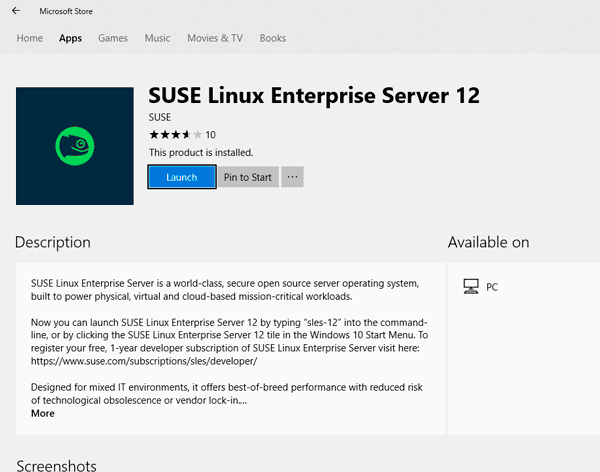
SUSE linux for WSL

Lests select SUSE as I already have Ubuntu installed (I have both)

WSL installing SUSE

SUSE WSL in the process of downloading. Note SUSE needs an access code (free) that you get from https://www.suse.com/subscriptions/sles/developer/ while waiting for the download and install is a good time to get that code.

launching WSL on Windows 10

Launching WSL with SUSE, you will be prompted to enter the code mentioned above, if you do not have a code, get it here from SUSE.

completing install of WSL

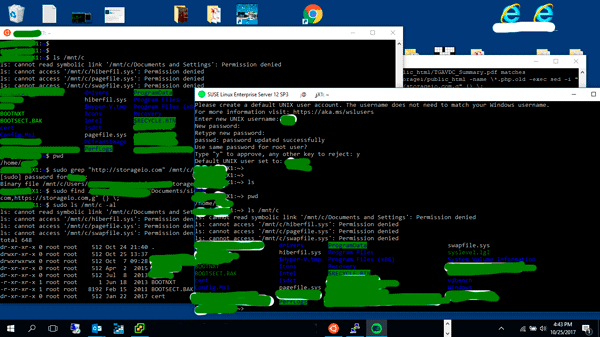
The WSL installation is very straight forward, enter the SUSE code (Ubuntu did not need a code). Note the Ubuntu and SUSE WSL task bar icons circled bottom center.

Ubuntu and SUSE WSL on Windows 10

Provide a username for accessing the WSL bash shell along with password, confirm how root and sudo to be applied and that is it. Serious, the install for WSL at least with Windows 10 1709 is that fast and easy. Note in the above image, I have WSL with Ubuntu open in a window on the left, WSL with SUSE on the right, and their taskbar icons bottom center.

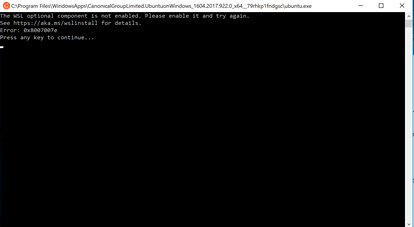
Windows WSL install error 0x8007007e

Enable Windows Subsystem for Linux Feature on Windows

If you get the above WSL error message 0x8007007e when installing WSL Ubuntu, SUSE or other shell distro, make sure to enable the Windows WSL feature if not already installed.

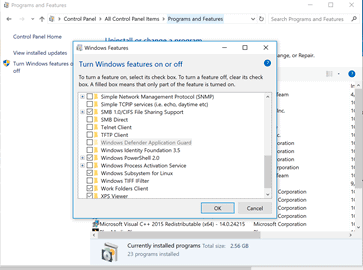
Windows WSL install error fix

One option is to install additional Windows features via settings or control panel. For example, Control panel -> Programs and features -> Turn Windows features on or off -> Check the box for Windows Subsystem for Linux

Another option is to install Windows subsystem feature via Powershell for example.

enable-windowsoptionalfeature -online  -featurename microsoft-windows-subsystem-linux

Using WSL

Once you have WSL installed, try something simple such as view your present directory:

pwd

Then look at the Windows C: drive location

ls /mnt/c -al

In case you did not notice the above, you can use Windows files and folders from the bash shell by placing /mnt in front of the device path. Note that you need to be case-sensitive such as User vs. user or Documents vs. documents.

As a further example, I needed to change several .htm, .html, .php and .xml files on a Windows system whose contents had not yet changed from https://storageio.com to https://storageio.com. Instead of installing wingrep or some tools, using WSL such as with Ubuntu finding files can be done with grep such as:

grep "https://storageio.com" /mnt/c/Users/*.xml

And then making changes using find and sed such as:

find /mnt/c/Users -name \*.xml -exec sed  -i "s,https://storageio.com,https://storageio.com,g" {} \;

Note that not all Linux apps and tools can use file via /mnt in which case a solution is to create a symbolic link.

For example:

ln -s "/mnt/c/Users/Test1/Documents"  /home/Test1/Projects

Where To Learn More

Learn more about related technology, trends, tools, techniques, and tips with the following links.

Additional learning experiences along with common questions (and answers), as well as tips can be found in Software Defined Data Infrastructure Essentials book.

Software Defined Data Infrastructure Essentials Book SDDC

What This All Means

If you primarily work on (or have a preference for) Linux systems and need to do some functions from development to the administration or other activity on a Windows system, Windows Subsystem for Linux (WSL) provides a bash shell to do familiar tasks. Likewise, if you are primarily a Windows person and need to brush up on your Linux skills, WSL can help. If you need to run Linux server applications or workloads, put those into a Docker container, Hyper-V instance or Azure VM.

Overall I like WSL for what it is, a tool that eliminates the need of having to install several other tools to do common tasks, plus makes it easier to work across various Linux and Windows systems including bare metal, virtual and cloud-based. Now that you have been introduced to Windows Subsystems for Linux WSL and an overview including install as well as using, add it to your data infrastructure toolbox.

By the way, if you have not heard, its #Blogtober, check out some of the other blogs and posts occurring during October here.

Ok, nuff said, for now.

Gs

Greg Schulz – Microsoft MVP Cloud and Data Center Management, VMware vExpert 2010-2017 (vSAN and vCloud). Author of Software Defined Data Infrastructure Essentials (CRC Press), as well as Cloud and Virtual Data Storage Networking (CRC Press), The Green and Virtual Data Center (CRC Press), Resilient Storage Networks (Elsevier) and twitter @storageio. Courteous comments are welcome for consideration. First published on https://storageioblog.com any reproduction in whole, in part, with changes to content, without source attribution under title or without permission is forbidden.

All Comments, (C) and (TM) belong to their owners/posters, Other content (C) Copyright 2006-2026 Server StorageIO and UnlimitedIO. All Rights Reserved. StorageIO is a registered Trade Mark (TM) of Server StorageIO.

Microsoft Azure Software Defined Data Infrastructure Reference Resources

Azure Software Defined Data Infrastructure Architecture Resources

Need to learn more about Microsoft Azure Cloud Software Defined Data Infrastructure topics including reference architecture among other resources for various application workloads?

Microsoft Azure has an architecture and resources page (here) that includes various application workload reference tools.

Microsoft Azure Software Defined Cloud
Azure Reference Architectures via Microsoft Azure

Examples of some Azure Reference Architecture for various application and workloads include among others:

For example, need to know how to configure a high availability (HA) Sharepoint deployment with Azure, then check out this reference architecture shown below.

Microsoft Azure Sharepoint HA reference architecture
Sharepoint HA via Microsoft Azure

Where To Learn More

Learn more about related technology, trends, tools, techniques, and tips with the following links.

Data Infrastructures Protect Preserve Secure and Serve Information
Various IT and Cloud Infrastructure Layers including Data Infrastructures

What This All Means

Data Infrastructures exist to protect, preserve, secure and serve information along with the applications and data they depend on. Software Defined Data Infrastructures span legacy, virtual, container, cloud and other environments to support various application workloads. Check out the Microsoft Azure cloud reference architecture and resources mentioned above as well as the Azure Free trial and getting started site here.

Ok, nuff said, for now.
Gs

Greg Schulz – Multi-year Microsoft MVP Cloud and Data Center Management, VMware vExpert (and vSAN). Author of Software Defined Data Infrastructure Essentials (CRC Press), as well as Cloud and Virtual Data Storage Networking (CRC Press), The Green and Virtual Data Center (CRC Press), Resilient Storage Networks (Elsevier) and twitter @storageio.

Courteous comments are welcome for consideration. First published on https://storageioblog.com any reproduction in whole, in part, with changes to content, without source attribution under title or without permission is forbidden.

All Comments, (C) and (TM) belong to their owners/posters, Other content (C) Copyright 2006-2023 Server StorageIO(R) and UnlimitedIO. All Rights Reserved.

Azure Stack Technical Preview 3 (TP3) Overview Preview Review

server storage I/O trends

Azure Stack Technical Preview 3 (TP3) Overview Preview Review

Perhaps you are aware or use Microsoft Azure, how about Azure Stack?

This is part one of a two-part series looking at Microsoft Azure Stack providing an overview, preview and review. Read part two here that looks at my experiences installing Microsoft Azure Stack Technical Preview 3 (TP3).

For those who are not aware, Azure Stack is a private on-premises extension of the Azure public cloud environment. Azure Stack now in technical preview three (e.g. TP3), or what you might also refer to as a beta (get the bits here).

In addition to being available via download as a preview, Microsoft is also working with vendors such as Cisco, Dell EMC, HPE, Lenovo and others who have announced Azure Stack support. Vendors such as Dell EMC have also made proof of concept kits available that you can buy including server with storage and software. Microsoft has also indicated that once launched for production versions scaling from a few to many nodes, that a single node proof of concept or development system will also remain available.

software defined data infrastructure SDDI and SDDC
Software-Defined Data Infrastructures (SDDI) aka Software-defined Data Centers, Cloud, Virtual and Legacy

Besides being an on-premises, private cloud variant, Azure Stack is also hybrid capable being able to work with public cloud Azure. In addition to working with public cloud Azure, Azure Stack services and in particular workloads can also work with traditional Microsoft, Linux and others. You can use pre built solutions from the Azure marketplace, in addition to developing your applications using Azure services and DevOps tools. Azure Stack enables hybrid deployment into public or private cloud to balance flexibility, control and your needs.

Azure Stack Overview

Microsoft Azure Stack is an on premise (e.g. in your own data center) private (or hybrid when connected to Azure) cloud platform. Currently Azure Stack is in Technical Preview 3 (e.g. TP3) and available as a proof of concept (POC) download from Microsoft. You can use Azure Stack TP3 as a POC for learning, demonstrating and trying features among other activities. Here is link to a Microsoft Video providing an overview of Azure Stack, and here is a good summary of roadmap, licensing and related items.

In summary, Microsoft Azure Stack is:

  • A onsite, on premise, in your data center extension of Microsoft Azure public cloud
  • Enabling private and hybrid cloud with strong integration along with common experiences with Azure
  • Adopt, deploy, leverage cloud on your terms and timeline choosing what works best for you
  • Common processes, tools, interfaces, management and user experiences
  • Leverage speed of deployment and configuration with a purpose-built integrate solution
  • Support existing and cloud native Windows, Linux, Container and other services
  • Available as a public preview via software download, as well as vendors offering solutions

What is Azure Stack Technical Preview 3 (TP3)

This version of Azure Stack is a single node running on a lone physical machine (PM) aka bare metal (BM). However can also be installed into a virtual machine (VM) using nesting. For example I have Azure Stack TP3 running nested on a VMware vSphere ESXi 6.5 systems with a Windows Server 2016 VM as its base operating system.

Microsoft Azure Stack architecture
Click here or on the above image to view list of VMs and other services (Image via Microsoft.com)

The TP3 POC Azure Stack is not intended for production environments, only for testing, evaluation, learning and demonstrations as part of its terms of use. This version of Azure Stack is associated with a single node identity such as Azure Active Directory (AAD) integrated with Azure, or Active Directory Federation Services (ADFS) for standalone modes. Note that since this is a single server deployment, it is not intended for performance, rather, for evaluating functionality, features, APIs and other activities. Learn more about Azure Stack TP3 details here (or click on image) including names of various virtual machines (VMs) as well as their roles.

Where to learn more

The following provide more information and insight about Azure, Azure Stack, Microsoft and Windows among related topics.

  • Azure Stack Technical Preview 3 (TP3) Overview Preview Review
  • Azure Stack TP3 Overview Preview Review Part II
  • Azure Stack Technical Preview (get the bits aka software download here)
  • Azure Stack deployment prerequisites (Microsoft)
  • Microsoft Azure Stack troubleshooting (Microsoft Docs)
  • Azure Stack TP3 refresh tips (Azure Stack)
  • Here is a good post with a tip about not applying certain Windows updates to Azure stack TP3 installs.
  • Configure Azure stack TP3 to be available on your own network (Azure Stack)
  • Azure Stack TP3 Marketplace syndication (Azure Stack)
  • Azure Stack TP3 deployment experiences (Azure Stack)
  • Frequently asked questions for Azure Stack (Microsoft)
  • Deploy Azure Stack (Microsoft)
  • Connect to Azure Stack (Microsoft)
  • Azure Active Directory (AAD) and Active Directory Federation Services (ADFS)
  • Azure Stack TP2 deployment experiences by Niklas Akerlund (@vNiklas) useful for tips for TP3
  • Deployment Checker for Azure Stack Technical Preview (Microsoft Technet)
  • Azure stack and other tools (Github)
  • How to enable nested virtualization on Hyper-V Windows Server 2016
  • Dell EMC announce Microsoft Hybrid Cloud Azure Stack (Dell EMC)
  • Dell EMC Cloud for Microsoft Azure Stack (Dell EMC)
  • Dell EMC Cloud for Microsoft Azure Stack Data Sheet (Dell EMC PDF)
  • Dell EMC Cloud Chats (Dell EMC Blog)
  • Microsoft Azure stack forum
  • Dell EMC Microsoft Azure Stack solution
  • Gaining Server Storage I/O Insight into Microsoft Windows Server 2016
  • Overview Review of Microsoft ReFS (Reliable File System) and resource links
  • Via WServerNews.com Cloud (Microsoft Azure) storage considerations
  • Via CloudComputingAdmin.com Cloud Storage Decision Making: Using Microsoft Azure for cloud storage
  • www.thenvmeplace.com, www.thessdplace.com, www.objectstoragecenter.com and www.storageio.com/converge
  • What this all means

    A common question is if there is demand for private and hybrid cloud, in fact, some industry expert pundits have even said private, or hybrid are dead which is interesting, how can something be dead if it is just getting started. Likewise, it is early to tell if Azure Stack will gain traction with various organizations, some of whom may have tried or struggled with OpenStack among others.

    Given a large number of Microsoft Windows-based servers on VMware, OpenStack, Public cloud services as well as other platforms, along with continued growing popularity of Azure, having a solution such as Azure Stack provides an attractive option for many environments. That leads to the question of if Azure Stack is essentially a replacement for Windows Servers or Hyper-V and if only for Windows guest operating systems. At this point indeed, Windows would be an attractive and comfortable option, however, given a large number of Linux-based guests running on Hyper-V as well as Azure Public, those are also primary candidates as are containers and other services.

    Continue reading more in part two of this two-part series here including installing Microsoft Azure Stack TP3.

    Ok, nuff said (for now…).

    Cheers
    Gs

    Greg Schulz – Microsoft MVP Cloud and Data Center Management, VMware vExpert (and vSAN). Author Cloud and Virtual Data Storage Networking (CRC Press), The Green and Virtual Data Center (CRC Press), Resilient Storage Networks (Elsevier) and twitter @storageio. Watch for the spring 2017 release of his new book "Software-Defined Data Infrastructure Essentials" (CRC Press).

    Courteous comments are welcome for consideration. First published on https://storageioblog.com any reproduction in whole, in part, with changes to content, without source attribution under title or without permission is forbidden.

    All Comments, (C) and (TM) belong to their owners/posters, Other content (C) Copyright 2006-2023 Server StorageIO(R) and UnlimitedIO. All Rights Reserved.

    Azure Stack TP3 Overview Preview Review Part II

    server storage I/O trends

    Azure Stack TP3 Overview Preview (Part II) Install Review

    This is part two of a two-part series looking at Microsoft Azure Stack with a focus on my experiences installing Microsoft Azure Stack Technical Preview 3 (TP3) including into a nested VMware vSphere ESXi environment. Read part one here that provides a general overview of Azure Stack.

    Azure Stack Review and Install

    Being familiar with Microsoft Azure public cloud having used it for a few years now, I wanted to gain some closer insight, experience, expand my trade craft on Azure Stack by installing TP3. This is similar to what I have done in the past with OpenStack, Hadoop, Ceph, VMware, Hyper-V and many others, some of which I need to get around to writing about sometime. As a refresher from part one of this series, the following is an image via Microsoft showing the Azure Stack TP3 architecture, click here or on the image to learn more including the names and functions of the various virtual machines (VMs) that make up Azure Stack.
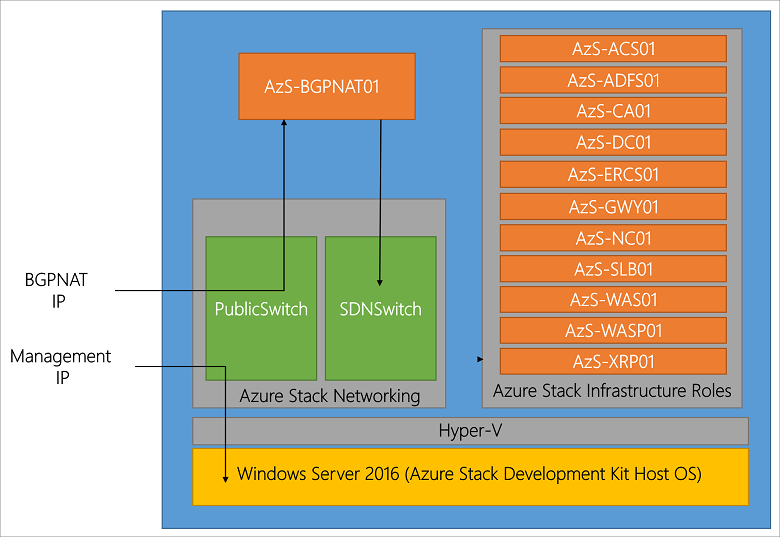
    Microsoft Azure Stack architecture
    Click here or on the above image to view list of VMs and other services (Image via Microsoft.com)

    Whats Involved Installing Azure Stack TP3?

    The basic steps are as follows:

    • Read this Azure Stack blog post (Azure Stack)
    • Download the bits (e.g. the Azure Stack software) from here, where you access the Azure Stack Downloader tool.
    • Planning your deployment making decisions on Active Directory and other items.
    • Prepare the target server (physical machine aka PM, or virtual machine VM) that will be the Azure Stack destination.
    • Copy Azure Stack software and installer to target server and run pre-install scripts.
    • Modify PowerShell script file if using a VM instead of a PM
    • Run the Azure Stack CloudBuilder setup, configure unattend.xml if needed or answer prompts.
    • Server reboots, select Azure Stack from two boot options.
    • Prepare your Azure Stack base system (time, network NICs in static or DHCP, if running on VMware install VMtools)
    • Determine if you will be running with Azure Active Directory (AAD) or standalone Active Directory Federated Services (ADFS).
    • Update any applicable installation scripts (see notes that follow)
    • Deploy the script, then extended Azure Stack TP3 PoC as needed

    Note that this is a large download of about 16GB (23GB with optional WIndows Server 2016 demo ISO).

    Use the AzureStackDownloader tool to download the bits (about 16GB or 23GB with optional Windows Server 2016 base image) which will either be in several separate files which you stitch back together with the MicrosoftAzureStackPOC tool, or as a large VHDX file and smaller 6.8GB ISO (Windows Server 2016). Prepare your target server system for installation once you have all the software pieces downloaded (or do the preparations while waiting for download).

    Once you have the software downloaded, if it is a series of eight .bin files (7 about 2GB, 1 around 1.5GB), good idea to verify their checksums, then stitch them together on your target system, or on a staging storage device or file share. Note that for the actual deployment first phase, the large resulting cloudbuilder.vhdx file will need to reside in the C:\ root location of the server where you are installing Azure Stack.

    server storageio nested azure stack tp3 vmware

    Azure Stack deployment prerequisites (Microsoft) include:

    • At least 12 cores (or more), dual socket processor if possible
    • As much DRAM as possible (I used 100GB)
    • Put the operating system disk on flash SSD (SAS, SATA, NVMe) if possible, allocate at least 200GB (more is better)
    • Four x 140GB or larger (I went with 250GB) drives (HDD or SSD) for data deployment drives
    • A single NIC or adapter (I put mine into static instead of DHCP mode)
    • Verify your physical or virtual server BIOS has VT enabled

    The above image helps to set the story of what is being done. On the left is for bare metal (BM) or physical machine (PM) install of Azure Stack TP3, on the right, a nested VMware (vSphere ESXi 6.5) with virtual machine (VM) 11 approach. Note that you could also do a Hyper-V nested among other approaches. Shown in the image above common to both a BM or VM is a staging area (could be space on your system drive) where Azure Stack download occurs. If you use a separate staging area, then simply copy the individual .bin files and stitch together into the larger .VHDX, or, copy the larger .VHDX, which is better is up to your preferences.

    Note that if you use the nested approach, there are a couple of configuration (PowerShell) scripts that need to be updated. These changes are to trick the installer into thinking that it is on a PM when it checks to see if on physical or virtual environments.

    Also note that if using nested, make sure you have your VMware vSphere ESXi host along with specific VM properly configured (e.g. that virtualization and other features are presented to the VM). With vSphere ESXi 6.5 virtual machine type 11 nesting is night and day easier vs. earlier generations.

    Something else to explain here is that you will initially start the Azure Stack install preparation using a standard Windows Server (I used a 2016 version) where the .VHDX is copied into its C:\ root. From there you will execute some PowerShell scripts to setup some configuration files, one of which needs to be modified for nesting.

    Once those prep steps are done, there is a Cloudbuilder deploy script that gets run that can be done with an unattend.xml file or manual input. This step will cause a dual-boot option to be added to your server where you can select Azure Stack or your base prep Windows Server instance, followed by reboot.

    After the reboot occurs and you choose to boot into Azure Stack, this is the server instance that will actually run the deployment script, as well as build and launch all the VMs for the Azure Stack TP3 PoC. This is where I recommend having a rough sketch like above to annotate layers as you go to remember what layer working at. Don’t worry, it becomes much easier once all is said and done.

    Speaking of preparing your server, refer to Microsoft specs, however in general give the server as much RAM and cores as possible. Also if possible place the system disk on a flash SSD (SAS, SATA, NVMe) and make sure that it has at least 200GB, however 250 or even 300GB is better (just in case you need more space).

    Additional configuration tips include allocating four data disks for Azure, if possible make these SSDs as well as, however more important IMHO to have at least the system on fast flash SSD. Another tip is to enable only one network card or NIC and put it into static vs. DHCP address mode to make things easier later.

    Tip: If running nested, vSphere 6.5 worked the smoothest as had various issues or inconsistencies with earlier VMware versions, even with VMs that ran nested just fine.

    Tip: Why run nested? Simple, I wanted to be able to use using VMware tools, do snapshots to go back in time, plus share the server with some other activities until ready to give Azure Stack TP3 its own PM.

    Tip: Do not connect the POC machine to the following subnets (192.168.200.0/24, 192.168.100.0/27, 192.168.101.0/26, 192.168.102.0/24, 192.168.103.0/25, 192.168.104.0/25) as Azure Stack TP3 uses those.

    storageio azure stack tp3 vmware configuration

    Since I decided to use a nested VM deploying using VMware, there were a few extra steps needed that I have included as tips and notes. Following is view via vSphere client of the ESXi host and VM configuration.

    The following image combines a couple of different things including:

    A: Showing the contents of C:\Azurestack_Supportfiles directory

    B: Modifying the PrepareBootFromVHD.ps1 file if deploying on virtual machine (See tips and notes)

    C: Showing contents of staging area including individual .bin files along with large CloudBuilder.vhdx

    D: Running the PowerShell script commands to prepare the PrepareBootFromVHD.ps1 and related items

    prepariing azure stack tp3 cloudbuilder for nested vmware deployment

    From PowerShell (administrator):

    # Variables
    $Uri = 'https://raw.githubusercontent.com/Azure/Azure stack/master/Deployment/'
    $LocalPath = 'c:\AzureStack_SupportFiles'

    # Create folder
    New-Item $LocalPath -type directory

    # Download files
    ( 'BootMenuNoKVM.ps1', 'PrepareBootFromVHD.ps1', 'Unattend.xml', 'unattend_NoKVM.xml') | foreach { Invoke-WebRequest ($uri + $_) -OutFile ($LocalPath + '\' + $_) }

    After you do the above, decide if you will be using an Unattend.xml or manual entry of items for building the Azure Stack deployment server (e.g. a Windows Server). Note that the above PowerShell script created the C:\azurestack_supportfiles folder and downloads the script files for building the cloud image using the previously downloaded Azure Stack CloudBuilder.vhdx (which should be in C:\).

    Note and tip is that if you are doing a VMware or virtual machine based deployment of TP3 PoC, you will need to change C:\PrepareBootFromVHD.ps1 in the Azure Stack support files folder. Here is a good resource on what gets changed via Github that shows an edit on or about line 87 of PrepareBootFromVHD.ps1. If you run the PrepareBootFromVHD.ps1 script on a virtual machine you will get an error message, the fix is relatively easy (after I found this post).

    Look in PrepareBootFromVHD.ps1 for something like the following around line 87:

    if ((get-disk | where {$_.isboot -eq $true}).Model -match 'Virtual Disk')       {      Write-Host "The server is currently already booted from a virtual hard disk, to boot the server from the CloudBuilder.vhdx you will need to run this script on an Operating System that is installed on the physical disk of this server."      Exit      }
    

    You can either remove the "exit" command, or, change the test for "Virtual Disk" to something like "X", for fun I did both (and it worked).

    Note that you only have to make the above and another change in a later step if you are deploying Azure Stack TP3 as a virtual machine.

    Once you are ready, go ahead and launch the PrepareBootFromVHD.ps1 script which will set the BCDBoot entry (more info here).

    azure stack tp3 cloudbuilder nested vmware deployment

    You will see a reboot and install, this is installing what will be called the physical instance. Note that this is really being installed on the VM system drive as a secondary boot option (e.g. azure stack).

    azure stack tp3 dual boot option

    After the reboot, login to the new Azure Stack base system and complete any configuration including adding VMware Tools if using VMware nested. Some other things to do include make sure you have your single network adapter set to static (makes things easier), and any other updates or customizations. Before you run the next steps, you need to decide if going to use Azure Active Directory (AAD) or local ADFS.

    Note that if you are not running on a virtual machine, simply open a PowerShell (administrator) session, and run the deploy script. Refer to here for more guidance on the various options available including discussion on using AAD or ADFS.

    Note if you run the deployment script on a virtual machine, you will get an error which is addressed in the next section, otherwise, sit back and watch the progress..

    CloudBuilder Deployment Time

    Once you have your Azure Stack deployment system and environment ready, including a snapshot if on virtual machine, launch the PowerShell deployment script. Note that you will need to have decided if deploying with Azure Active Directory (AAD) or Azure Directory Federated Services (ADFS) for standalone aka submarine mode. There are also other options you can select as part of the deployment discussed in the Azure Stack tips here (a must read) and here. I chose to do a submarine mode (e.g. not connected to Public Azure and AAD) deployment.

    From PowerShell (administrator):

    cd C:\CloudDeployment:\Setup
    $adminpass = ConvertTo-SecureString "youradminpass" -AsPlainText -Force
    .\InstallAzureStackPOC.ps1 -AdminPassword $adminpass -UseADFS

    Deploying on VMware Virtual Machines Tips

    Here is a good tip via Gareth Jones (@garethjones294) that I found useful for updating one of the deployment script files (BareMetal_Tests.ps1 located in C:\CloudDeployment\Roles\PhysicalMachines\Tests folder) so that it would skip the bare metal (PM) vs. VM tests. Another good resource, even though it is for TP2 and early versions of VMware is TP2 deployment experiences by Niklas Akerlund (@vNiklas).

    Note that this is a bit of a chick and egg scenario unless you are proficient at digging into script files since the BareMetal_Tests.ps1 file does not get unpacked until you run the CloudBuilder deployment script. If you run the script and get an error, then make the changes below, and rerun the script as noted. Once you make the modification to the BareMetal_Tests.ps1 file, keep a copy in a safe place for future use.

    Here are some more tips for deploying Azure Stack on VMware,

    Per the tip mentioned about via Gareth Jones (tip: read Gareths post vs. simply cut and paste the following which is more of a guide):

    Open BareMetal_Tests.ps1 file in PowerShell ISE and navigate to line 376 (or in that area)
    Change $false to $true which will stop the script failing when checking to see if the Azure Stack is running inside a VM.
    Next go to line 453.
    Change the last part of the line to read “Should Not BeLessThan 0”
    This will stop the script checking for the required amount of cores available.

    After you make the above correction as with any error (and fix) during Azure Stack TP3 PoC deployment, simply run the following.

    cd C:\CloudDeployment\Setup
    .\InstallAzureStackPOC.ps1 -rerun
    

    Refer to the extra links in the where to learn more section below that offer various tips, tricks and insight that I found useful, particular for deploying on VMware aka nested. Also in the links below are tips on general Azure Stack, TP2, TP3, adding services among other insight.

    starting azure stack tp3 deployment

    Tip: If you are deploying Azure Stack TP3 PoC on virtual machine, once you start the script above, copy the modified BareMetal_Tests.ps1 file

    Once the CloudBuilder deployment starts, sit back and wait, if you are using SSDs, it will take a while, if using HDDs, it will take a long while (up to hours), however check in on it now and then to see progress of if any errors. Note that some of the common errors will occur very early in the deployment such as the BareMetal_Tests.ps1 mentioned above.

    azure stack tp3 deployment finished

    Checking in periodically to see how the deployment progress is progressing, as well as what is occurring. If you have the time, watch some of the scripts as you can see some interesting things such as the software defined data center (SDDC) aka software-defined data infrastructure (SDDC) aka Azure Stack virtual environment created. This includes virtual machine creation and population, creating the software defined storage using storage spaces direct (S2D), virtual network and active directory along with domain controllers among others activity.

    azure stack tp3 deployment progress

    After Azure Stack Deployment Completes

    After you see the deployment completed, you can try accessing the management portal, however there may be some background processing still running. Here is a good tip post on connecting to Azure Stack from Microsoft using Remote Desktop (RDP) access. Use RDP from the Azure Stack deployment Windows Server and connect to a virtual machine named MAS-CON01, launch Server Manager and for Local Server disable Internet Explorer Enhanced Security (make sure you are on the right system, see the tip mentioned above). Disconnect from MAS-CON01 (refer to the Azure Stack architecture image above), then reconnect, and launch Internet Explorer with an URL of (note documentation side to use which did not work for me).

    Note the username for the Azure Stack system is AzureStack\AzureStackAdmin with a password of what you set for administrative during setup. If you get an error, verify the URLs, check your network connectivity, wait a few minutes as well as verify what server you are trying to connect from and too. Keep in mind that even if deploying on a PM or BM (e.g. non virtual server or VM), the Azure Stack deployment TP3 PoC creates a "virtual" software-defined environment with servers, storage (Azure Stack uses Storage Spaces Direct [S2D] and software defined network.

    accessing azure stack tp3 management portal dashboard

    Once able to connect to Azure Stack, you can add new services including virtual machine image instances such as Windows (use the Server 2016 ISO that is part of Azure Stack downloads), Linux or others. You can also go to these Microsoft resources for some first learning scenarios, using the management portals, configuring PowerShell and troubleshooting.

    Where to learn more

    The following provide more information and insight about Azure, Azure Stack, Microsoft and Windows among related topics.

  • Azure Stack Technical Preview 3 (TP3) Overview Preview Review
  • Azure Stack TP3 Overview Preview Review Part II
  • Azure Stack Technical Preview (get the bits aka software download here)
  • Azure Stack deployment prerequisites (Microsoft)
  • Microsoft Azure Stack troubleshooting (Microsoft Docs)
  • Azure Stack TP3 refresh tips (Azure Stack)
  • Here is a good post with a tip about not applying certain Windows updates to AzureStack TP3 installs.
  • Configure Azure Stack TP3 to be available on your own network (Azure Stack)
  • Azure Stack TP3 Marketplace syndication (Azure Stack)
  • Azure Stack TP3 deployment experiences (Azure Stack)
  • Frequently asked questions for Azure Stack (Microsoft)
  • Azure Active Directory (AAD) and Active Directory Federation Services (ADFS)
  • Deploy Azure Stack (Microsoft)
  • Connect to Azure Stack (Microsoft)
  • Azure Stack TP2 deployment experiences by Niklas Akerlund (@vNiklas) useful for tips for TP3
  • Deployment Checker for Azure Stack Technical Preview (Microsoft Technet)
  • Azure stack and other tools (Github)
  • How to enable nested virtualization on Hyper-V Windows Server 2016
  • Dell EMC announce Microsoft Hybrid Cloud Azure Stack (Dell EMC)
  • Dell EMC Cloud for Microsoft Azure Stack (Dell EMC)
  • Dell EMC Cloud for Microsoft Azure Stack Data Sheet (Dell EMC PDF)
  • Dell EMC Cloud Chats (Dell EMC Blog)
  • Microsoft Azure stack forum
  • Dell EMC Microsoft Azure Stack solution
  • Gaining Server Storage I/O Insight into Microsoft Windows Server 2016
  • Overview Review of Microsoft ReFS (Reliable File System) and resource links
  • Via WServerNews.com Cloud (Microsoft Azure) storage considerations
  • Via CloudComputingAdmin.com Cloud Storage Decision Making: Using Microsoft Azure for cloud storage
  • www.thenvmeplace.com, www.thessdplace.com, www.objectstoragecenter.com and www.storageio.com/converge
  • What this all means

    A common question is if there is demand for private and hybrid cloud, in fact, some industry expert pundits have even said private, or hybrid are dead which is interesting, how can something be dead if it is just getting started. Likewise, it is early to tell if Azure Stack will gain traction with various organizations, some of whom may have tried or struggled with OpenStack among others.

    Given a large number of Microsoft Windows-based servers on VMware, OpenStack, Public cloud services as well as other platforms, along with continued growing popularity of Azure, having a solution such as Azure Stack provides an attractive option for many environments. That leads to the question of if Azure Stack is essentially a replacement for Windows Servers or Hyper-V and if only for Windows guest operating systems. At this point indeed, Windows would be an attractive and comfortable option, however, given a large number of Linux-based guests running on Hyper-V as well as Azure Public, those are also primary candidates as are containers and other services.
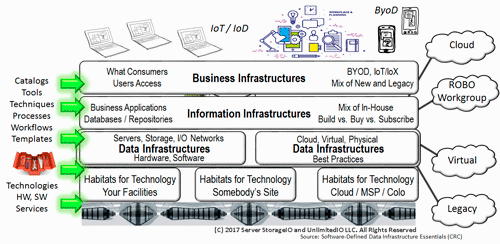
    software defined data infrastructures SDDI and SDDC

    Some will say that if OpenStack is struggling in many organizations and being free open source, how Microsoft can have success with Azure Stack. The answer could be that some organizations have struggled with OpenStack while others have not due to lack of commercial services and turnkey support. Having installed both OpenStack and Azure Stack (as well as VMware among others), Azure Stack is at least the TP3 PoC is easy to install, granted it is limited to one node, unlike the production versions. Likewise, there are easy to use appliance versions of OpenStack that are limited in scale, as well as more involved installs that unlock full functionality.

    OpenStack, Azure Stack, VMware and others have their places, alongside, or supporting containers along with other tools. In some cases, those technologies may exist in the same environment supporting different workloads, as well as accessing various public clouds, after all, Hybrid is the home run for many if not most legality IT environments.

    Ok, nuff said (for now…).

    Cheers
    Gs

    Greg Schulz – Microsoft MVP Cloud and Data Center Management, VMware vExpert (and vSAN). Author Cloud and Virtual Data Storage Networking (CRC Press), The Green and Virtual Data Center (CRC Press), Resilient Storage Networks (Elsevier) and twitter @storageio. Watch for the spring 2017 release of his new book "Software-Defined Data Infrastructure Essentials" (CRC Press).

    Courteous comments are welcome for consideration. First published on https://storageioblog.com any reproduction in whole, in part, with changes to content, without source attribution under title or without permission is forbidden.

    All Comments, (C) and (TM) belong to their owners/posters, Other content (C) Copyright 2006-2023 Server StorageIO(R) and UnlimitedIO. All Rights Reserved.

    Backup, Big data, Big Data Protection, CMG & More with Tom Becchetti Podcast

    server storage I/O trends

    In this Server StorageIO podcast episode, I am joined by Tom Becchetti (@tbecchetti) for a Friday afternoon conversation recorded live at Meisters in Scandia Minnesota (thanks to the Meisters crew!).

    Tom Becchetti

    For those of you who may not know Tom, he has been in the IT, data center, data infrastructure, server and storage (as well as data protection) industry for many years (ok decades) as a customer and vendor in various roles. Not surprising our data infrastructure discussion involves server, software, storage, big data, backup, data protection, big data protection, CMG (Computer Measurement Group @mspcmg), copy data management, cloud, containers, fundamental tradecraft skills among other related topics.

    Check out Tom on twitter @tbecchetti and @mspcmg as well as his new website www.storagegodfather.com. Listen to the podcast discussion here (42 minutes) as well as on iTunes.

    Also available on 

    Ok, nuff said for now…

    Cheers
    Gs

    Greg Schulz – Microsoft MVP Cloud and Data Center Management, VMware vExpert (and vSAN). Author Cloud and Virtual Data Storage Networking (CRC Press), The Green and Virtual Data Center (CRC Press) and Resilient Storage Networks (Elsevier) and twitter @storageio. Watch for the spring 2017 release of his new book Software-Defined Data Infrastructure Essentials (CRC Press).

    Courteous comments are welcome for consideration. First published on https://storageioblog.com any reproduction in whole, in part, with changes to content, without source attribution under title or without permission is forbidden.

    All Comments, (C) and (TM) belong to their owners/posters, Other content (C) Copyright 2006-2023 Server StorageIO(R) and UnlimitedIO. All Rights Reserved.
    >

    Gaining Server Storage I/O Insight into Microsoft Windows Server 2016

    Server Storage I/O Insight into Microsoft Windows Server 2016

    server storage I/O trends
    Updated 12/8/16

    In case you had not heard, Microsoft announced the general availability (GA, also known as Release To Manufacturing (RTM) ) of the newest version of its Windows server operating system aka Windows Server 2016 along with System Center 2016. Note that as well as being released to traditional manufacturing distribution mediums as well as MSDN, the Windows Server 2016 bits are also available on Azure.

    Microsoft Windows Server 2016
    Windows Server 2016 Welcome Screen – Source Server StorageIOlab.com

    For some this might be new news, or a refresh of what Microsoft announced a few weeks ago (e.g. the formal announcement). Likewise, some of you may not be aware that Microsoft is celebrating WIndows Server 20th Birthday (read more here).

    Yet for others who have participated in the public beta aka public technical previews (TP) over the past year or two or simply after the information coming out of Microsoft and other venues, there should not be a lot of surprises.

    Whats New With Windows Server 2016

    Microsoft Windows Server 2016 Desktop
    Windows Server 2016 Desktop and tools – Source Server StorageIOlab.com

    Besides a new user interface including visual GUI and Powershell among others, there are many new feature functionalities summarized below:

    • Enhanced time-server with 1ms accuracy
    • Nano and Windows Containers (Linux via Hyper-V)
    • Hyper-V enhanced Linux services including shielded VMs
    • Simplified management (on-premisess and cloud)
    • Storage Spaces Direct (S2D) and Storage Replica (SR) – view more here and here


    Storage Replica (SR) Scenarios including synchronous and asynchronous – Via Microsoft.com

    • Resilient File System aka ReFS (now default file system) storage tiering (cache)
    • Hot-swap virtual networking device support
    • Reliable Change Tracking (RCT) for faster Hyper-V backups
    • RCT improves resiliency vs. VSS change tracking
    • PowerShell and other management enhancements
    • Including subordinated / delegated management roles
    • Compliment Azure AD with on premise AD
    • Resilient/HA RDS using Azure SQL DB for connection broker
    • Encrypted VMs (at rest and during live migration)
    • AD Federation Services (FS) authenticate users in LDAP dir.
    • vTPM for securing and encrypting Hyper-V VMs
    • AD Certificate Services (CS) increase support for TPM
    • Enhanced TPM support for smart card access management
    • AD Domain Services (DS) security resiliency for hybrid and mobile devices

    Here is a Microsoft TechNet post that goes into more detail of what is new in WIndows Server 2016.

    Free ebook: Introducing Windows Server 2016 Technical Preview (Via Microsoft Press)

    Check out the above free ebook, after looking through it, I recommend adding it to your bookshelf. There are lots of good intro and overview material for Windows Server 2016 to get you up to speed quickly, or as a refresh.

    Storage Spaces Direct (S2D) CI and HCI

    Storage Spaces Direct (S2D) builds on Storage Spaces that appeared in earlier Windows and Windows Server editions. Some of the major changes and enhancements include ability to leverage local direct attached storage (DAS) such as internal (or external) dedicated NVMe, SAS and SATA HDDs as well as flash SSDs that used for creating software defined storage for various scenarios.

    Scenarios include converged infrastructure (CI) disaggregated as well as aggregated hyper-converged infrastructure (HCI) for Hyper-V among other workloads. Windows Server 2016 S2D nodes communicate (from a storage perspective) via a software storage bus. Data Protection and availability is enabled between S2D nodes via Storage Replica (SR) that can do software based synchronous and asynchronous replication.


    Aggregated – Hyper-Converged Infrastructure (HCI) – Source Microsoft.com


    Desegregated – Converged Infrastructure (CI) – Source Microsoft.com

    The following is a Microsoft produced YouTube video providing a nice overview and insight into Windows Server 2016 and Microsoft Software Defined Storage aka S2D.


    YouTube Video Storage Spaces Direct (S2D) via Microsoft.com

    Server storage I/O performance

    What About Performance?

    A common question that comes up with servers, storage, I/O and software defined data infrastructure is what about performance?

    Following are some various links to different workloads showing performance for Hyper-V, S2D and Windows Server. Note as with any benchmark, workload or simulation take them for what they are, something to compare that may or might not be applicable to your own workload and environments.

    • Large scale VM performance with Hyper-V and in-memory transaction processing (Via Technet)
    • Benchmarking Microsoft Hyper-V server, VMware ESXi and Xen Hypervisors (Via cisjournal PDF)
    • Server 2016 Impact on VDI User Experience (Via LoginVSI)
    • Storage IOPS update with Storage Spaces Direct (Via TechNet)
    • SQL Server workload (benchmark) Order Processing Benchmark using In-Memory OLTP (Via Github)
    • Setting up testing Windows Server 2016 and S2D using virtual machines (Via MSDN blogs)
    • Storage throughput with Storage Spaces Direct (S2D TP5 (Via TechNet)
    • Server and Storage I/O Benchmark Tools: Microsoft Diskspd (Part I)

    Where To Learn More

    For those of you not as familiar with Microsoft Windows Server and related topics, or that simply need a refresh, here are several handy links as well as resources.

    • Introducing Windows Server 2016 (Free ebook from Microsoft Press)
    • What’s New in Windows Server 2016 (Via TechNet)
    • Microsoft S2D Software Storage Bus (Via TechNet)
    • Understanding Software Defined Storage with S2D in Windows Server 2016 (Via TechNet)
    • Microsoft Storage Replica (SR) (Via TechNet)
    • Server and Storage I/O Benchmark Tools: Microsoft Diskspd (Part I)
    • Microsoft Windows S2D Software Defined Storage (Via TechNet)
    • Windows Server 2016 and Active Directory (Redmond Magazine Webinar)
    • Data Protection for Modern Microsoft Environments (Redmond Magazine Webinar)
    • Resilient File System aka ReFS (Via TechNet)
    • DISKSPD now on GitHub, and the mysterious VMFLEET released (Via TechNet)
    • Hyper-converged solution using Storage Spaces Direct in Windows Server 2016 (Via TechNet)
    • NVMe, SSD and HDD storage configurations in Storage Spaces Direct TP5 (Via TechNet)
    • General information about SSD at www.thessdplace.com and NVMe at www.thenvmeplace.com
    • How to run nested Hyper-V and Windows Server 2016 (Via Altaro and via MSDN)
    • How to run Nested Windows Server and Hyper-V on VMware vSphere ESXi (Via Nokitel)
    • Get the Windows Server 2016 evaluation bits here
    • Microsoft Azure Stack overview and related material via Microsoft
    • Introducing Windows Server 2016 (Via MicrosoftPress)
    • Various WIndows Server and S2D lab scripts (Via Github)
    • Storage Spaces Direct – Lab Environment Setup (Via Argon Systems)
    • Setting up S2D with a 4 node configuration (Via StarWind blog)
    • SQL Server workload (benchmark) Order Processing Benchmark using In-Memory OLTP (Via Github)
    • Setting up testing Windows Server 2016 and S2D here using virtual machines (Via MSDN blogs)
    • Hyper-V large-scale VM performance for in-memory transaction processing (Via Technet)
    • BrightTalk Webinar – Software-Defined Data Centers (SDDC) are in your Future (if not already here)
    • Microsoft TechNet: Understand the cache in Storage Spaces Direct
    • BrightTalk Weibniar – Software-Defined Data Infrastructures Enabling Software-Defined Data Centers
    • Happy 20th Birthday Windows Server, ready for Server 2016?
    • Server StorageIO resources including added links, tools, reports, events and more.

    What This All Means

    While Microsoft Windows Server recently celebrated its 20th birthday (or anniversary), a lot has changed as well as evolved. This includes Windows Servers 2016 supporting new deployment and consumption models (e.g. lightweight Nano, full data center with desktop interface, on-premises, bare metal, virtualized (Hyper-V, VMware, etc) as well as cloud). Besides how consumed and configured, which can also be for CI and HCI modes, Windows Server 2016 along with Hyper-V extend the virtualization and container capabilities into non-Microsoft environments specifically around Linux and Docker. Not only are the support for those environments and platforms enhanced, so to are the management capabilities and interfaces from Powershell to Bash Linux shell being part of WIndows 10 and Server 2016.

    What this all means is that if you have not looked at Windows Server in some time, its time you do, even if you are not a WIndows or Microsoft fan, you will want to know what it is that has been updated (perhaps even update your fud if that is the case) to stay current. Get your hands on the bits and try Windows Server 2016 on a bare metal server, or as a VM guest, or via cloud including Azure, or simply leverage the above resources to learn more and stay informed.

    Ok, nuff said, for now…

    Cheers
    Gs

    Greg Schulz – Microsoft MVP Cloud and Data Center Management, vSAN and VMware vExpert. Author Cloud and Virtual Data Storage Networking (CRC Press), The Green and Virtual Data Center (CRC Press) and Resilient Storage Networks (Elsevier) and twitter @storageio

    All Comments, (C) and (TM) belong to their owners/posters, Other content (C) Copyright 2006-2023 Server StorageIO(R) and UnlimitedIO All Rights Reserved

    Ubuntu 16.04 LTS (aka Xenial Xerus) What’s In The Bits and Bytes?

    Ubuntu 16.04 LTS (aka Xenial Xerus) What’s In The Bits and Bytes?

    server storage I/O trends

    Ubuntu 16.04 LTS (aka Xenial Xerus) was recently released (you can get the bits or software download here). Ubuntu is available in various distributions including as a server, workstation or desktop among others that can run bare metal on a physical machine (PM), virtual machine (VM) or as a cloud instance via services such as Amazon Web Services (AWS) as well as Microsoft Azure among others.

    Refresh, What is Ubuntu

    For those not familiar or who need a refresh, Ubuntu is an open source Linux distribution with the company behind it called Canonical. The Ubuntu software is a Debian based Linux distribution with Unity (user interface). Ubuntu is available across different platform architecture from industry standard Intel and AMD x86 32bit and 64bit to ARM processors and even the venerable IBM zSeriues (aka zed) mainframe as part of LinuxOne.

    As a desktop, some see or use Ubuntu as an open source alternative to desktop interfaces based on those from Microsoft such as Windows or Apple.

    As a server Ubuntu can be deployed from traditional applications to cloud, converged and many others including as a docker container, Ceph or OpenStack deployment platform. Speaking of Microsoft and Windows, if you are a *nix bash type person yet need (or have) to work with Windows, bash (and more) are coming to Windows 10. Ubuntu desktop GUI or User Interface options include Unity along with tools such as Compiz and LibreOffice (an alternative to Microsoft Office).

    What’s New In the Bits and Bytes (e.g. Software)

    Ubuntu 16.04 LTS is based on the Linux 4.4 kernel, that also includes Python 3, Ceph Jewel (block, file and object storage) and OpenStack Mitaka among other enhancements. These and other fixes as well as enhancements include:

    • Libvirt 1.3.1
    • Qemu 2.5
    • Open vSwitch 2.5.0
    • NginxLX2 2.0
    • Docker 1.10
    • PHP 7.9
    • MySQL 7.0
    • Juju 2.0
    • Golang 1.6 toolchain
    • OpenSSH 7.2p2 with legacy support along with cipher improvements, including 1024 bit diffie-hellman-group1-sha1 key exchange, ssh-dss, ssh-dss-cert
    • GNU toolchain
    • Apt 1.2

    What About Ubuntu for IBM zSeries Mainframe

    Ubuntu runs on 64 bit zSeries architecture with about 95% binary compatibility. If you look at the release notes, there are still a few things being worked out among known issues. However (read the release notes), Ubuntu 16.04 LTS has OpenStack and Ceph, means that those capabilities could be deployed on a zSeries.

    Now some of you might think wait, how can Linux and Ceph among others work on a FICON based mainframe?

    No worries, keep in mind that FICON the IBM zSeries server storage I/O protocol that co-exists on Fibre Channel along with SCSI_FCP (e.g. FCP) aka what most Open Systems people simply refer to as Fibre Channel (FC) works with the zOS and other operating systems. In the case of native Linux on zSeries, those systems can in fact use SCSI mode for accessing shared storage. In addition to the IBM LinuxOne site, you can learn more about Ubuntu running native on zSeries here on the Ubuntu site.

    Where To Learn More

    What This All Means

    Ubuntu as a Linux distribution continues to evolve and increase in deployment across different environments. Some still view Ubuntu as the low-end Linux for home, hobbyist or those looking for a alternative desktop to Microsoft Windows among others. However Ubuntu is also increasingly being used in roles where other Linux distribution such as Red Hat Enterprise Linux (RHEL), SUSE and Centos among others have gained prior popularity.

    In someway’s you can view RHEL as the first generation Linux distribution that gained popular in the enterprise with early adopters, followed by a second wave or generation of those who favored Centos among others such as the cloud crowd. Then there is the Ubuntu wave which is expanding in many areas along with others such as CoreOS. Granted with some people the preference between one Linux distribution vs. another can be as polarizing as Linux vs. Windows, OpenSystems vs. Mainframe vs. Cloud among others.

    Having various Ubuntu distributions installed across different servers (in addition to Centos, Suse and others), I found the install and new capabilities of Ubuntu 16.04 LTS interesting and continue to explore the many new features, while upgrading some of my older systems.

    Get the Ubuntu 16.04 LTS bits here to give a try or upgrade your existing systems.

    Ok, nuff said

    Cheers
    Gs

    Greg Schulz – Author Cloud and Virtual Data Storage Networking (CRC Press), The Green and Virtual Data Center (CRC Press) and Resilient Storage Networks (Elsevier)
    twitter @storageio

    All Comments, (C) and (TM) belong to their owners/posters, Other content (C) Copyright 2006-2023 Server StorageIO(R) and UnlimitedIO All Rights Reserved

    Part II – EMC DSSD D5 Direct Attached Shared AFA

    Part II – EMC DSSD D5 Direct Attached Shared AFA

    server storage I/O trends

    This is the second post in a two-part series on the EMC DSSD D5 announcement, you can read part one here.

    Lets take a closer look at how EMC DSSD D5 works, its hardware and software components, how it compares and other considerations.

    How Does DSSD D5 Work

    Up to 48 Linux servers attach via dual port PCIe Gen 3 x8 cards that are stateless. Stateless simply means they do not have any flash or are not being used as storage cards, rather, they are essentially just an NVMe adapter card. With the first release block, HDFS file along with object and APIs are available for Linux systems. These drivers enabling the shared NVMe storage to be accessed by applications using different streamlined server and storage I/O driver software stacks to cut latency. DSSD D5 is meant to be a rack scale solutions so distance is measured as inside a rack (e.g. a couple of meters).

    The 5U tall DSSD D5 supports 48 servers via a pair of I/O Modules (IOM) each with 48 ports that in turn attach to the data plane and on to the Flash Modules (FM). Also attached to the data plane are a pair of controllers that are active / active for performing management tasks, however they do not sit in the data path. This means that host client directly access the FMs without having to go through a controller which is the case in traditional storage systems and AFAs. The controllers only get involved when there is some setup, configuration or other management activities, otherwise they get out-of-the-way, kind of like how management should function. There when you need them to help, then get out-of-the-way so productive work can be done.

    EMC DSSD shared ssd das
    Pardon the following hand drawn sketches, you can see some nice pretty diagrams, videos and other content via the EMC Pulse Blog as well as elsewhere.

    Note that the host client servers take on the responsibility for managing and coordinating data consistency meaning data can be shared between servers assuming applicable software is used for implementing integrity. This means that clustering and other software that can support shared storage are able to support low latency high performance read and write activity the DSSD D5 as opposed to relying on the underlying storage system for handling the shared storage coordination such as in a NAS. Another note is that the DSSD D5 is optimized for concurrent multi-threaded and asynchronous I/O operations along with atomic writes for data integrity that enable the multiple cores in today’s faster processors to be more effectively leveraged.

    The data plane is a mesh or switch or expander based back plane enabling any of the north bound (host client-server) 96 (2 x 48) PCIe Gen 3 x4 ports to reach the up to 36 (or as few as 18) FMs that are also dual pathed. Note that the host client-server PCIe dual port cards are Gen 3 x8 while the DSSD D5 ports are Gen 3 x4. Simple math should tell you that if are going to have 2 x PCIe Gen 3 x4 ports running at full speed, you want to have a Gen 3 x8 connection inside the server to get full performance.

    Think of the data plane similar to how a SAS expander works in an enclosure or a SAS switch, the difference being it is PCIe and not SAS or other protocol. Note that even though the terms mesh, fabric, switch, network are used, these are NOT attached to traditional LAN, SAN, NAS or other networks. Instead, this is a private “networked back plane” between the server and storage devices (e.g. FM).

    EMC DSSD D5 details

    The dual controllers (e.g. control plane) over see the flash management including garbage collection among other tasks, as well as storage is thin provisioned.

    Dual Controllers (active/active) are connected to each other (e.g. control plane) as well as to the data path, however, do not sit in the data path. Thus this is a fast path control path approach meaning the controllers can get involved to do management functions when needed, and get out-of-the-way of work when not needed. The controllers are hot-swap and add global management functions including setting up, tearing down host client/server I/O paths, mappings and affinities. Controllers also support the management of CUBIC RAID data protection functions performed by the Flash Modules (FM).

    Other functions the controllers implement leveraging their CPUs and DRAM include flash translation layer (FTL) functions normally handled by SSD cards, drives or other devices. These FTL functions include wear-leveling for durability, garbage collection, voltage power management among other tasks. The result is that the flash modules are able to spend more time and their resources handling I/O operations vs. handling management tasks vs. traditional off the shelf SSD drives, cards or devices.

    The FMs insert from the front and come in two sizes of 2TB and 4TB of raw NAND capacity. What’s different about the FMs vs. some other vendors approach is that these are not your traditional PCIe flash cards, instead they are custom cards with a proprietary ASIC and raw nand dies. DRAM is used in the FM as a buffer to hold data for write optimization as well as enhance wear-leveling to increase flash endurance.

    The result is up to thousands of nand dies spread over up to 36 FMs however more important, more performance being derived out of those resources. The increased performance comes from DSSD implementing its own flash translation layer, garbage collection, power voltage management among other techniques to derive more useful work per watt of energy consumed.

    EMC DSSD performance claims:

    • 100 microsecond latency for small IOs
    • 100GB bandwidth for large IOs
    • 10 Million small IO IOPs
    • Up to 144TB raw capacity

    How Does It Compare To Other AFA and SSD solutions

    There will be many apples to oranges comparisons as is often the case with new technologies or at least until others arrive in the market.

    Some general comparisons that may be apples to oranges as opposed to apples to apples include:

    • Shared and dense fast nand flash (eMLC) SSD storage
    • disaggregated flash SSD storage from server while enabling high performance, low latency
    • Eliminate pools or ponds of dedicated SSD storage capacity and performance
    • Not a SAN yet more than server-side flash or flash SSD JBOD
    • Underlying Flash Translation Layer (FTL) is disaggregated from SSD devices
    • Optimized hardware and software data path
    • Requires special server-side stateless adapter for accessing shared storage

    Some other comparisons include:

    • Hybrid and AFA shared via some server storage I/O network (good sharing, feature rich, resilient, slower performance and higher latency due to hardware, network and server I/O software stacks). For example EMC VMAX, VNX, XtremIO among others.
    • Server attached flash SSD aka server SAN (flash SSD creates islands of technology, lower resource sharing, data shuffling between servers, limited or no data services, management complexity). For example PCIe flash SSD state full (persistent) cards where data is stored or used as a cache along with associated management tools and drivers.
    • DSSD D5 is a rack-scale hybrid approach combing direct attached shared flash with lower latency, higher performance vs. traditional AFA or hybrid storage array, better resource usage, sharing, management and performance vs. traditional dedicated server flash. Compliment server-side data infrastructure and applications scale-out software. Server applications can reach NVMe storage via user spacing with block, hdfs, Flood and other APIs.

    Using EMC DSSD D5 in possible hybrid ways

    What Happened to Server PCIe cards and Server SANs

    If you recall a few years ago the industry rage was flash SSD PCIe server cards from vendors such as EMC, FusionIO (now part of SANdisk), Intel (still Intel), LSI (now part of Seagate), Micron (still Micron) and STEC (now part of Western Digital) among others. Server side flash SSD PCIe cards are still popular particular with newer NVMe controller based models that use the NVMe protocol stack instead of AHC/SATA or others.

    However as is often the case, things evolve and while there is still a place for server-side state full PCIe flash cards either for data or as cache, there is also the need to combine and simplify management, as well as streamline the software I/O stacks which is where EMC DSSD D5 comes into play. It enables consolidation of server-side SSD cards into a shared 5U chassis enabling up to 48 dual pathed servers access to the flash pools while using streamlined server software stacks and drivers that leverage NVMe over PCIe.

    Where to learn more

    Continue reading with the following links about NVMe, flash SSD and EMC DSSD.

  • Part one of this series here and part two here.
  • Performance Redefined! Introducing DSSD D5 Rack-Scale Flash Solution (EMC Pulse Blog)
  • EMC Unveils DSSD D5: A Quantum Leap In Flash Storage (EMC Press Release)
  • EMC Declares 2016 The “Year of All-Flash” For Primary Storage (EMC Press Release)
  • EMC DSSD D5 Rack-Scale Flash (EMC PDF Overview)
  • EMC DSSD and Cloudera Evolve Hadoop (EMC White Paper Overview)
  • Software Aspects of The EMC DSSD D5 Rack-Scale Flash Storage Platform (EMC PDF White Paper)
  • EMC DSSD D5 (EMC PDF Architecture and Product Specification)
  • EMC VFCache respinning SSD and intelligent caching (Part II)
  • EMC To Acquire DSSD, Inc., Extends Flash Storage Leadership
  • Part II: XtremIO, XtremSW and XtremSF EMC flash ssd portfolio redefined
  • XtremIO, XtremSW and XtremSF EMC flash ssd portfolio redefined
  • Learn more about flash SSD here and NVMe here at thenvmeplace.com
  • What this all means

    EMC with DSSD D5 now has another solution to offer clients, granted their challenge as it has been over the past couple of decades now will be to educate and compensate their sales force and partners on what technology solution to put for different needs.

    On one hand, life could be simpler for EMC if they only had one platform solution that would then be the answer to every problem, something that some other vendors and startups face. Likewise, if all you have is one solution, then while you can try to make that solution fit different environments, or, get the environment to adapt to the solution, having options is a good thing if those options can remove complexity along with cost while boosting productivity.

    I would like to see support for other operating systems such as Windows, particular with the future Windows 2016 based Nano, as well as hypervisors including VMware, Hyper-V among others. On the other hand I also would like to see a Sharp Aquous Quattron 80" 1080p 240Hz 3D TV on my wall to watch HD videos from my DJI Phantom Drone. For now focusing on Linux makes sense, however, would be nice to see some more platforms supported.

    Keep an eye on the NVMe space as we are seeing NVMe solutions appearing inside servers, storage system, external dedicated and shared, as well as some other emerging things including NVMe over Fabric. Learn more about EMC DSSD D5 here.

    Ok, nuff said (for now)

    Cheers
    Gs

    Greg Schulz – Author Cloud and Virtual Data Storage Networking (CRC Press), The Green and Virtual Data Center (CRC Press) and Resilient Storage Networks (Elsevier)
    twitter @storageio

    All Comments, (C) and (TM) belong to their owners/posters, Other content (C) Copyright 2006-2023 Server StorageIO(R) and UnlimitedIO All Rights Reserved

    Big Files Lots of Little File Processing Benchmarking with Vdbench

    Big Files Lots of Little File Processing Benchmarking with Vdbench


    server storage data infrastructure i/o File Processing Benchmarking with Vdbench

    Updated 2/10/2018

    Need to test a server, storage I/O networking, hardware, software, services, cloud, virtual, physical or other environment that is either doing some form of file processing, or, that you simply want to have some extra workload running in the background for what ever reason? An option is File Processing Benchmarking with Vdbench.

    I/O performance

    Getting Started


    Here’s a quick and relatively easy way to do it with Vdbench (Free from Oracle). Granted there are other tools, both for free and for fee that can similar things, however we will leave those for another day and post. Here’s the con to this approach, there is no Uui Gui like what you have available with some other tools Here’s the pro to this approach, its free, flexible and limited by your creative, amount of storage space, server memory and I/O capacity.

    If you need a background on Vdbench and benchmarking, check out the series of related posts here (e.g. www.storageio.com/performance).

    Get and Install the Vdbench Bits and Bytes


    If you do not already have Vdbench installed, get a copy from the Oracle or Source Forge site (now points to Oracle here).

    Vdbench is free, you simply sign-up and accept the free license, select the version down load (it is a single, common distribution for all OS) the bits as well as documentation.

    Installation particular on Windows is really easy, basically follow the instructions in the documentation by copying the contents of the download folder to a specified directory, set up any environment variables, and make sure that you have Java installed.

    Here is a hint and tip for Windows Servers, if you get an error message about counters, open a command prompt with Administrator rights, and type the command:

    $ lodctr /r


    The above command will reset your I/O counters. Note however that command will also overwrite counters if enabled so only use it if you have to.

    Likewise *nix install is also easy, copy the files, make sure to copy the applicable *nix shell script (they are in the download folder), and verify Java is installed and working.

    You can do a vdbench -t (windows) or ./vdbench -t (*nix) to verify that it is working.

    Vdbench File Processing

    There are many options with Vdbench as it has a very robust command and scripting language including ability to set up for loops among other things. We are only going to touch the surface here using its file processing capabilities. Likewise, Vdbench can run from a single server accessing multiple storage systems or file systems, as well as running from multiple servers to a single file system. For simplicity, we will stick with the basics in the following examples to exercise a local file system. The limits on the number of files and file size are limited by server memory and storage space.

    You can specify number and depth of directories to put files into for processing. One of the parameters is the anchor point for the file processing, in the following examples =S:\SIOTEMP\FS1 is used as the anchor point. Other parameters include the I/O size, percent reads, number of threads, run time and sample interval as well as output folder name for the result files. Note that unlike some tools, Vdbench does not create a single file of results, rather a folder with several files including summary, totals, parameters, histograms, CSV among others.


    Simple Vdbench File Processing Commands

    For flexibility and ease of use I put the following three Vdbench commands into a simple text file that is then called with parameters on the command line.
    fsd=fsd1,anchor=!fanchor,depth=!dirdep,width=!dirwid,files=!numfiles,size=!filesize

    fwd=fwd1,fsd=fsd1,rdpct=!filrdpct,xfersize=!fxfersize,fileselect=random,fileio=random,threads=!thrds

    rd=rd1,fwd=fwd1,fwdrate=max,format=yes,elapsed=!etime,interval=!itime

    Simple Vdbench script

    # SIO_vdbench_filesystest.txt
    #
    # Example Vdbench script for file processing
    #
    # fanchor = file system place where directories and files will be created
    # dirwid = how wide should the directories be (e.g. how many directories wide)
    # numfiles = how many files per directory
    # filesize = size in in k, m, g e.g. 16k = 16KBytes
    # fxfersize = file I/O transfer size in kbytes
    # thrds = how many threads or workers
    # etime = how long to run in minutes (m) or hours (h)
    # itime = interval sample time e.g. 30 seconds
    # dirdep = how deep the directory tree
    # filrdpct = percent of reads e.g. 90 = 90 percent reads
    # -p processnumber = optional specify a process number, only needed if running multiple vdbenchs at same time, number should be unique
    # -o output file that describes what being done and some config info
    #
    # Sample command line shown for Windows, for *nix add ./
    #
    # The real Vdbench script with command line parameters indicated by !=
    #

    fsd=fsd1,anchor=!fanchor,depth=!dirdep,width=!dirwid,files=!numfiles,size=!filesize

    fwd=fwd1,fsd=fsd1,rdpct=!filrdpct,xfersize=!fxfersize,fileselect=random,fileio=random,threads=!thrds

    rd=rd1,fwd=fwd1,fwdrate=max,format=yes,elapsed=!etime,interval=!itime

    Big Files Processing Script


    With the above script file defined, for Big Files I specify a command line such as the following.
    $ vdbench -f SIO_vdbench_filesystest.txt fanchor=S:\SIOTemp\FS1 dirwid=1 numfiles=60 filesize=5G fxfersize=128k thrds=64 etime=10h itime=30 numdir=1 dirdep=1 filrdpct=90 -p 5576 -o SIOWS2012R220_NOFUZE_5Gx60_BigFiles_64TH_STX1200_020116

    Big Files Processing Example Results


    The following is one of the result files from the folder of results created via the above command for Big File processing showing totals.


    Run totals

    21:09:36.001 Starting RD=format_for_rd1

    Feb 01, 2016 .Interval. .ReqstdOps.. ...cpu%... read ....read.... ...write.... ..mb/sec... mb/sec .xfer.. ...mkdir... ...rmdir... ..create... ...open.... ...close... ..delete...
    rate resp total sys pct rate resp rate resp read write total size rate resp rate resp rate resp rate resp rate resp rate resp
    21:23:34.101 avg_2-28 2848.2 2.70 8.8 8.32 0.0 0.0 0.00 2848.2 2.70 0.00 356.0 356.02 131071 0.0 0.00 0.0 0.00 0.1 109176 0.1 0.55 0.1 2006 0.0 0.00

    21:23:35.009 Starting RD=rd1; elapsed=36000; fwdrate=max. For loops: None

    07:23:35.000 avg_2-1200 4939.5 1.62 18.5 17.3 90.0 4445.8 1.79 493.7 0.07 555.7 61.72 617.44 131071 0.0 0.00 0.0 0.00 0.0 0.00 0.1 0.03 0.1 2.95 0.0 0.00


    Lots of Little Files Processing Script


    For lots of little files, the following is used.


    $ vdbench -f SIO_vdbench_filesystest.txt fanchor=S:\SIOTEMP\FS1 dirwid=64 numfiles=25600 filesize=16k fxfersize=1k thrds=64 etime=10h itime=30 dirdep=1 filrdpct=90 -p 5576 -o SIOWS2012R220_NOFUZE_SmallFiles_64TH_STX1200_020116

    Lots of Little Files Processing Example Results


    The following is one of the result files from the folder of results created via the above command for Big File processing showing totals.
    Run totals

    09:17:38.001 Starting RD=format_for_rd1

    Feb 02, 2016 .Interval. .ReqstdOps.. ...cpu%... read ....read.... ...write.... ..mb/sec... mb/sec .xfer.. ...mkdir... ...rmdir... ..create... ...open.... ...close... ..delete...
    rate resp total sys pct rate resp rate resp read write total size rate resp rate resp rate resp rate resp rate resp rate resp
    09:19:48.016 avg_2-5 10138 0.14 75.7 64.6 0.0 0.0 0.00 10138 0.14 0.00 158.4 158.42 16384 0.0 0.00 0.0 0.00 10138 0.65 10138 0.43 10138 0.05 0.0 0.00

    09:19:49.000 Starting RD=rd1; elapsed=36000; fwdrate=max. For loops: None

    19:19:49.001 avg_2-1200 113049 0.41 67.0 55.0 90.0 101747 0.19 11302 2.42 99.36 11.04 110.40 1023 0.0 0.00 0.0 0.00 0.0 0.00 7065 0.85 7065 1.60 0.0 0.00


    Where To Learn More

    View additional NAS, NVMe, SSD, NVM, SCM, Data Infrastructure and HDD related topics via the following links.

    Additional learning experiences along with common questions (and answers), as well as tips can be found in Software Defined Data Infrastructure Essentials book.

    Software Defined Data Infrastructure Essentials Book SDDC

    What This All Means

    The above examples can easily be modified to do different things particular if you read the Vdbench documentation on how to setup multi-host, multi-storage system, multiple job streams to do different types of processing. This means you can benchmark a storage systems, server or converged and hyper-converged platform, or simply put a workload on it as part of other testing. There are even options for handling data footprint reduction such as compression and dedupe.

    Ok, nuff said, for now.

    Gs

    Greg Schulz - Microsoft MVP Cloud and Data Center Management, VMware vExpert 2010-2017 (vSAN and vCloud). Author of Software Defined Data Infrastructure Essentials (CRC Press), as well as Cloud and Virtual Data Storage Networking (CRC Press), The Green and Virtual Data Center (CRC Press), Resilient Storage Networks (Elsevier) and twitter @storageio. Courteous comments are welcome for consideration. First published on https://storageioblog.com any reproduction in whole, in part, with changes to content, without source attribution under title or without permission is forbidden.

    All Comments, (C) and (TM) belong to their owners/posters, Other content (C) Copyright 2006-2026 Server StorageIO and UnlimitedIO. All Rights Reserved. StorageIO is a registered Trade Mark (TM) of Server StorageIO.
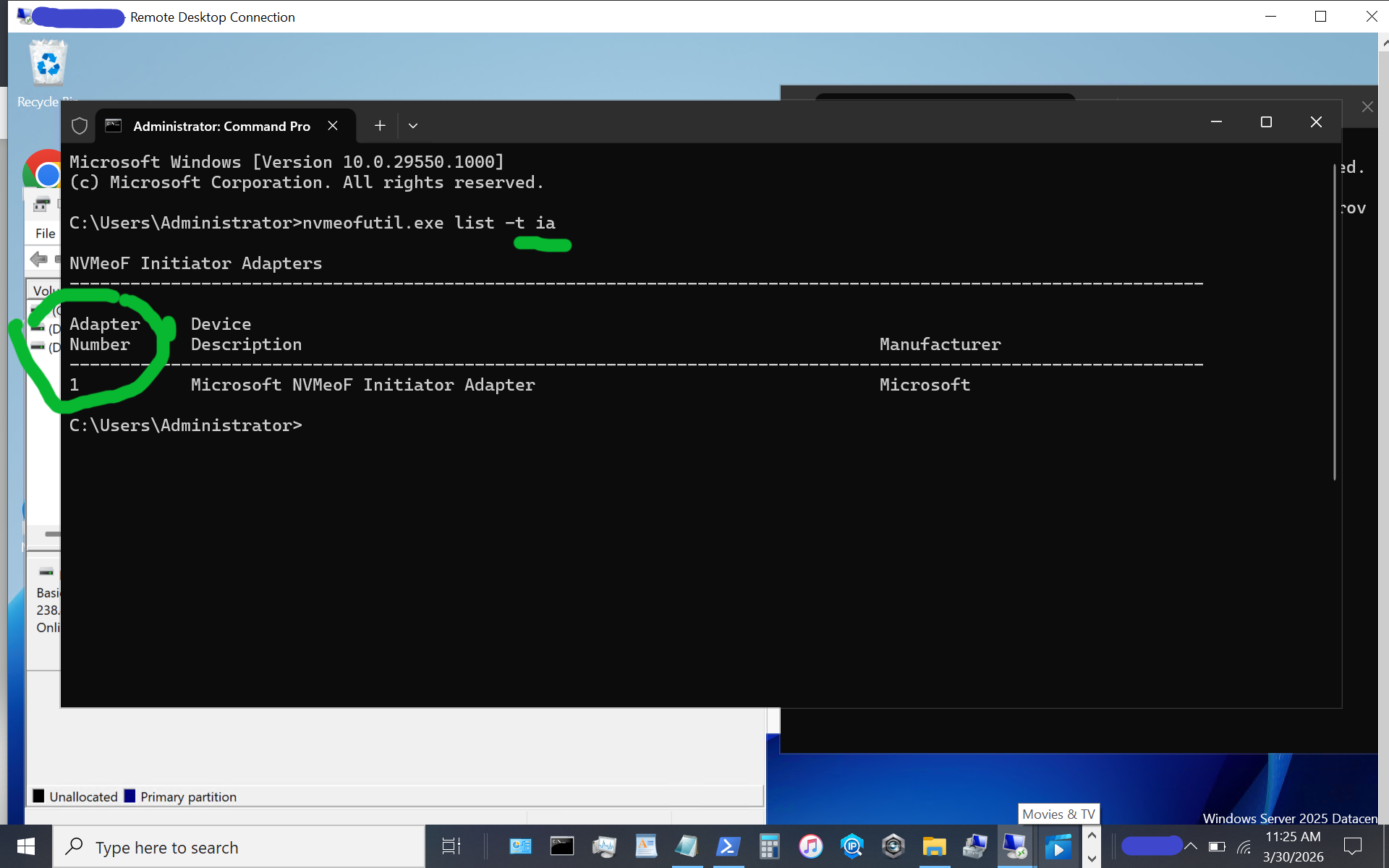
    Server and Storage I/O Benchmarking 101 for Smarties

    Server Storage I/O Benchmarking 101 for Smarties or dummies ;)

    server storage I/O trends

    This is the first of a series of posts and links to resources on server storage I/O performance and benchmarking (view more and follow-up posts here).

    The best I/O is the I/O that you do not have to do, the second best is the one with the least impact as well as low overhead.

    server storage I/O performance

    Drew Robb (@robbdrew) has a Data Storage Benchmarking Guide article over at Enterprise Storage Forum that provides a good framework and summary quick guide to server storage I/O benchmarking.

    Via Drew:

    Data storage benchmarking can be quite esoteric in that vast complexity awaits anyone attempting to get to the heart of a particular benchmark.

    Case in point: The Storage Networking Industry Association (SNIA) has developed the Emerald benchmark to measure power consumption. This invaluable benchmark has a vast amount of supporting literature. That so much could be written about one benchmark test tells you just how technical a subject this is. And in SNIA’s defense, it is creating a Quick Reference Guide for Emerald (coming soon).

    But rather than getting into the nitty-gritty nuances of the tests, the purpose of this article is to provide a high-level overview of a few basic storage benchmarks, what value they might have and where you can find out more. 

    Read more here including some of my comments, tips and recommendations.

    Drew’s provides a good summary and overview in his article which is a great opener for this first post in a series on server storage I/O benchmarking and related resources.

    You can think of this series (along with Drew’s article) as server storage I/O benchmarking fundamentals (e.g. 101) for smarties (e.g. non-dummies ;) ).

    Note that even if you are not a server, storage or I/O expert, you can still be considered a smarty vs. a dummy if you found the need or interest to read as well as learn more about benchmarking, metrics that matter, tools, technology and related topics.

    Server and Storage I/O benchmarking 101

    There are different reasons for benchmarking, such as, you might be asked or want to know how many IOPs per disk, Solid State Device (SSD), device or storage system such as for a 15K RPM (revolutions per minute) 146GB SAS Hard Disk Drive (HDD). Sure you can go to a manufactures website and look at the speeds and feeds (technical performance numbers) however are those metrics applicable to your environments applications or workload?

    You might get higher IOPs with smaller IO size on sequential reads vs. random writes which will also depend on what the HDD is attached to. For example are you going to attach the HDD to a storage system or appliance with RAID and caching? Are you going to attach the HDD to a PCIe RAID card or will it be part of a server or storage system. Or are you simply going to put the HDD into a server or workstation and use as a drive without any RAID or performance acceleration.

    What this all means is understanding what it is that you want to benchmark test to learn what the system, solution, service or specific device can do under different workload conditions.

    Some benchmark and related topics include

    • What are you trying to benchmark
    • Why do you need to benchmark something
    • What are some server storage I/O benchmark tools
    • What is the best benchmark tool
    • What to benchmark, how to use tools
    • What are the metrics that matter
    • What is benchmark context why does it matter
    • What are marketing hero benchmark results
    • What to do with your benchmark results
    • server storage I/O benchmark step test
      Example of a step test results with various workers and workload

    • What do the various metrics mean (can we get a side of context with them metrics?)
    • Why look at server CPU if doing storage and I/O networking tests
    • Where and how to profile your application workloads
    • What about physical vs. virtual vs. cloud and software defined benchmarking
    • How to benchmark block DAS or SAN, file NAS, object, cloud, databases and other things
    • Avoiding common benchmark mistakes
    • Tips, recommendations, things to watch out for
    • What to do next

    server storage I/O trends

    Where to learn more

    The following are related links to read more about server (cloud, virtual and physical) storage I/O benchmarking tools, technologies and techniques.

    Drew Robb’s benchmarking quick reference guide
    Server storage I/O benchmarking tools, technologies and techniques resource page
    Server and Storage I/O Benchmarking 101 for Smarties.
    Microsoft Diskspd download and Microsoft Diskspd overview (via Technet)
    I/O, I/O how well do you know about good or bad server and storage I/Os?
    Server and Storage I/O Benchmark Tools: Microsoft Diskspd (Part I and Part II)

    Wrap up and summary

    We have just scratched the surface when it comes to benchmarking cloud, virtual and physical server storage I/O and networking hardware, software along with associated tools, techniques and technologies. However hopefully this and the links for more reading mentioned above give a basis for connecting the dots of what you already know or enable learning more about workloads, synthetic generation and real-world workloads, benchmarks and associated topics. Needless to say there are many more things that we will cover in future posts (e.g. keep an eye on and bookmark the server storage I/O benchmark tools and resources page here).

    Ok, nuff said, for now…

    Cheers gs

    Greg Schulz – Author Cloud and Virtual Data Storage Networking (CRC Press), The Green and Virtual Data Center (CRC Press) and Resilient Storage Networks (Elsevier)
    twitter @storageio

    All Comments, (C) and (TM) belong to their owners/posters, Other content (C) Copyright 2006-2026 Server StorageIO and UnlimitedIO LLC All Rights Reserved

    Cloud Conversations: Revisiting re:Invent 2014 and other AWS updates

    server storage I/O trends

    This is part one of a two-part series about Amazon Web Services (AWS) re:Invent 2014 and other recent cloud updates, read part two here.

    Revisiting re:Invent 2014 and other AWS updates

    AWS re:Invent 2014

    A few weeks ago I attended Amazon Web Service (AWS) re:Invent 2014 in Las Vegas for a few days. For those of you who have not yet attended this event, I recommend adding it to your agenda. If you have interest in compute servers, networking, storage, development tools or management of cloud (public, private, hybrid), virtualization and related topic themes, you should check out AWS re:invent.

    AWS made several announcements at re:invent including many around development tools, compute and data storage services. One of those to keep an eye on is cloud based Aurora relational database service that complement existing RDS tools. Aurora is positioned as an alternative to traditional SQL based transactional databases commonly found in enterprise environments (e.g. SQL Server among others).

    Some recent AWS announcements prior to re:Invent include

    AWS vCenter Portal

    Using the AWS Management Portal for vCenter adds a plug-in within your VMware vCenter to manage your AWS infrastructure. The vCenter for AWS plug-in includes support for AWS EC2 and Virtual Machine (VM) import to migrate your VMware VMs to AWS EC2, create VPC (Virtual Private Clouds) along with subnet’s. There is no cost for the plug-in, you simply pay for the underlying AWS resources consumed (e.g. EC2, EBS, S3). Learn more about AWS Management Portal for vCenter here, and download the OVA plug-in for vCenter here.

    AWS re:invent content


    AWS Andy Jassy (Image via AWS)

    November 12, 2014 (Day 1) Keynote (highlight video, full keynote). This is the session where AWS SVP Andy Jassy made several announcements including Aurora relational database that complements existing RDS (Relational Data Services). In addition to Andy, the key-note sessions also included various special guests ranging from AWS customers, partners and internal people in support of the various initiatives and announcements.


    Amazon.com CTO Werner Vogels (Image via AWS)

    November 13, 2014 (Day 2) Keynote (highlight video, full keynote). In this session, Amazon.com CTO Werner Vogels appears making announcements about the new Container and Lambda services.

    AWS re:Invent announcements

    Announcements and enhancements made by AWS during re:Invent include:

    • Key Management Service (KMS)
    • Amazon RDS for Aurora
    • Amazon EC2 Container Service
    • AWS Lambda
    • Amazon EBS Enhancements
    • Application development, deployed and life-cycle management tools
    • AWS Service Catalog
    • AWS CodeDeploy
    • AWS CodeCommit
    • AWS CodePipeline

    Key Management Service (KMS)

    Hardware security module (HSM) based key managed service for creating and control of encryption keys to protect security of digital assets and their keys. Integration with AWS EBS and others services including S3 and Redshift along with CloudTrail logs for regulatory, compliance and management. Learn more about AWS KMS here

    AWS Database

    For those who are not familiar, AWS has a suite of database related services including SQL and no SQL based, simple to transactional to Petabyte (PB) scale data warehouses for big data and analytics. AWS offers the Relational Database Service (RDS) which is a suite of different database types, instances and services. RDS instance and types include SimpleDB, MySQL, Postgress, Oracle, SQL Server and the new AWS Aurora offering (read more below).  Other little data database and big data repository related offerings include DynamoDB (a non-SQL database), ElasticCache (in memory cache repository) and Redshift (large-scale data warehouse and big data repository).

    In addition to database services offered by AWS, you can also combine various AWS resources including EC2 compute, EBS and other storage offerings to create your own solution. For example there are various Amazon Machine Images (AMI’s) or pre-built operating systems and database tools available with EC2 as well as via the AWS Marketplace , such as MongoDB and Couchbase among others. For those not familiar with MongoDB, Couchbase, Cassandra, Riak along with other non SQL or alternative databases and key value repositories, check out Seven Databases in Seven Weeks in my book review of it here.

    Seven Databases book review
    Seven Databases in Seven Weeks and NoSQL movement available from Amazon.com

    Amazon RDS for Aurora

    Aurora is a new relational database offering part of the AWS RDS suite of services. Positioned as an alternative to commercial high-end database, Aurora is a cost-effective database engine compatible with MySQL. AWS is claiming 5x better performance than standard MySQL with Aurora while being resilient and durable. Learn more about Aurora which will be available in early 2015 and its current preview here.

    Amazon EC2 C4 instances

    AWS will be adding a new C4 instance as a next generation of EC2 compute instance based on Intel Xeon E5-2666 v3 (Haswell) processors. The Intel Xeon E5-2666 v3 processors run at a clock speed of 2.9 GHz providing the highest level of EC2 performance. AWS is targeting traditional High Performance Computing (HPC) along with other compute intensive workloads including analytics, gaming, and transcoding among others. Learn more AWS EC2 instances here, and view this Server and StorageIO EC2, EBS and associated AWS primer here.

    Amazon EC2 Container Service

    Containers such as those via Docker have become popular to support developers rapidly build as well as deploy scalable applications. AWS has added a new feature called EC2 Container Service that supports Docker using simple API’s. In addition to supporting Docker, EC2 Container Service is a high performance scalable container management service for distributed applications deployed on a cluster of EC2 instances. Similar to other EC2 services, EC2 Container Service leverages security groups, EBS volumes and Identity Access Management (IAM) roles along with scheduling placement of containers to meet your needs. Note that AWS is not alone in adding container and docker support with Microsoft Azure also having recently made some announcements, learn more about Azure and Docker here. Learn more about EC2 container service here and more about Docker here.

    Docker for smarties

    Continue reading about re:Invent 2014 and other recent AWS enhancements here in part two of this two-part series.

    Ok, nuff said (for now)

    Cheers gs

    Greg Schulz – Author Cloud and Virtual Data Storage Networking (CRC Press), The Green and Virtual Data Center (CRC Press) and Resilient Storage Networks (Elsevier)
    twitter @storageio

    All Comments, (C) and (TM) belong to their owners/posters, Other content (C) Copyright 2006-2026 Server StorageIO and UnlimitedIO LLC All Rights Reserved

    Some Windows Server Storage I/O related commands

    Storage I/O trends

    Some Windows Server Storage I/O related commands

    The following are some commands and tools for Microsoft Windows environments that are useful for storage I/O activities (among others).

    Microsoft Windows

    Finding a Windows physical disk, SSD or storage system device name

    So you may know and how to find out the more familiar Windows storage device (Solid State DeviceSSD, Hard Disk DrivesHDD among others) names such as A:, B:, C:, D: as what you can view from the Windows Explorer, Computer or Admin tools.

    Windows storage devices

    However what if you need to find out a physical name for raw (not mounted) and mounted devices for configuration? For example, if you have a tool that wants the physical name for your C: drive that might be \\.\PhysicalDrive0\?

    No worries, use the command WMIC DISKDRIVE LIST BRIEF

    WIndows physical device name

    Need more detail about the devices beyond what is shown above?

    Then use WMIC DISKDRIVE LIST or as in the above example, direct the output to a file with the results shown below (scroll to the left or right to see more detail information).

            Availability  BytesPerSector  Capabilities  CapabilityDescriptions                 CompressionMethod  ConfigManagerErrorCode  ConfigManagerUserConfig  DefaultBlockSize  Description  DeviceID            ErrorCleared  ErrorDescription  ErrorMethodology  Index  InstallDate  InterfaceType  LastErrorCode  Manufacturer            MaxBlockSize  MaxMediaSize  MediaLoaded  MediaType              MinBlockSize  Model                                  Name                NeedsCleaning  NumberOfMediaSupported  Partitions  PNPDeviceID                                                  PowerManagementCapabilities  PowerManagementSupported  SCSIBus  SCSILogicalUnit  SCSIPort  SCSITargetId  SectorsPerTrack  Signature   Size           Status  StatusInfo  SystemName  TotalCylinders  TotalHeads  TotalSectors  TotalTracks  TracksPerCylinder  
                  512             {3, 4}        {"Random Access", "Supports Writing"}                     0                       FALSE                                      Disk drive   \\.\PHYSICALDRIVE2                                                    2                   SCSI                          (Standard disk drives)                              TRUE         Fixed hard disk media                ATA ST3000DM001-1CH1 SCSI Disk Device  \\.\PHYSICALDRIVE2                                         0           SCSI\DISK&VEN_ATA&PROD_ST3000DM001-1CH1\5&3626375C&0&000600                                                         0        0                3         6             63               0           3000590369280  OK                  DBIOTEST    364801          255         5860528065    93024255     255                
                  512             {3, 4}        {"Random Access", "Supports Writing"}                     0                       FALSE                                      Disk drive   \\.\PHYSICALDRIVE3                                                    3                   SCSI                          (Standard disk drives)                              TRUE         Fixed hard disk media                SEAGATE ST600MP0034 SCSI Disk Device   \\.\PHYSICALDRIVE3                                         0           SCSI\DISK&VEN_SEAGATE&PROD_ST600MP0034\5&3626375C&0&000A00                                                          0        0                3         10            63                           600124654080   OK                  DBIOTEST    72961           255         1172118465    18605055     255                
                  512             {3, 4}        {"Random Access", "Supports Writing"}                     0                       FALSE                                      Disk drive   \\.\PHYSICALDRIVE4                                                    4                   SCSI                          (Standard disk drives)                              TRUE         Fixed hard disk media                SEAGATE ST600MX0004 SCSI Disk Device   \\.\PHYSICALDRIVE4                                         0           SCSI\DISK&VEN_SEAGATE&PROD_ST600MX0004\5&3626375C&0&000C00                                                          0        0                3         12            63                           600124654080   OK                  DBIOTEST    72961           255         1172118465    18605055     255                
                  512             {3, 4}        {"Random Access", "Supports Writing"}                     0                       FALSE                                      Disk drive   \\.\PHYSICALDRIVE1                                                    1                   SCSI                          (Standard disk drives)                              TRUE         Fixed hard disk media                SEAGATE ST9300603SS SCSI Disk Device   \\.\PHYSICALDRIVE1                                         0           SCSI\DISK&VEN_SEAGATE&PROD_ST9300603SS\5&3626375C&0&000400                                                          0        0                3         4             63                           299992412160   OK                  DBIOTEST    36472           255         585922680     9300360      255                
                  512             {3, 4}        {"Random Access", "Supports Writing"}                     0                       FALSE                                      Disk drive   \\.\PHYSICALDRIVE0                                                    0                   SCSI                          (Standard disk drives)                              TRUE         Fixed hard disk media                VMware Virtual disk SCSI Disk Device   \\.\PHYSICALDRIVE0                                         2           SCSI\DISK&VEN_VMWARE&PROD_VIRTUAL_DISK\5&1982005&1&000000                                                           0        0                2         0             63               -873641784  64420392960    OK                  DBIOTEST    7832            255         125821080     1997160      255    
    

    Remembering (or learning) Xcopy

    Some of you might be familiar with Xcopy and if not, it is a handy tool for copying files, folders and directories to local as well as networked storage. Some handy Xcopy command switches include:

    /j = use un-buffered IO for large files
    /y = suppress prompting
    /c = continue if error
    /E = copy sub directories
    /H = copy hidden files
    /Q = quiet mode (don’t list files being copied)

    In the following example the content of the Videos folder and its sub-directories (83.5GB) are copied to another destination. Note the Time /T command that is also shown which is useful for timing how long the copy takes (e.g. subtract start-time from end-time and you have elapsed time). In this example 83.5GB are copied from one place to another on the same SSD device and using the results of the Time /T command the elapsed time was about 12 minutes.

    Windows SSD TRIM
    Xcopy command example

    Diskpart, don’t be scared, however be careful

    Ever have a Windows storage device or system that failed to boot, or a problem with a partition, volume or other issue?

    How about running into a situation where you are not able to format a device that you know and can confirm is ok to erase, yet you get a message that the volume is write protected or read only?

    Diskpart is handy, powerful and potentially dangerous tool if you are not careful as you could mistakenly drop a good volume or partition (e.g. the importance of having good backups). However Diskpart can be used to help repair storage devices that have boot problems, or for clearing read only attributes among other tasks. If you are prefer GUI interfaces, many of the Diskpart functions can also be done via Disk Management interface (e.g. Control Panel -> All Control Panel Items -> Administrative Tools -> Computer Management -> Storage -> Disk Management ). Note that Diskpart to do certain functions will need to be run as Administrator.

    windows diskpart

    In the above example the LIST DISK command shows what disks are present (on-line or off-line) which means that you may see devices here that do not show up elsewhere. Also shown is selecting a disk and then listing partitions, selecting a partition and showing attributes. The Attribute command can be used for clearing Read Only modes should a partition become write protected.

    Hint, ever have a device that was once had VMware installed on it, then you move it to Windows and try to reformat for use and get a Read Only error? If so, you will want to have a look at Diskpart and the Attribute commands. However BE CAREFULL and pay attention which disk, partition and volumes you are working with as you can easily cause a problem that would result in testing how good your backups are.

    Is SATA SSD TRIM Enabled?

    If you have a SATA SSD the TRIM command is a form of garbage collection that is supported with Windows 7 (SAS drives use the SCSI UNMAP). Not sure if your system has TRIM enabled? Try the following command as administrator. Note that if you see a result of "0" then TRIM is enabled while a value of "1" means that it is disabled for your system.

    Windows SSD TRIM

    Want to learn more about TRIM, check out this piece from Intel as well as this Microsoft Windows item.

    Having issues with collecting CPU and performance statistics?

    Have an issue or problem collecting your system statistics, or when running a benchmark, workload generation tool such as vdbench and getting an "Unable to obtain CPU statistics"?

    Try the Lodctr /R command (as administrator), however read this Microsoft Tip first to learn more.

    Windows Lodctr /R

    Sdelete and drive erase

    Like its name implies, if you do not have this tool, you can download it here from Microsoft to not only delete files, folders, as well as write "0" patterns across a disk to secure erase it. You can specify the number of times you want to run the write "0" patterns across a disk to meet your erasure requirements.

    There is also another use for Sdelete which is if you need or want to pre-condition a SSD or other device such as for testing, you can run a pre-conditioning pass using Sdelete.

    Some command options include -p #n where "n" is the number of times to run, -s recursive to process sub-directories, -z to write "0" or zero out the space on the device, -c for clean, -a to process read-only attributes. Learn more and get your copy of Sdelete from Microsoft here.

    Rufus, Seatools, Samsung Disk Magician and Cyberduck

    A handy tool available from Seagate (may only work with Seagate and their partner devices) is SeaTools that can give drive information, health and status as well as perform various tests including SMART.

    Seagate Seatools
    Seagate Seatools example

    Different HDD and SSD as well as storage system vendors give tools for configuration, monitoring, management and in some cases data movement with their solutions. Samsung SSD Magician is a tool I have installed for managing my SSDs (830 and 840 Pros) that has features for updating firmware, drive health as well as performance optimization. Other hand tools include the Samsung copy tool based on Clonix as Acronis among other clone or data migration utilities (more on those in a future post).

    Samsung SSD Magician
    Samsung SSD Magician

    While the Microsoft WIndows USB Tool is handy for dealing with Microsoft ISO, however for creating USB’s with ISO’s such as for installing VMware or Linux on bare metal systems, Rufus is a handy tool to have in the tool-box.

    Rufus ISO to USB tool

    Another useful tool that functions as an SSH and FTP utility is Cyberduck that also supports access to Amazon S3 among other cloud services.

    There are many other tools for server, storage I/O and other activities on WIndows, not to mention other platforms, however hopefully you find the above useful.

    How about it, what’s your favorite Windows server, storage I/O tools and commands?

    Ok, nuff said (for now)

    Cheers
    Gs

    Greg Schulz – Author Cloud and Virtual Data Storage Networking (CRC Press), The Green and Virtual Data Center (CRC Press) and Resilient Storage Networks (Elsevier)
    twitter @storageio

    All Comments, (C) and (TM) belong to their owners/posters, Other content (C) Copyright 2006-2026 Server StorageIO and UnlimitedIO LLC All Rights Reserved

    IBM Server Side Storage I/O SSD Flash Cache Software

    Storage I/O trends

    IBM Server Side Storage I/O SSD Flash Cache Software

    As I often say, the best server storage I/O or IOP is the one that you do not have to do. The second best storage I/O or IOP is the one with least impact or that can be done in a cost-effective way. Likewise the question is not if solid-state device (SSD) including nand flash are in your future, rather when, where, why, with what, how much along with from whom. Also location matters when it comes to SSD including nand flash with different environments and applications leveraging different placement (locality) options, not to mention how much performance do you need vs. want?

    As part of their $1 billion USD (to be spent over three years, or $333.3333 million per year) flash ahead initiative IBM has announced their Flash Cache Storage Accelerator (FCSA) server software. While IBM did not use the term, (congratulations and thank you btw) some creative marketer might want to try calling this Software Defined Cache (SDC) or Software Defined SSD (SDSSD) which if that occurs, apologies in advance ;). Keep in mind that it was about a year ago this time when IBM announced that they were acquiring SSD industry veteran Texas Memory Systems (TMS).

    What was announced, introducing Flash Cache Storage Acceleration or FCSA

    With this announcement of FCSA slated for customer general availability by end of August, IBM joins EMC and NetApp among other storage systems vendors who developed their own, or have collaborated on server-side IO optimization and cache software. Some of the other startup and established vendors who have IO optimization, performance acceleration and caching software include DataRam (Ramdisk), FusionIO, Infinio (NFS for VMware), Pernix (block for VMware), Proximal and SANdisk (bought flashsoft) among others.

    Read more about IBM Flash Cache Software (FCSA) including various questions and perspectives in part two of this two-part post located here.

    Ok, nuff said (for now)

    Cheers
    Gs

    Greg Schulz – Author Cloud and Virtual Data Storage Networking (CRC Press), The Green and Virtual Data Center (CRC Press) and Resilient Storage Networks (Elsevier)

    All Comments, (C) and (TM) belong to their owners/posters, Other content (C) Copyright 2006-2026 Server StorageIO and UnlimitedIO LLC All Rights Reserved