A few weeks ago, Microsoft released a new Insider’s build of Windows Server vnext with NVMeoF host initiator. This post looks at installing and setting up the new initiator for testing. Granted, this is for testing and evaluating the NVMe over Fabric (NVMeoF) that supports TCP and RDMA for networked block storage with a Windows Server vnext host, and a Linux test target. Given that this is for a simple test and trying things out, you will want to adjust some of the security and access control settings on both the initiator and target sides.
For the host NVMeoF initiator, you will need a current version of the insider build release of Windows Server vnext available here. You will also need some type of NVMeoF target, such as a storage system or platform that supports NVMeoF via TCP or RDMA, or a test initiator, for example, on a Linux system. For my test target, I set up an Ubuntu 25 Linux server with a small 50GB device to export as an NVMeoF device.
sudo apt install nvme-cli -y
sudo modprobe nvmet
sudo modprobe nvmet-tcp
lsmod | grep nvmet
You should then see something like the following:
nvmet_tcp 45056 1
nvmet 249856 7 nvmet_tcp
nvme_core 241664 4 nvmet,nvme_tcp,nvme,nvme_fabrics
nvme_keyring 20480 5 nvmet,nvme_tcp,nvmet_tcp,nvme_core,nvme_fabrics
nvme_auth 28672 2 nvmet,nvme_core
Continue with the NVMeoF target setup:
sudo mount -t configfs none /sys/kernel/config
cd /sys/kernel/config/nvmet
# define your nqn which can be what ever you like, or have
sudo mkdir subsystems/nqn-2026-03.com:nvme.storageio01
# since this is for testing, this is being loose with access control
echo 1 | sudo tee subsystems/nqn-2026-03.com:nvme.storageio01/attr_allow_any_host
sudo mkdir subsystems/nqn-2026-03.com:nvme.storageio01/namespaces/1
# specify device to use as target, the device could be a partition, volume, file, etc
echo /dev/sdb | sudo tee subsystems/nqn-2026-03.com:nvme.storageio01/namespaces/1/device_path
echo 1 | sudo tee subsystems/nqn-2026-03.com:nvme.storageio01/namespaces/1/enable
# You can select what port you want to use. For testing, used 4420
sudo mkdir ports/4420
echo tcp | sudo tee ports/4420/addr_trtype
echo 192.168.1.205 | sudo tee ports/4420/addr_traddr
echo 4420 | sudo tee ports/4420/addr_trsvcid
echo ipv4 | sudo tee ports/4420/addr_adrfam
# For non-testing, you can adjust access to suit your needs
sudo ufw allow 4420/tcp
# now make the target accessible
sudo ln -s /sys/kernel/config/nvmet/subsystems/nqn-2026-03.com:nvme.storageio01 /sys/kernel/config/nvmet/ports/4420/subsystems/nqn-2026-03.com:nvme.storageio01
# now lets see if there is a listener
sudo ss -ltnp | grep 4420
# Should see something like this:
LISTEN 0 128 192.168.1.205:4420 0.0.0.0:*
# now lets discover whats out there based on what we have setup
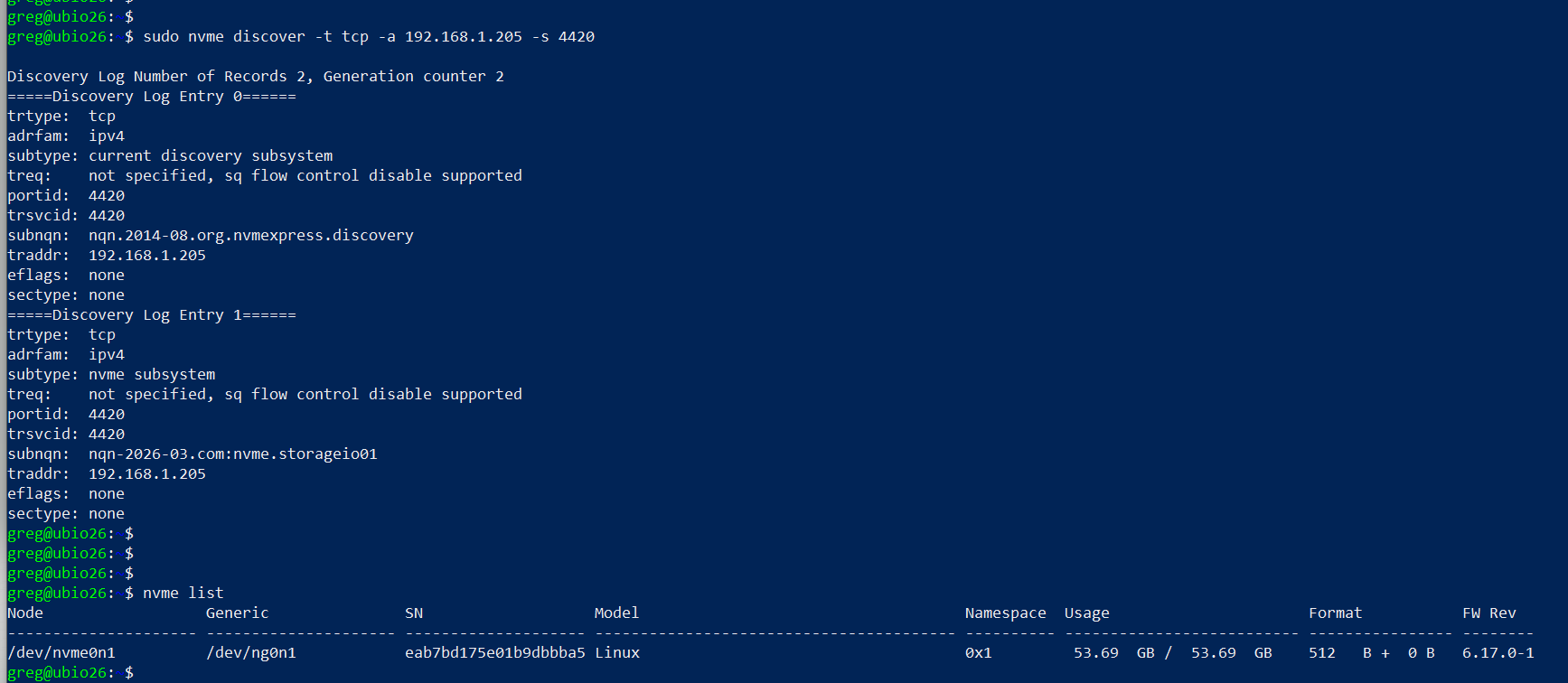
sudo nvme discover -t tcp -a 192.168.1.205 -s 4420
# should see something like this:
Discovery Log Number of Records 2, Generation counter 2
=====Discovery Log Entry 0======
trtype: tcp
adrfam: ipv4
subtype: current discovery subsystem
treq: not specified, sq flow control disable supported
portid: 4420
trsvcid: 4420
subnqn: nqn.2014-08.org.nvmexpress.discovery
traddr: 192.168.1.205
eflags: none
sectype: none
=====Discovery Log Entry 1======
trtype: tcp
adrfam: ipv4
subtype: nvme subsystem
treq: not specified, sq flow control disable supported
portid: 4420
trsvcid: 4420
subnqn: nqn-2026-03.com:nvme.storageio01
traddr: 192.168.1.205
eflags: none
sectype: none
# if you want to connect from the Linux server
sudo nvme connect -t tcp -a 192.168.1.205 -s 4420 -n nqn-2026-03.com:nvme.storageio01
# and then list the targets
nvme list
# you should see something like this:
Node Generic SN Model Namespace Usage Format FW Rev
——————— ——————— ——————– —————————————- ———- ————————– —————- ——–
/dev/nvme0n1 /dev/ng0n1 eab7bd175e01b9dbbba5 Linux 0x1 53.69 GB / 53.69 GB 512 B + 0 B 6.17.0-1
Now, on your Windows Server vnext, open a command window with elevated access (e.g., Run as Administrator) and use the following, making note of the parameters from the target (e.g., IP address, port 4420, nqn).
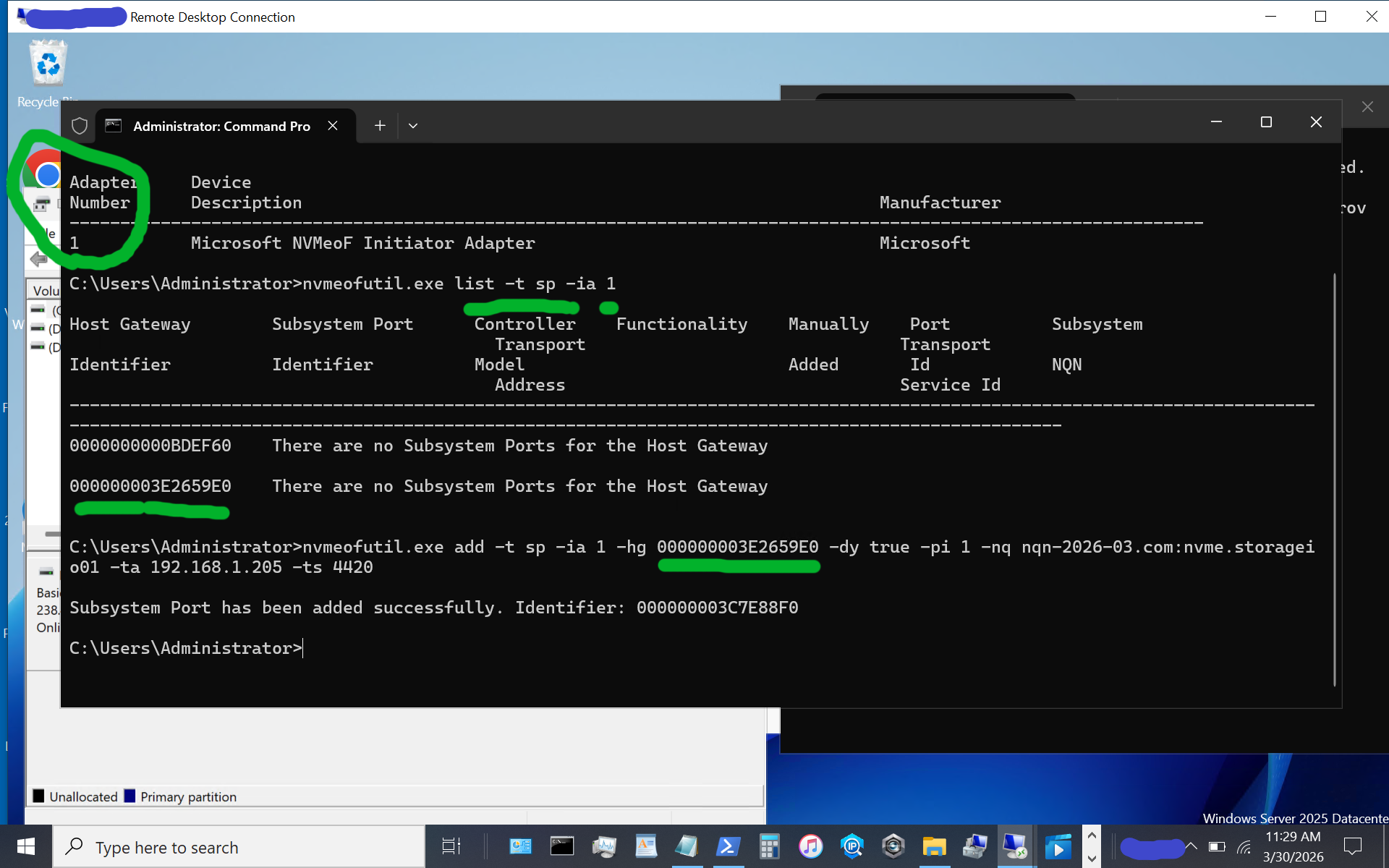
Here is a screen shot of the host initiator before the NVMeoF target appears.
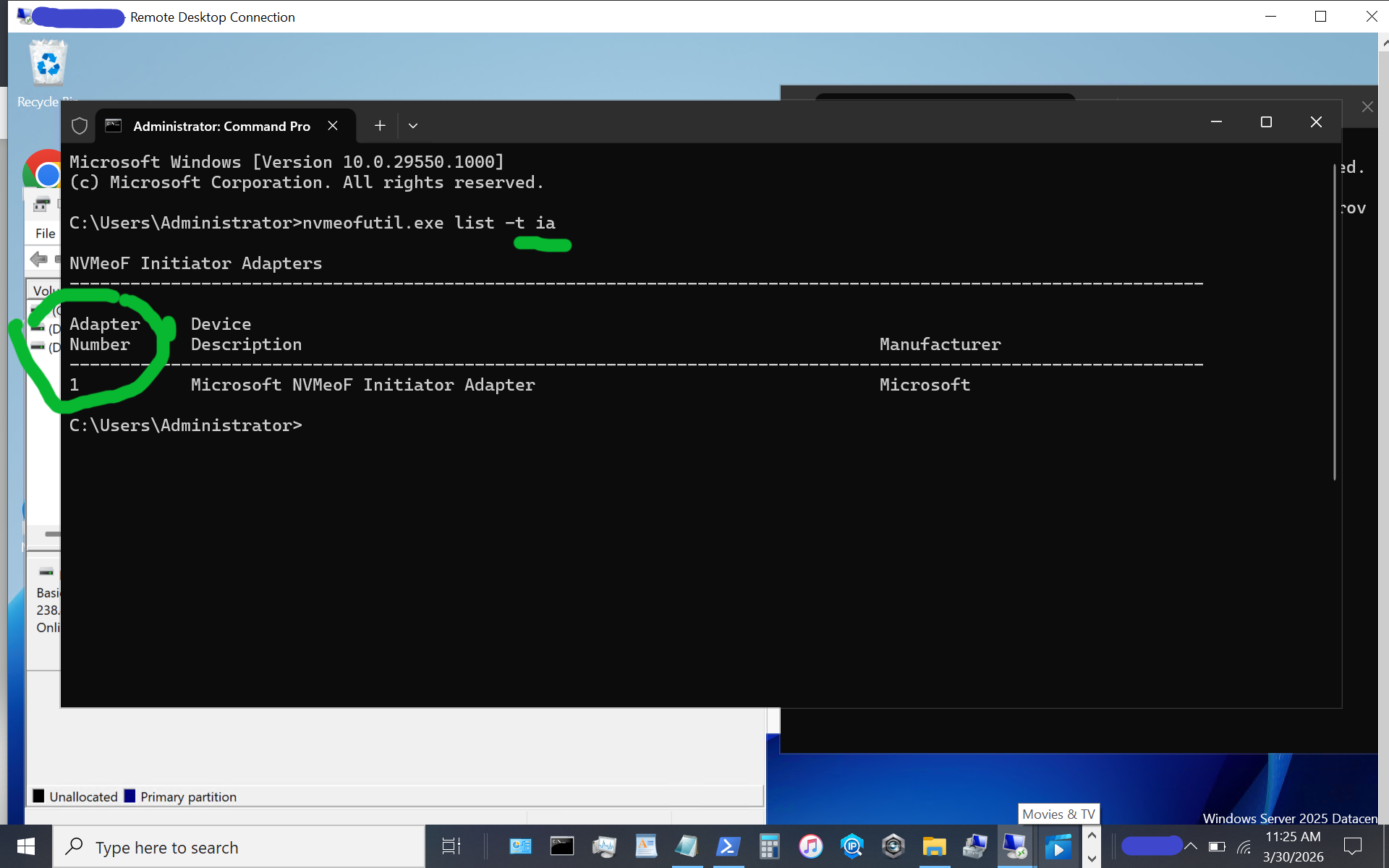
Now display available NVMeoF initiators using this command:
nvmeofutil.exe list -t ia
Note the host adapter number (e.g., 1) which will be used in the next step to get host gateway information.
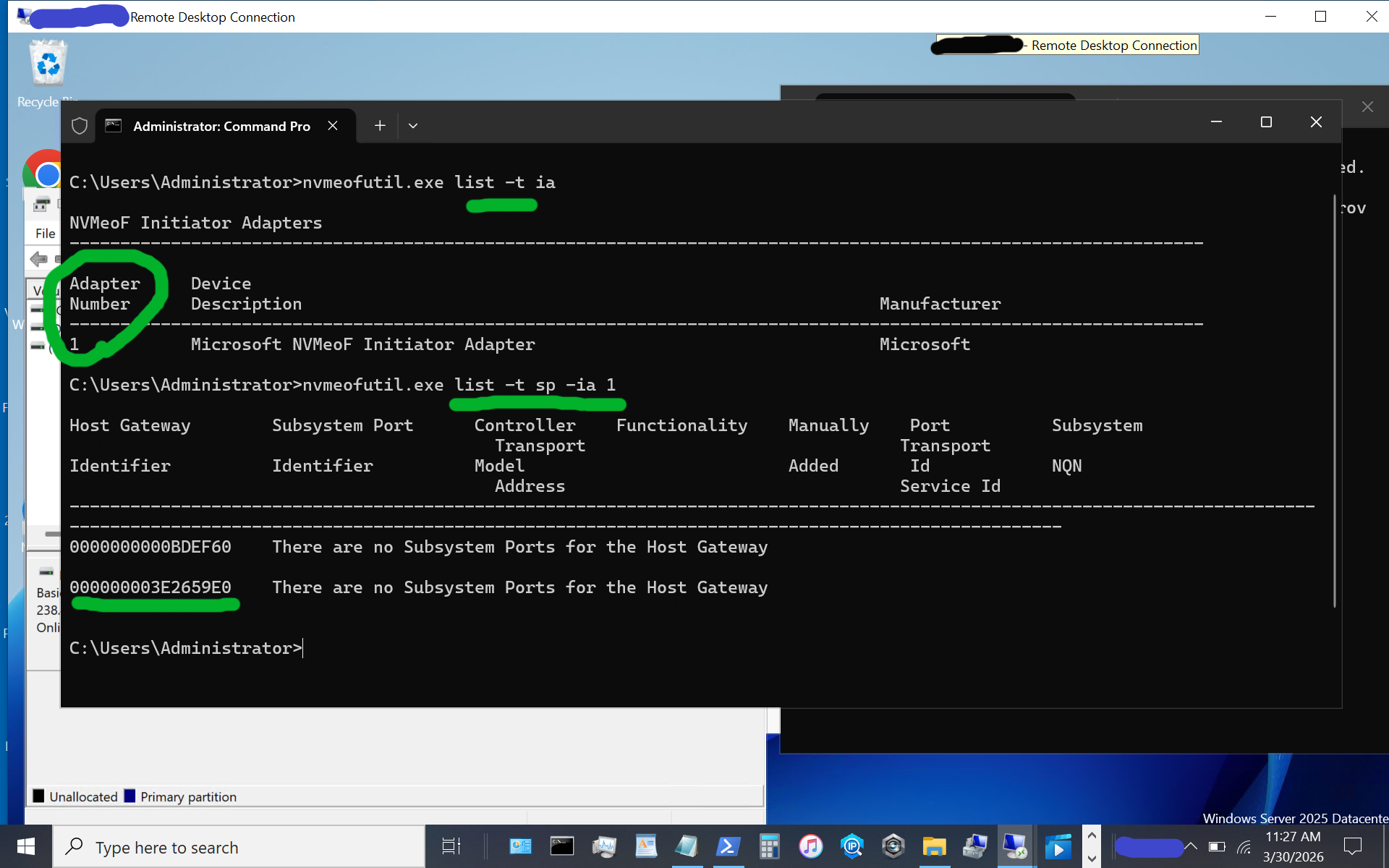
nvmeofutil.exe list -t sp -ia 1
Note the host gateway, target IP address, target port, and target nqn. Also note that there is an IPV6 and IPV4, in this example there is no IPV6 being used, so we are using the 2nd item (e.g. IPV4).
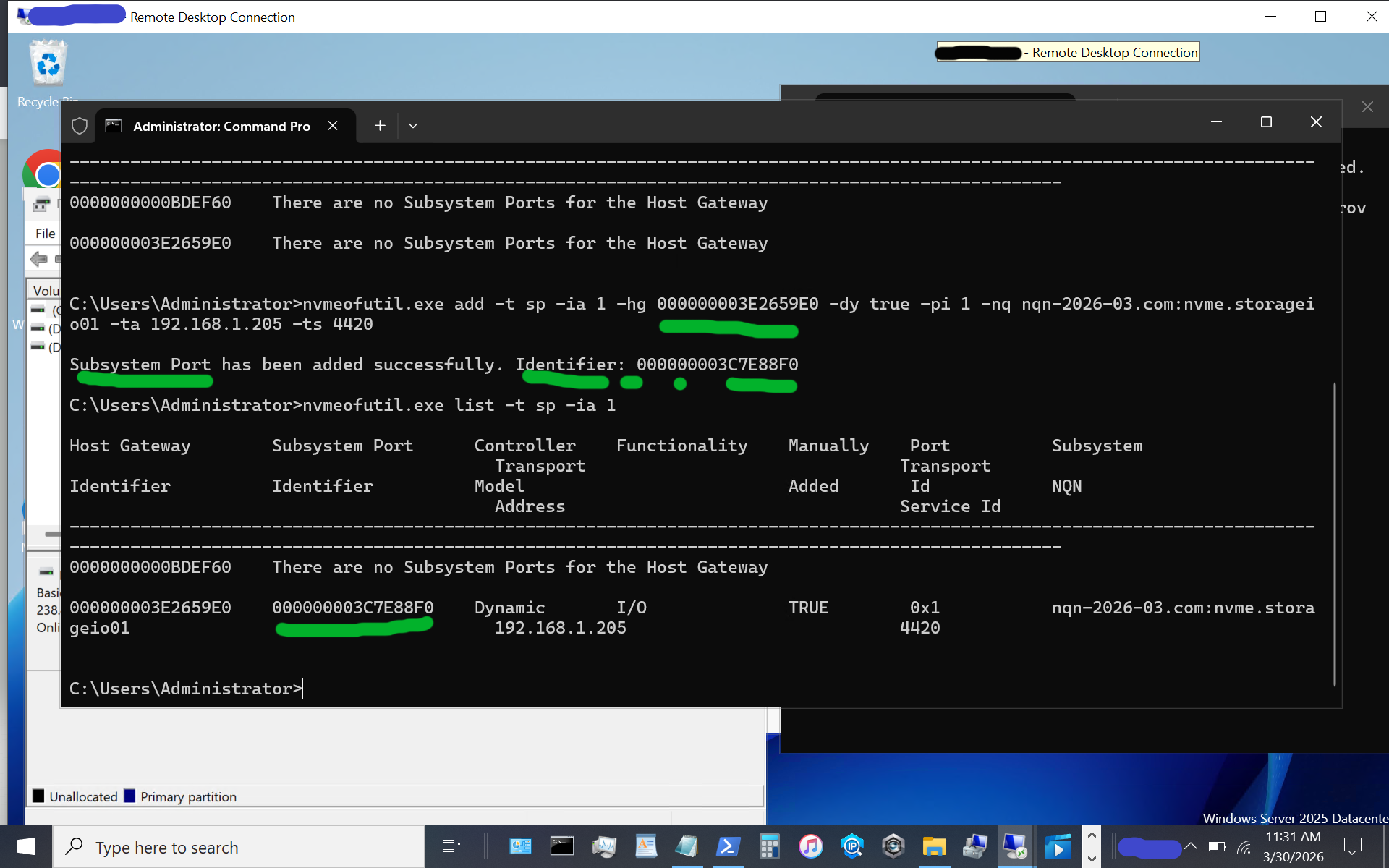
nvmeofutil.exe add -t sp -ia 1 -hg -dy true -pi 1 -nq nqn-2026-03.com:nvme.storageio01 -ta 192.168.1.205 -ts 4420
Now, let’s identify the target subsystem ID.
nvmeofutil.exe list -t sp -ia 1
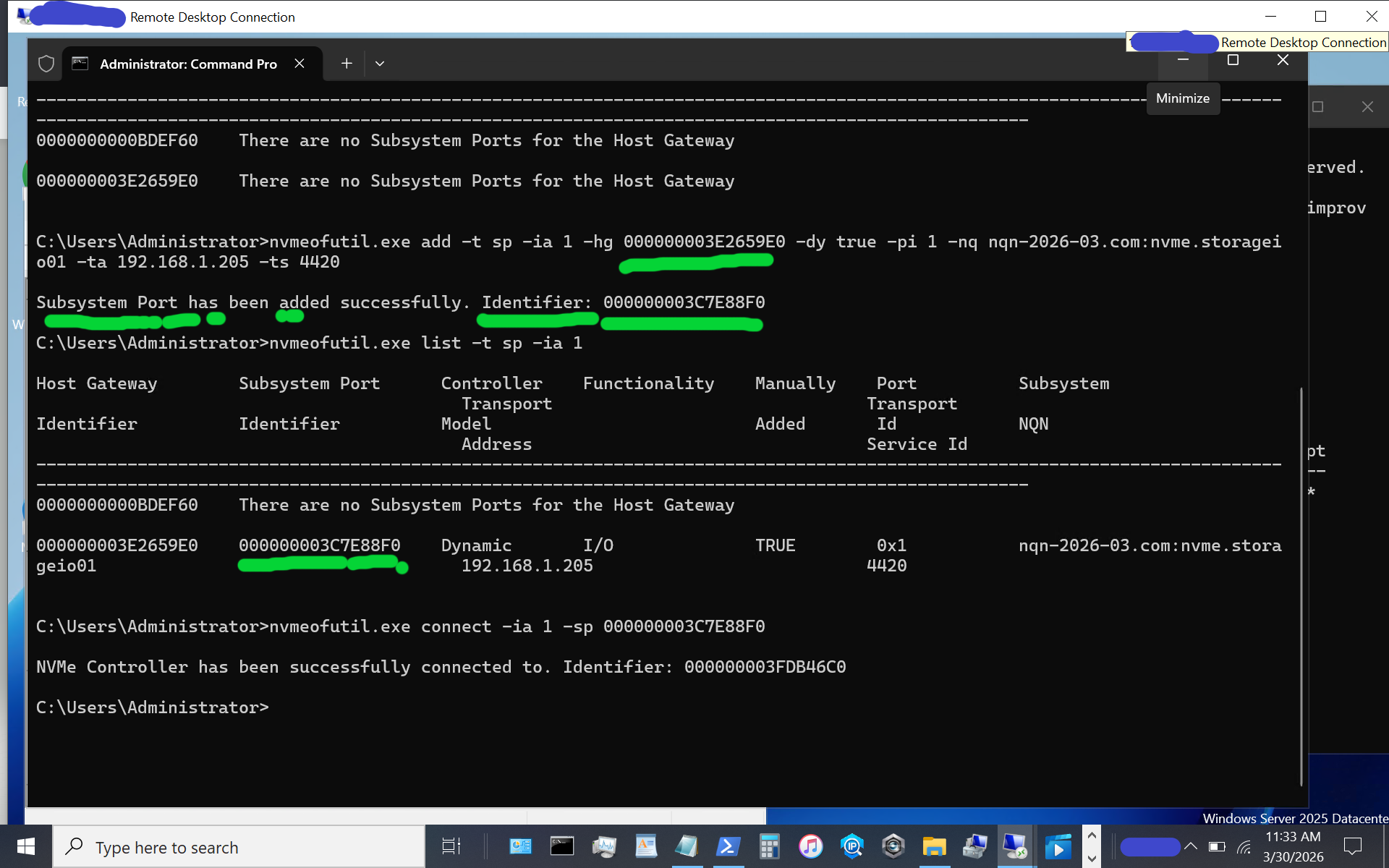
Now, let’s use the subsystem port from above to connect to the target. Note that in some of the instructions I have seen, there is a reference to sp without an sp shown; thus, the previous steps help identify the sp to use.
nvmeofutil.exe connect -ia 1 -sp 000000003C7E88F0
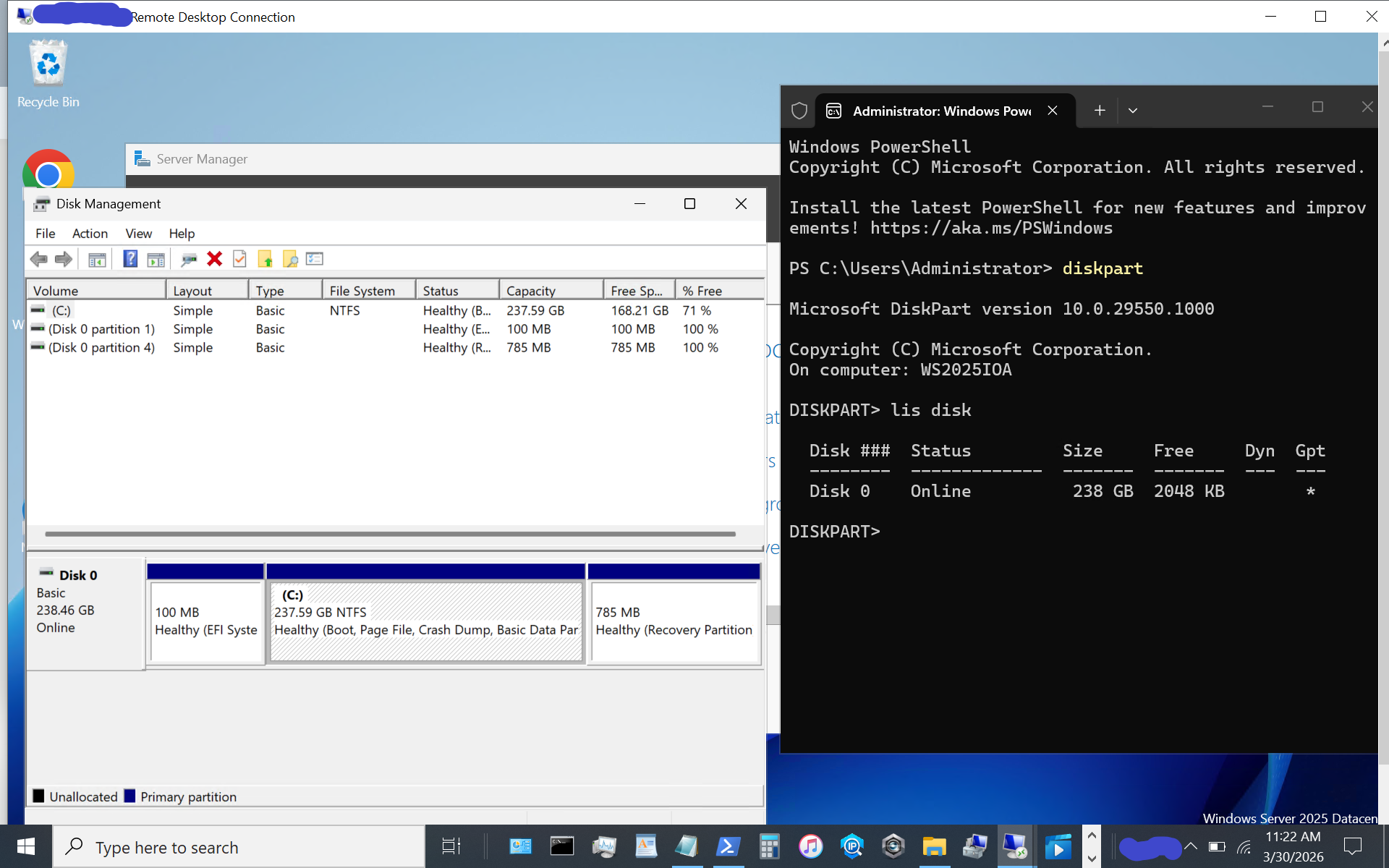
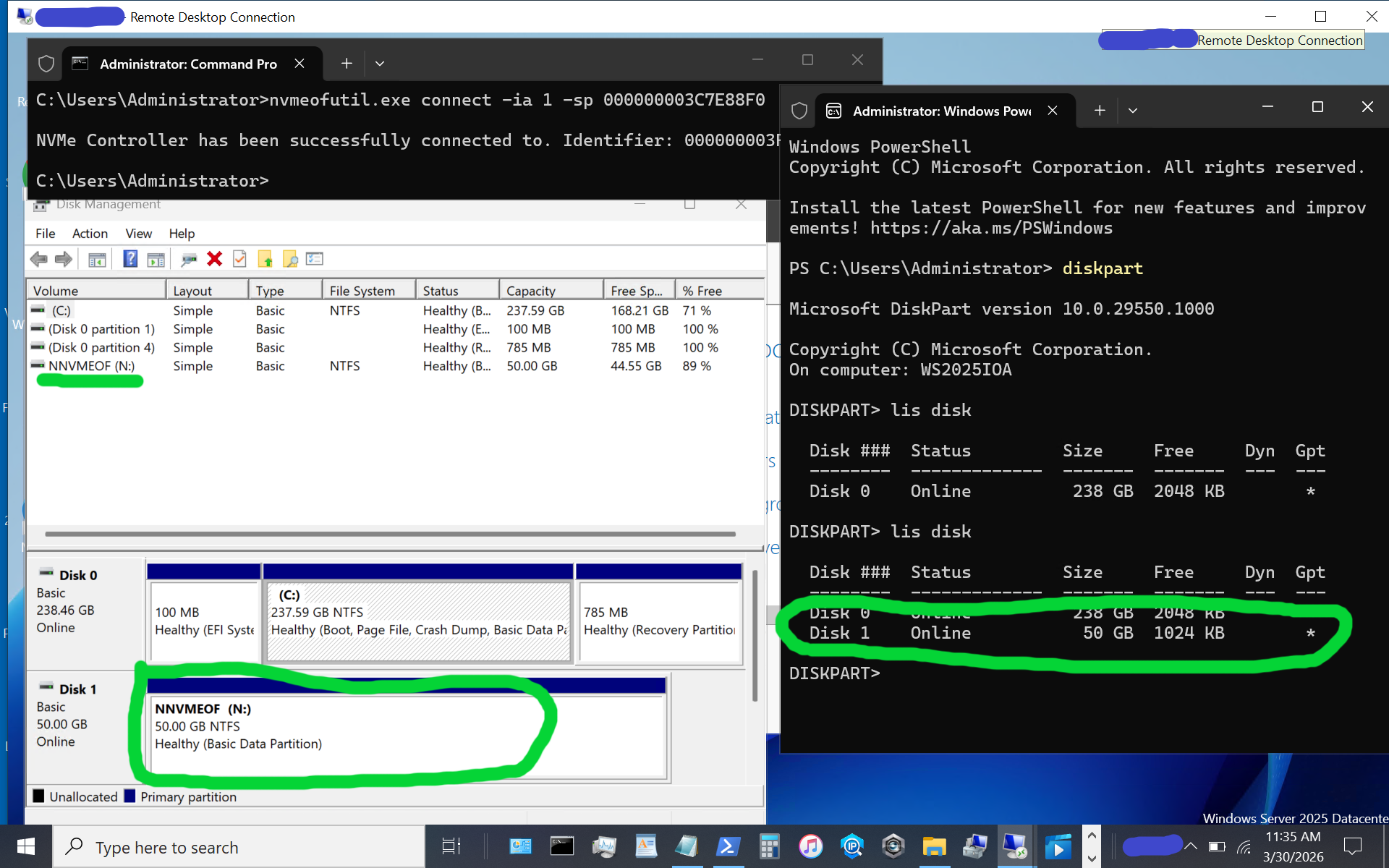
Congratulations, at this point, you should see a new disk or volume appear on your Windows Server vnext host system.
The above image shows what appears when using diskpart, as well as the disk format utility, or use your preferred command, PowerShell script, or tool. If the disk or volume has not yet been used, it must be initialized and formatted. Otoh, as in this example, the disk volume had previously been initialized and formatted as a simple NTFS volume.
Again, reiterating, the above is for simple testing and evaluation, with loose security and persistence that you will want to tighten up as needed. The whole process is pretty easy as long as you don’t make any typos, for example, with nqn or other items.
Microsoft Windows Server Insider Build NVMeoF Initiator (Blog post)
NVMe Linux Driver and related info
Announcing Native NVMe in Windows Server 2025 (Microsoft Post)
Introducing the Windows NVMe-oF Initiator Preview in Windows Server Insiders Builds (Microsoft Post)
Windows Server Insider Builds (Microsoft Downloads)
ToE NVMeoF TCP Performance Boost Performance Reduce Costs (blog post)
TheNVMeplace.com (Various NVMe resources)
Azure Cloud Storage here (Microsoft Post)
Microsoft Azure Data Box (Blog Post)
Azure Elastic SAN from Cloud to On-Prem here (Blog Post)
Cloud and Software Defined Data Infrastructure topics here
Additional learning experiences along with common questions (and answers) pertaining to SCSI, Fibre Channel, NVMe, Cloud, Hardware, Software, Services, techniques, server, storage, I/O networking, data protection among other topics are found in my Software Defined Data Infrastructure Essentials book.
With the insiders preview of Windows Server vnext you have the opportunity to try out the new NVMeoF initiator using TCP and RDMA including on Ethernet based fabric networks. The current insiders build utilizes the nvmeofutility.exe for initial testing, evaluations and experiments while future releases should see other management tools and interfaces such as Powershell cmdlets among others.
Ok, nuff said.
Cheers Gs
Greg Schulz – Ten time Microsoft MVP Cloud and Data Center Management and Azure Storage, along with previous ten-time VMware vExpert. Author of Software Defined Data Infrastructure Essentials (CRC Press), as well as Cloud and Virtual Data Storage Networking (CRC Press), The Green and Virtual Data Center (CRC Press), Resilient Storage Networks (Elsevier) and twitter @storageio. Courteous comments are welcome for consideration. First published on https://storageioblog.com any reproduction in whole, in part, with changes to content, without source attribution under title or without permission is forbidden.
All Comments, (C) and (TM) belong to their owners/posters, Other content (C) Copyright 2006-2026 Server StorageIO and UnlimitedIO. All Rights Reserved. StorageIO is a registered Trade Mark (TM) of UnlimitedIO LLC.
Why Its Time for NVMeoF Its Time for NVMeoF to let iSCSI begin its slow…
Microsoft Windows Server Insider Build NVMeoF Initiator In case you haven't heard, in addition to…
Azure Cloud Storage Options Recently I was a guest on fellow Microsoft MVP Navika Chhauda…
RTO Context Matters With RTO context matters similar to many things in and around Information…
What is Azure Elastic SAN Azure Elastic SAN (AES) is a new (now GA) Azure…
Yes, you read that correctly, Microsoft Hyper-V is alive and enhanced with Windows Server 2025,…